
Compaq Evo N1000v Keyboard Replacement

Last updated on Jan 9, 2025
Views: 4.3K
View statistics:
- Past 24 Hours:
- 2
- Past 7 Days:
- 25
- Past 30 Days:
- 94
- All Time:
- 4,321
Comments: 2
2 comments on steps.
Completed: 1 2
1 person has marked this guide "completed." Will you be next?
2 people have marked this guide "completed." Including you — great job!
Favorites: 0 1
No one has favorited (and subscribed to) this guide. Will you be the first?
1 person has favorited (and subscribed to) this guide — and that's you!
Introduction
Go to step 1 ↓Among all the parts of your Compaq Evo N1000v, the keyboard could be one of the most utilized parts, which might have a tendency to wear out or malfunction or completely die out after some time. In many cases, the laptop keyboard does not have to be physically damaged; some keys do not work or deteriorate on the whole before you know it is time to replace it for a smooth user experience. A new keyboard will offer responsiveness and comfort while typing, adding to the overall longevity of your laptop. This guide will walk you through replacing the keyboard in your Compaq Evo N1000v, making your laptop feel like new again and reliable for everyday use.
Before you begin this repair, make sure that your laptop is off and disconnected from the charger.
What you need
Tools
-
Spudger4.9


-
-
-
Using a TR8 Torx screwdriver, remove the two T8 Torx screws that secure the LED cover to the base enclosure.
-
-
-
While holding the F1 and F2 keys, insert a spudger between the keys into the notch in the LED cover. Lift up.
-
-
-
While holding the Scroll and Pause keys, insert a spudger between the keys into the notch in the LED cover. Lift up.
-
-
-
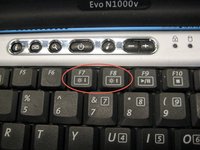
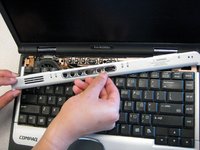
Insert a spudger between the F7 and F8 keys. Lift up to remove the LED cover.
-
-
-

 Ask FixBot




To reassemble your device, follow these instructions in reverse order. Take your e-waste to an R2 or e-Stewards certified recycler.
Cancel: I did not complete this guide.
One other person completed this guide.

Team

Cal Poly, Team 29-74, Johann Spring 2010 Member of Cal Poly, Team 29-74, Johann Spring 2010
CPSU-JOHANN-S10S29G74
3 Members
84 Guides authored
