CHUWI GemiBook XPro SSD Replacement

What you need
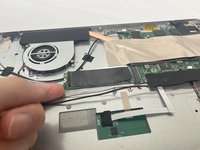
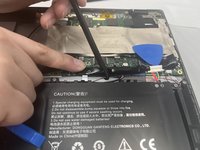
  1. CHUWI GemiBook XPro SSD Replacement, Battery: step 1, image 1 of 2 CHUWI GemiBook XPro SSD Replacement, Battery: step 1, image 2 of 2
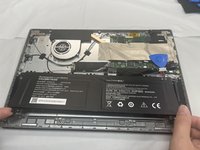
    • Peel off the black tape on the upper-right side of the motherboard.

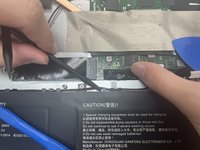
  2. CHUWI GemiBook XPro SSD Replacement: step 2, image 1 of 2 CHUWI GemiBook XPro SSD Replacement: step 2, image 2 of 2
    • Use two opening tools or your fingernails to carefully "walk" the battery connector out of its socket.

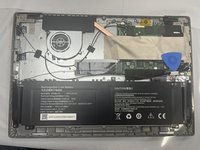
  3. CHUWI GemiBook XPro SSD Replacement: step 3, image 1 of 3 CHUWI GemiBook XPro SSD Replacement: step 3, image 2 of 3 CHUWI GemiBook XPro SSD Replacement: step 3, image 3 of 3
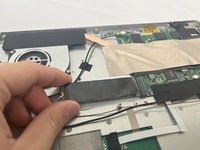
    • Unseat the speaker wires and antenna wire from their retaining hooks on the battery with a halberd spudger.

  4. CHUWI GemiBook XPro SSD Replacement: step 4, image 1 of 1
    • Use a Phillips #1 screwdriver to remove the five 4.3 mm screws that secure the battery.

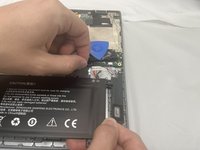
  5. CHUWI GemiBook XPro SSD Replacement: step 5, image 1 of 3 CHUWI GemiBook XPro SSD Replacement: step 5, image 2 of 3 CHUWI GemiBook XPro SSD Replacement: step 5, image 3 of 3
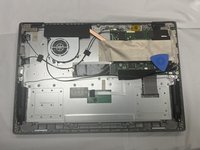
    • Lift the battery up and out of the chassis.

  6. CHUWI GemiBook XPro SSD Replacement, SSD: step 6, image 1 of 1
    • Use a Phillips #0 screwdriver to remove the single 3 mm screw securing the SSD.

  7. CHUWI GemiBook XPro SSD Replacement: step 7, image 1 of 3 CHUWI GemiBook XPro SSD Replacement: step 7, image 2 of 3 CHUWI GemiBook XPro SSD Replacement: step 7, image 3 of 3
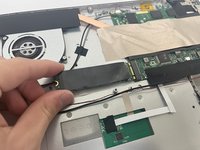
    • Carefully grip and pull the SSD out of its port.

    • Make sure to purchase the correct form factor of the SSD. The CHUWI GemiBook XPro uses 2280 size M.2 SSD.

Conclusion

To reassemble your device, follow the above steps in reverse order.

Take your e-waste to an R2 or e-Stewards certified recycler.

JakeV

Member since: 08/28/24

413 Reputation

3 Guides authored

0 Guide Comments

Add Comment

View Statistics:

Past 24 Hours: 3

Past 7 Days: 14

Past 30 Days: 45

All Time: 573