Introduction
The following guide supplies information to replace a faulty battery in your ASUS Chromebook C202.
The battery supplies power to the Chromebook and allows usage without a power cord. The Chromebook has the capability to work off of the battery life for a period of time. While typically a battery source can lose power at a fast rate, if you notice the battery life span to be quickly fading, it probably needs replacement.
Before using the guide, troubleshoot the charging capacity of the battery to determine if in fact the battery is defaulted.
A battery does have the capability of fire so take appropriate steps and precautions. Before starting the process of replacing the battery power down the Chromebook.
As a note, in step 3, be gentle when handling the ribbon connected to the motherboard.
What you need
-
-
What you need: 10 8mm screws, Tweezers, and a Phillips #1 Screwdriver
-
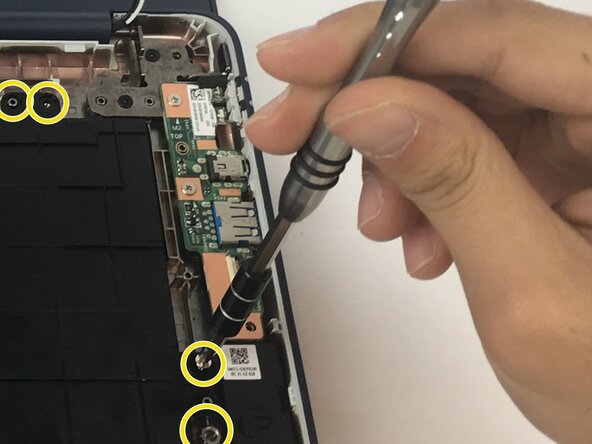
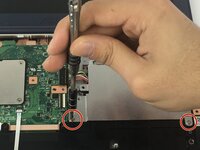
Remove Phillips #1 screws from the bottom of the Chromebook using a Phillips #1 screwdriver.
-
Use tweezers to get two of the screws are hidden by rubber caps along the rubber rest of the device out.
-
-
Tool used on this step:iFixit Opening Tool$1.99
-
What you need: plastic opening tool, Chromebook
-
Open the top portion of the Chromebook
-
To unhinge the top portion of the Chromebook, push down on the plastic opening tool.
-
Place the plastic opening tool facing upward using the upper scoop, into the edges between the front and back of the Chromebook.
-
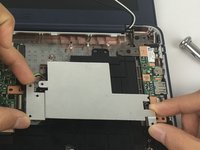
In order to avoid damaging ribbon cables, gently lift the top portion of the Chromebook from the bottom portion.
-
-
-
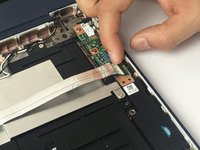
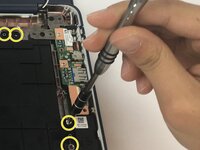
Use a spudger or a clean fingernail to flip up the locking flap on each end of the cable—this is the unlocked position.
-
Gently remove the ribbon cable connecting the I/O board to the motherboard.
-
-
-
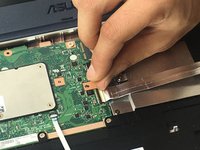
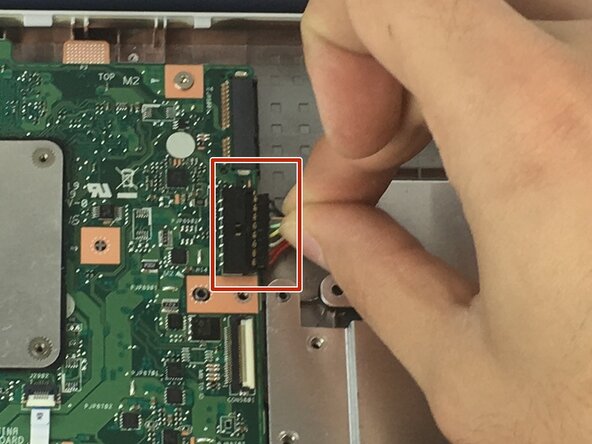
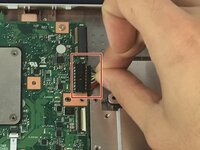
Use the point of a spudger to push on alternating sides of the connector to "walk" it out of its socket and disconnect the battery from the motherboard.
-
If that doesn't work, grip all the cables at once as close to the connector as possible and pull the connector slowly and steadily out of its socket.
-
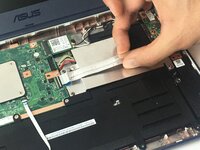
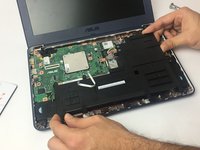
Lift the battery from the bottom edge to to remove it from the Chromebook.
-





To reassemble your device, follow these instructions in reverse order. For optimal performance, calibrate your newly installed battery after completing this guide.
Take your e-waste to an R2 or e-Stewards certified recycler.
Cancel: I did not complete this guide.
4 other people completed this guide.



Team

USF Tampa, Team 3-1, Passmore Fall 2016 Member of USF Tampa, Team 3-1, Passmore Fall 2016
USFT-PASSMORE-F16S3G1
4 Members
16 Guides authored
2 Guide Comments
Worked great. Was able to order a replacement battery for my daughter’s two year old Chromebook. $39.99 and relatively easy to swap out.
You did such a great job writing this documentation. I would not consider myself to be good at taking apart things and putting them back together again but your amazing pictures showing each step of the process gave me the confidence to try it myself! It was perfect and exactly what I needed to get this switched out!
