
Lenovo ThinkPad E14 Gen 4 Battery Replacement

Stephanie Hayden and 5 other contributors
Last updated on May 7, 2026
Views: 951
View statistics:
- Past 24 Hours:
- 5
- Past 7 Days:
- 23
- Past 30 Days:
- 161
- All Time:
- 951
Comments: 0
No one has left comments on this guide. Will you be first?
Go to guide commentsCompleted: 0 1
No one has marked this guide "completed." Will you be the first?
1 person has marked this guide "completed." It's you — great job!
Favorites: 0 1
No one has favorited (and subscribed to) this guide. Will you be the first?
1 person has favorited (and subscribed to) this guide — and that's you!
Featured Student Guide
This guide has been the hard work of our awesome students and is found to be exceptionally cool by the iFixit staff.
Introduction
Go to step 1 ↓The Lenovo ThinkPad E14 Gen 4 is a 14-inch business laptop available with either 12th Gen Intel Core or AMD Ryzen 5000 Series processors, mainly marketed for professional use. Key features include fast storage up to a Gen 4 SSD, Wi-Fi 6, and a range of ports including USB-C.
Is your Lenovo ThinkPad E14 Gen 4 laptop not holding a charge or simply not charging at all? This guide serves to teach you how to replace the battery in your device. Before taking your device apart to prep for replacement, be sure that you have the compatible battery for your device and that the device is not connected to any form of electricity. Never work on any device that is plugged into a power outlet. The device should be physically unplugged, not just "switched off."
Warning: If your battery looks swollen, take appropriate precautions.
What you need
Tools


-
-
-
First start off by using your screwdriver to remove the screws from the back metal shield or cover. Loosen all seven captive screws on the back panel of the device with a Phillips #1 screwdriver.
 Ask FixBot
-
-
-
Insert an opening pick into the seam near the hinges.
-
Working from the hinges to the front, gently pry apart the back of the device from the main body.
-
-
-
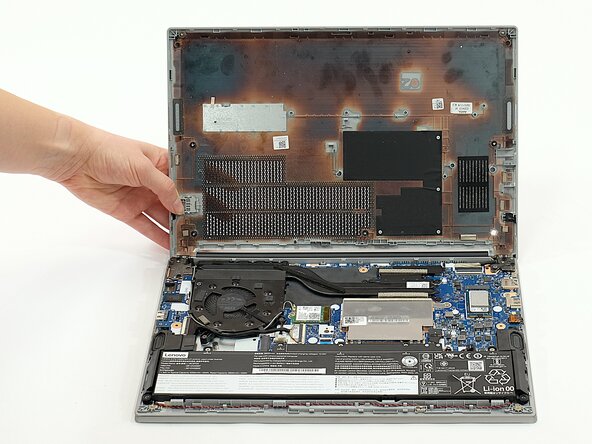
Carefully lift the loosened panel away from the laptop. The metal spudger is useful when extra prying force is needed, but a black nylon spudger or iFixit opening tool should be used whenever possible.
-
-
-
-
-
Remove all five 5mm screws from the battery using a Phillips #1 screwdriver.
-
-
-
-
Using the fabric tag, disconnect the battery cables from their port inside the device.
-
-




To reassemble your device, follow these instructions in reverse order.

Team

Linn Benton Community College, Team 1-4, Karnes Fall 2025 Member of Linn Benton Community College, Team 1-4, Karnes Fall 2025
LBCC-KARNES-F25S1G4
4 Members
72 Guides authored
