Battery
|
1 Answer 0 Score |
Forgot password cannot sign in on mac 1400cs/166 |
|
1 Answer 0 Score |
How do I install the internal Ethernet adapter card? |
|
1 Answer 0 Score |
A/C adapter replacement interchange? |
|
1 Answer 1 Score |
Where can I get a Power Adapter? |
These are some common tools used to work on this device. You might not need every tool for every procedure.
Find the answers to common hardware problems on our Powerbook Troubleshooting Guide
* Memory: The PowerBook 1400 Series comes with 16mb of internal memory. For a performance boost the memory can be upgraded up to 64mb easily by adding 1 or 2 additional memory modules.
* Hard Drive: The PowerBook 1400 Series comes with a 1.3GB EIDE hard drive. For additional memory the hard drive may be upgraded up to a 8.2GB EIDE drive.
* Battery: The battery for the PowerBook 1400 Series can be removed and replaced with a compatible battery. The battery can be replaced in under a minute.
* Optical Drive: The PowerBook 1400 Series contains a 8x CD-Rom drive which can be removed and replaced easily.
* Expansion Slots: The PowerBook 1400 Series contains two expansion slots for the use separately purchased PC Cards.
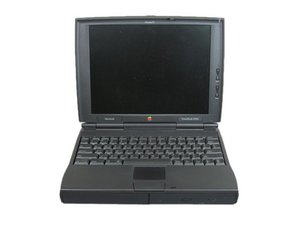
Released in October 1996, the Macintosh PowerBook 1400 Series is the first laptop with a CD-ROM drive.
The PowerBook 1400 Series is easily upgradeable allowing you to change various parts including the RAM, Hard Drive, Battery, and CD Rom.
The PowerBook 1400 comes in two models, the 1400c and the 1400cs. To identify which device you have, look below the bottom right corner of the screen, you should see "Powerbook 1400c" or "Powerbook 1400cs."
Apple Service Manual: PowerBook 1400
Powerbook 1400 Basic Upgrade Guide
MCE MobileStor PowerBook 1400 Internal Hard Drive with Installation Kit Guide
MCE PowerBooks Internal Hard Drive Upgrade with Installation Kit Guide
Apple PowerBook 1400 Computer Developer Note
Sonnet Crescendo/PB G3 PowerBook 1400 Processor Upgrade Card Quick Start Guide
Past 24 Hours: 4
Past 7 Days: 14
Past 30 Days: 107
All Time: 16,199