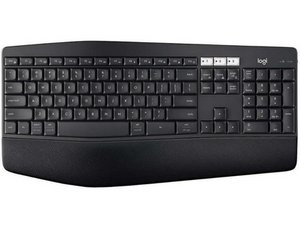
Where is my print screen key?
How does the camera button work?
Is this a good question?
Score
2

Rep: 25
 1
1
 1
1
How does the camera button work?
Is this a good question?

Rep: 31.1k
9
13
 66
66
Print Screen - I assume that's what you mean by camera button?
I don't have that keyboard but try <FN + Insert> ( don't type angle brackets) The Insert key just under the <1> of the three 1 2 3 in a row.
Was this answer helpful?

Rep: 13
1
The small labels on the keyboard are activated via the fn key (bottom left). Pressing fn + Esc serves like constantly holding down fn; fn + Esc again to go back to normal.
Holding down the fn key and pressing F6, for example, will start or stop a YouTube video. Holding down the fn key and pressing Insert, for example, activates that camera icon which is the print screen key. As someone remarked, pressing the print screen key — here or on other Windows keyboards — copies the entire display to the clipboard, but leaves it there for you to do something with it. Alt-PrtSc copies the active window, but again leaves it in the clipboard for you to do something with. WindowsKey-PrtSc copies the entire screen and saves it to your Screenshots folder (as png or jpg), typically dimming your screen for an instant when it does.
Note: On my K850 keyboard the "Windows Logo" key is not marked with a Windows logo but rather as [start|alt opt].
On the K850 keyboard, here are the keystrokes for these functions:
PrtSc: fn + Insert
Alt-PrtSc: fn + alt + Insert
Windows-PrtSc: [start|alt opt] + fn + Insert
And presumably a few others on the same pattern…
Was this answer helpful?
Excellent answer! I needed to know where the windows key was .
The device keys keep switching on me even though I have only one device set up. How do turn off thatulti device function?

I pressed the function and insert keys but there was no indication that I printed the screen. What else should I do? Thank you.
Was this answer helpful?
Funky operation on the multi-OS K850. FN + Insert captures image to clipboard, but you then need to paste that capture into another app - photo app, Word, etc. Capturing a screenshot on Windows using typ. 'PrtSrn' should autosave to the Screenshots folder in Pictures, but alas, not so w/ the funky Logitech multi-OS keyboard. Have yet to find a workaround that does that. Maybe the PicPick app? Or in Windows you can activate the Snipping Tool by hitting Start-Shift-S, click the capture option you want, then close the tool. A window pops up to let you know the capture was saved to clipboard and give you the option to save it. Long long way to Tipperary, ey?

Rep: 1
1
Past 24 Hours: 19
Past 7 Days: 97
Past 30 Days: 437
All Time: 7,324
