
Free Shipping on Domestic Orders $75+

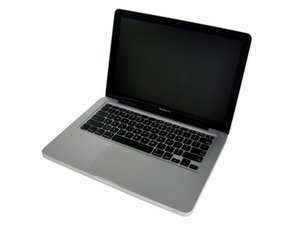
Mid 2012 model, A1278 / 2.5 GHz i5 or 2.9 GHz i7 processor.

Screen Doesn't Turn On

I spilled a little bit of coffee on my MacBook Pro and after 3-4 days the keyboard started missing around and I was not able to log into my laptop.

A week later I reassembled all parts, cleaned up all the mess with a contact cleaner and a brush, and replaced the keyboard assembly. When I turned it on, the system would turn on, but the screen wouldn’t. I hooked up an HDMI cable to check if it was functional and everything seems to work great on the TV and keyboard is fully functional as well.

I re-checked all plugs and connections and checked for corrosions, and found nothing :(

I read on an answered question to use P+R+Opt+Command method, but that did not work either. You can see the screen (while it’s still black/dark) dimming but it doesn’t light up at all if that makes sense.

Disclaimer: I am very new to this

Block Image
Answer this question I have this problem too

Is this a good question?

Score 0
Add a comment

1 Answer

From your description is sounds like the backlight is out but that the display is otherwise functioning. Inspect the conditions of the pins on both the display cable and the receiving port on the logic board. Do any of the pins seem darker or misaligned? If so it’s possible the backlight power pin is damaged. In some cases you may be able to clean it with alcohol or realign it with tweezers. I would also recommend carefully reseating the display cable multiple times to see if it’s a connection issue. Best of luck!

Was this answer helpful?

Score 0

2 Comments:

I inspected the pins on both ends, and they seem to be in a great shape. I cleaned them with alcohol anyways and reseated the display cable multiple times as well. Still having the same issue :(

by

Sorry to hear that. I wonder if the issue might be on the other end of the display cable, where it connects to the base of the display on the hinge. It's a little tricky but if you can manage to remove the display and remove the hinge cover to expose the cable connection to the display, you can try reseating that end too. Sometimes those cables fail, too. If you decide to do this be careful with the hinge cover (it's pretty brittle plastic and tends to break easily). To remove it you'll typically need to slide parallel to the hinge in one direction, then slowly work it off by pulling it away little by little from the hinge.

by

Add a comment

Add your answer

Fadly will be eternally grateful.
View Statistics:

Past 24 Hours: 0

Past 7 Days: 0

Past 30 Days: 1

All Time: 41