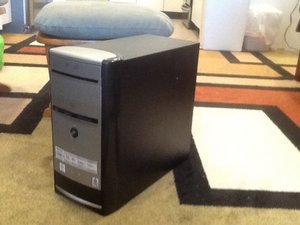

The emachine model C2881 was released in early 2006.

Question Closed

Why doesn't my desktop want to power on?

On the monitor says no signal and the CPU just keeps making a beeping noise

Answer this question I have this problem too

Is this a good question?

Score 1
Add a comment

2 Answers

is there a pattern to the beeping

Was this answer helpful?

Score 0

1 Comment:

It beep one time after power on

After some time it beep when I try to power on but if I try to power on after one time (giving no time) it doesn't beep

by

Add a comment

Hello @sharimadaniels

An EMachine C2881 with no power and beeping typically indicates a hardware problem, most often with RAM memory, the motherboard, or a power supply fault. To troubleshoot, first unplug the computer and reseat the RAM modules by taking them out and reinserting them. If that doesn't work, reset the CMOS by removing the coin battery from the motherboard. If the beeping continues, test other components, or if you're uncomfortable, seek help from a computer technician.

1. Understand the Beep Code:

  • The sequence of beeps is a diagnostic code that helps identify the hardware problem.
  • For many computers, including eMachines, a sequence of three beeps often signifies a memory (RAM) issue.

2. Check for RAM Issues:

  • Unplug the computer from the power source.
  • Open the computer case to access the RAM modules.
  • Carefully remove and then securely reinsert the RAM sticks. This can resolve issues caused by loose connections.
  • If the computer has multiple RAM sticks, you can try booting with only one to see if a specific stick is faulty.

3. Reset the CMOS/BIOS:

  • Locate the small, coin-shaped CMOS battery on the motherboard.
  • Remove the battery and press and hold the PC's power button for about 30 seconds to drain any residual power.
  • Reinsert the battery (checking for correct orientation) and reassemble the computer.
  • This resets the BIOS settings to their default state, which can fix issues caused by a corrupted BIOS or corrupted settings.

4. Inspect for Other Hardware Problems:

  • Inspect Internal Connections: Look for any loose cables, especially between the motherboard and power supply.
  • Clean Components: Gently clean dust from components, as buildup can cause hardware failure or overheating.
  • Look for Damage: Check the motherboard for visible damage or swollen capacitors.
  • Graphics Card: If the monitor shows no signal, ensure the graphics card is properly seated.

5. Seek Professional Help:

  • If you are not comfortable with these steps or the problem persists, the issue might be a more complex hardware fault with the motherboard or power supply.
  • In such cases, it's best to take the computer to a qualified computer technician for proper diagnosis and repair.

Hope this steps can help you to find out the main problem and maybe resolve the issue you are presenting with your machine.

We will be pending to hear from you with any comment.

Greetings,

Was this answer helpful?

Score 0

1 Comment:

Undisclosed AI use.

by

Add a comment
View Statistics:

Past 24 Hours: 0

Past 7 Days: 0

Past 30 Days: 3

All Time: 319