
Click Image To Zoom
Installation Guide
MacBook Pro 15" Core 2 Duo Model A1211
Difficulty: Moderate
Required Tools
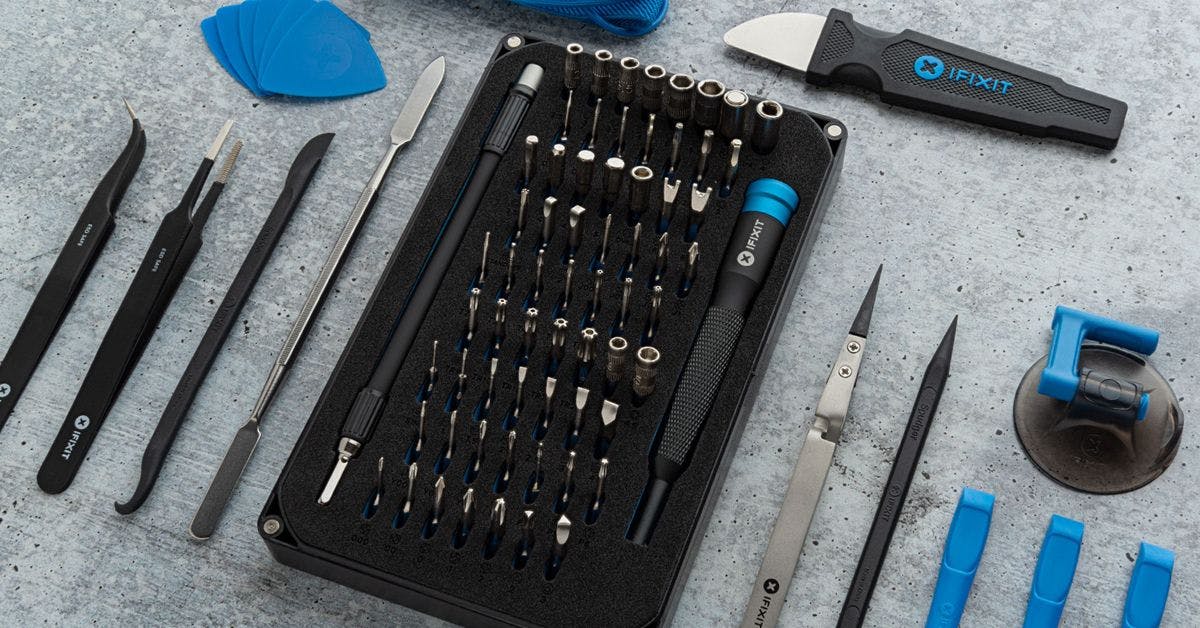
Add All Tools to Cart »Spudger
$2.95 ·Add to Cart »
T6 Torx Screwdriver
$4.95 ·Add to Cart »
Share this Product
Stories
My Problem
It's always the second or third time you do something that it really bites you in the... behind. I spilled coffee on my keyboard for the third time in the five years I have owned my laptop and, after drying everything out as best I could, several keys no long functioned.
My Fix
This wasn't the first repair I've done using iFixit parts and guides so I knew going in it would be a snap. The guide was very useful, as usual.
My Advice
The ribbon cable for the keyboard itself was the only tricky part and it took some work to get it seated properly.
My Problem
It all started when one of my users spilled coffee on the arrow keys (it's always coffee)
My Fix
The repair went very well - I had enough time to check another problematic keyboard! Turns out the second keyboard was not connected properly after a visit to an Apple Repair Center (!)
My Advice
If you're over 50 (like me) and you wear contacts, pop them out so you can see what you're doing.
My Problem
This was my Mom's MBP and she upgraded to an Air and gave me this one - super nice laptop. OSX is great for all the typical stuff, but I also needed my laptop to host a program that talks to my car computer through a special USB interface. The app and the drivers for that are Windows only.
No problem, right? Boot camp to the rescue! I created a windows partition and got to the point where I needed to select the formatting option for the partition - the Boot Camp install guide is very clear - you need to format the new partition. I pressed the up arrow - nada.
It actually took me three days and three different Windows discs before I figured out that my up arrow was, in fact, not functioning. I popped the key off and was able, with a lot of squinting, to see that the underlying connection was broken.
I ordered this part - I used ifixit to get in and replace the HDD not too long ago, and the guide was great. The part came in, and I went to work.
My Fix
It was all very straightforward
It took quite a while, but I was on call this week and took a support call right in the middle of it. My time from first screw to last was close to three hours, but I think it could be done safely in about 60-90 minutes.
My Advice
You definitely want to take your time, be organized, and to have the right tools for the job. I did not have a spudger; I used a safety pin, with a magnifier and lots of patience. You need a tiny tiny phillips and a Torx (5 I think), a spudger, a means of keeping lots of tiny screws organized, and a good light. And the guide. The guide really helps. A lot.
My Problem
My keyboard died while giving a demo on a popular photography editing program to my students. Every time I typed something, the keyboard started inserting extra characters. My friend who repairs computers said he would get me a price on a new one, but he must have forgot so I took the law into my own hands and found ifixit.com.
My Fix
I ordered the new keyboard and tools, and got them in a few days despite living in Great Britain. I looked over the repair instructions and compared them to other online guides. Borrowed a computer from work so I could follow along. It only took me 2 hours, being slow and methodical. I could probably do it in less time if there is ever a next time (cross your fingers.)
My Advice
1. How have I lived this long without a Spudger?
2. Keep track of your screws
3. When you remove the top case, insert the spudger and twist with a little force. You should hear a popping sound, this is normal.
4. When you install the new keyboard, you may have to fish around with the pointed end of the spudger to pull the backlight cable through.
My Problem
While watching DVD on my 5 y.o. MacBook Pro, my husband spilled his red wine on it. Pretty badly too. Fortunately the hard drive is not affected. However, the incident rendered the keyboard useless: only about 5% of the keys worked! Now, a laptop without a working keyboard is useless! We tried to clean and dry my MBP as best we could, but the damage was done. It would be a shameful waste to throw my otherwise fine MacBook Pro away just because of the defunct keyboard. Besides, I don’t have any fund to get a new one. So, what to do?
ifixit.com to the rescue! I have always loved to make and repair things (although usually it's more on the art and craft side; not electronics!), so I went to ifixit.com and found everything I needed to replace my broken keyboard there. Placed the order, and it arrived within 4 days; all the way from the US to Hong Kong! Excellent!!!
My Fix
The repair went smoothly. The instructions provided are very well written. The photos marking the screws and other important parts to pay extra attention to are very helpful.
I printed out the instructions and prepared a container to keep the screws well organized; I numbered the compartments according to the steps requiring screws removal.
Pulling out the top case was harder than I thought. It got stuck on the front - I dared not to use much force since I wasn't sure what's holding it down underneath. I followed the advise to rock it up and down and finally I applied some force and the case came free with a snap sound. No damage done!
Everything else went well until it's time to screw the replacement keyboard on. One of the screw wouldn't catch: the opening on the case was in the wrong shape so it created a deeper recess that the screw simply couldn't reach. There’s a faint circle-shaped dent there – probably the screw was forced in with electric screw driver which I don’t have. Fortunately it is the one under the black protecting sticker, so I left the screw under there with hope that it won’t affect negatively on the keyboard. And it doesn't :).
Another issue: I somehow couldn't get the replacement keyboard to lay completely flat although I have matched all the interlocking parts when inserting it. In the last photo you can see how the top part is slightly wavy. Fortunately it doesn't affect its functionality, just aesthetically not so pleasing - and technically: why?
The whole operation took me over 3 hours because I was being very careful not to mess things up, and also because I was get distracted looking at the fascinating details of the components. I also spent considerable amount of time to take pictures of the process with my iPhone and posted them straight away to Instagram (also posted to my blog: http://ztampf.com/blog/2011/10/23/irepai...). Otherwise, 2 hours would suffice!
My Advice
I wish I had known that it's okay to apply some force to remove the front side of the top case. I spent like 10 minutes rocking it up and down before decided to take some risk and forced it out.
I also used the blue opening tool to ease the front side of the top case before forcing it out. I think it helped.
P.S.:
The spudger is a very clever versatile little tool!
My Problem
The key for "P" letter stopped working on the keyboard. After removing the key and cleaning the keyboard the key still did not wok. Therefore I decided to change the whole keyboard.
My Fix
Purchased keyboard from ifixit and followed the online guide to replace the keyboard. The procedure was relatively easy thanks to the friendly and very visual instructions. Now the keyboard is as new.
My Advice
It was more easy for me to use the plastic opening tools than spudger to lift the connectors and detach the tapes or plastic sheet.
My Problem
Keys popped off and others stopped working due to brew in the works.
My Fix
Instructions were good, the new keyboard works great and I never want to have to do this again.
My Advice
Don't drink and compute.