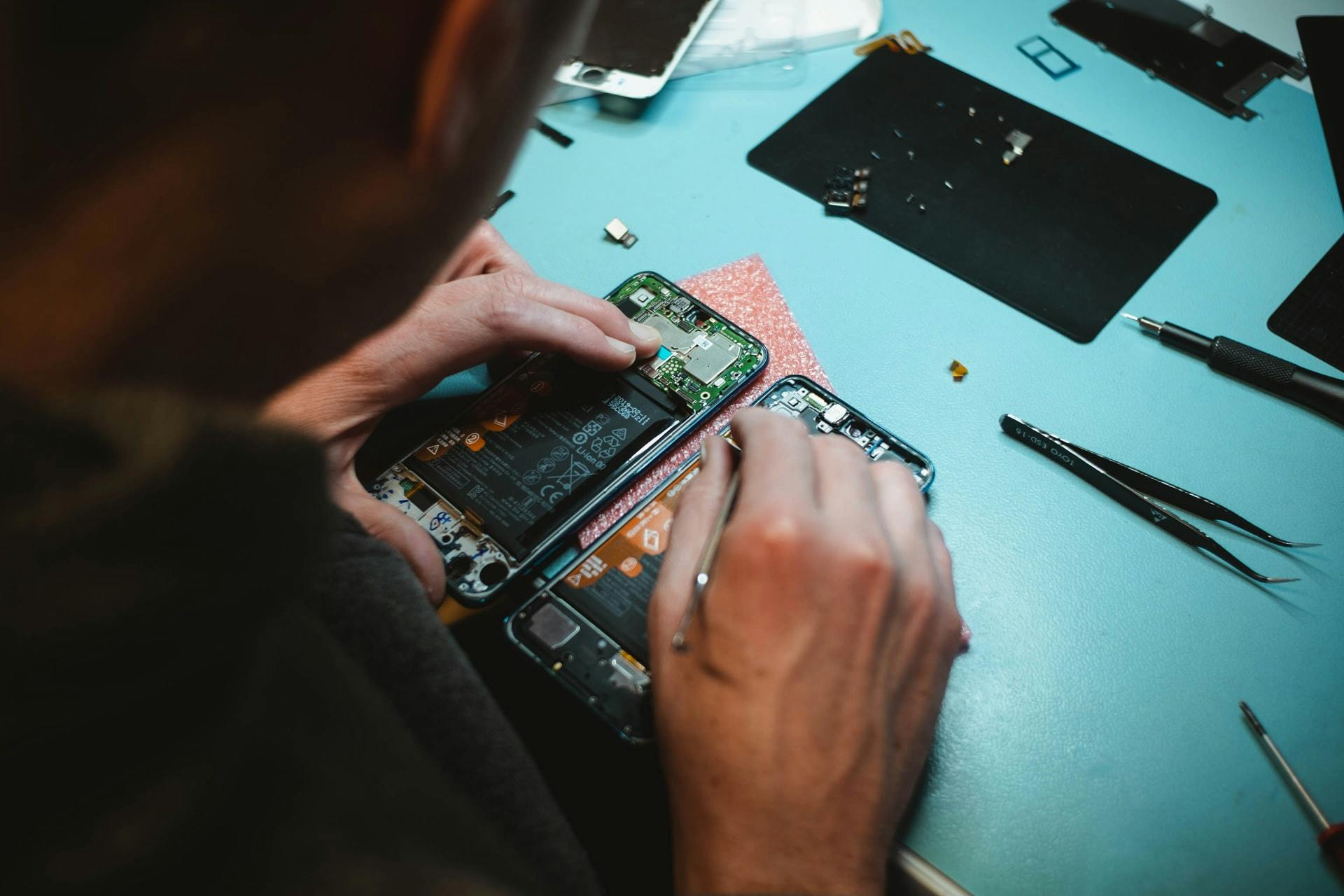
Click Image To Zoom


T6 Torx Screwdriver

$4.95 up to $9.95

Product code: IF145-004

Product Overview

Of all the tools in the toolbox, none trumps the screwdriver for handiness—unless your toolbox is full of hands. Then it takes second place. Up your metacarpus dexterity with our T6 Torx Screwdriver today.

This size bit is also available in our popular 54 Bit Driver Kit & 26 Bit Driver Kit, carefully designed to include the most common and often hard to find driver bits used in electronics repair.

Product Details

$4.95 Economy


Condition:

New

Warranty:

6 month warranty

Notes:

Great quality driver. Gets the job done just fine for the average Joe and semi-pros.

$9.95 Pro / ESD / USA


Condition:

New

Warranty:

Lifetime Manufacturer Warranty

Notes:

Top of the line professional made in USA driver with swivel top ESD safe ergonomic handle.

Lifetime Warranty.

Add to Cart »
 

Stories

My Problem

Right fan was so loud that I couldn't even use it.

My Fix

Fairly straightforward and simple, just don't forget to remove the screws in the back like I did or they will break.

My Advice

Make sure you remove all the screws

My Problem

My wife and I swapped over to Mac computers in 2008. I had just bought an iPod touch and was eyeing the new iPhone 3G and my wife wanted a computer was easy and fun to use. We bought our MacBook Pro refurbished, it was an early 2008 Intel Core 2 Duo Model. It was fast, sleek, cool, and everything we wanted.

Over the years we demanded more and more of it. I purchased a Time Capsule to augment it's storage capabilities as we moved to an all digital library of movies and TV shows. Our plucky little MBP kept going.

In the summer of 2011, our plucky little MBP hit a snag. It's logic board just fried. The combination of heat and wear and tear had pushed it beyond its limits. After a little searching I discovered that this was a common issue with this model of MBP. I took it by the Apple store and BAM they replaced it for free. So, now our MBP was on it's third life.

It soldiered on for a couple more months, but slowly it got worse and worse, slower and slower. After installing Lion, it was barely able to load and run iPhoto. It got so slow that I basically stopped using it. We had all but given up hope that our little MBP would recover. I had picked out a sleek, new MacBook Air to replace her, but after some research I discovered that the hard drive might be the main culprit. With prices so low, I figured, why not?

So, I decided to upgrade her RAM (from 2 to 4 GB) and install a new drive (also upgrading from 200 to 500 GB). I figured, if it worked she would have a fourth lease on life. If not, well then I wasted $150 and I could use the hard drive on something else.

My Fix

I got the hard drive and tools in the mail, as well as the RAM which I received via a merchant on Amazon.

I installed the RAM first, which was very simple and I saw an immediate improvement - not much, but it was promising.

I was dying to crack my MBP open and swap the hard drive out, but the drive didn't arrive before I left to see family for the weekend. So I had to wait until Saturday night to make the swap.

After reviewing the instructions and setting up my iPhone 4S to capture a time lapse video, I buckled down and made the swap.

You can see two time lapse videos of the install on my Vimeo page. One is fairly fast with no music (http://vimeo.com/36213995), the other one is slower and I add some Coldplay to brighten things up (http://vimeo.com/36352860).

I only ran into three problems.

1) The magnetic clasp and the mag safe power cord were constantly eating and pulling my screws around. It was more an annoyance than anything, but I spent about 10 minutes looking for a screw that ended up being stuck to the mag safe power outlet. Annoying, but not that big of a deal.

2) Pulling off the connections for the keyboard/trackpad and the logic board were a little precarious and I was worried I would damage them. The spudger tool that I got from ifixit.com, however, was a life saver. I wouldn't want to try that task with anything other than that plastic spudger. It is the perfect combination of soft, firm, thin, and sturdy to do the trick.

3) Removing and replacing the ribbon on top of the hard drive was a pain. The glue was extremely sticky and I was again worried about damaging it. Placing it back down was tricky as well because the first time I left too much slack and the connections didn't line up right.

Overall, everything was fairly straight forward. The instructions and pictures on ifixit.com were a lifesaver (couldn't have done it without them). The process took about an hour, and everything works great.

My MBP is like a new machine. I spent all told about $150 and I saved myself the cost of buying a new MacBook Air, for now at least.

My Advice

Use the right tools. It is worth the $5 or $6 for the right screwdriver, spudger tool, etc. I've tried fixing my iPhone(s) and my old desktop with the tools I had laying around and it was more trouble than it was worth. The right tools for the right job, definitely applies when you are performing brain surgery on a laptop.

My Problem

My wife and I swapped over to Mac computers in 2008. I had just bought an iPod touch and was eyeing the new iPhone 3G and my wife wanted a computer was easy and fun to use. We bought our MacBook Pro refurbished, it was an early 2008 Intel Core 2 Duo Model. It was fast, sleek, cool, and everything we wanted.

Over the years we demanded more and more of it. I purchased a Time Capsule to augment it's storage capabilities as we moved to an all digital library of movies and TV shows. Our plucky little MBP kept going.

In the summer of 2011, our plucky little MBP hit a snag. It's logic board just fried. The combination of heat and wear and tear had pushed it beyond its limits. After a little searching I discovered that this was a common issue with this model of MBP. I took it by the Apple store and BAM they replaced it for free. So, now our MBP was on it's third life.

It soldiered on for a couple more months, but slowly it got worse and worse, slower and slower. After installing Lion, it was barely able to load and run iPhoto. It got so slow that I basically stopped using it. We had all but given up hope that our little MBP would recover. I had picked out a sleek, new MacBook Air to replace her, but after some research I discovered that the hard drive might be the main culprit. With prices so low, I figured, why not?

So, I decided to upgrade her RAM (from 2 to 4 GB) and install a new drive (also upgrading from 200 to 500 GB). I figured, if it worked she would have a fourth lease on life. If not, well then I wasted $150 and I could use the hard drive on something else.

My Fix

I got the hard drive and tools in the mail, as well as the RAM which I received via a merchant on Amazon.

I installed the RAM first, which was very simple and I saw an immediate improvement - not much, but it was promising.

I was dying to crack my MBP open and swap the hard drive out, but the drive didn't arrive before I left to see family for the weekend. So I had to wait until Saturday night to make the swap.

After reviewing the instructions and setting up my iPhone 4S to capture a time lapse video, I buckled down and made the swap.

You can see two time lapse videos of the install on my Vimeo page. One is fairly fast with no music (http://vimeo.com/36213995), the other one is slower and I add some Coldplay to brighten things up (http://vimeo.com/36352860).

I only ran into three problems.

1) The magnetic clasp and the mag safe power cord were constantly eating and pulling my screws around. It was more an annoyance than anything, but I spent about 10 minutes looking for a screw that ended up being stuck to the mag safe power outlet. Annoying, but not that big of a deal.

2) Pulling off the connections for the keyboard/trackpad and the logic board were a little precarious and I was worried I would damage them. The spudger tool that I got from ifixit.com, however, was a life saver. I wouldn't want to try that task with anything other than that plastic spudger. It is the perfect combination of soft, firm, thin, and sturdy to do the trick.

3) Removing and replacing the ribbon on top of the hard drive was a pain. The glue was extremely sticky and I was again worried about damaging it. Placing it back down was tricky as well because the first time I left too much slack and the connections didn't line up right.

Overall, everything was fairly straight forward. The instructions and pictures on ifixit.com were a lifesaver (couldn't have done it without them). The process took about an hour, and everything works great.

My MBP is like a new machine. I spent all told about $150 and I saved myself the cost of buying a new MacBook Air, for now at least.

My Advice

Use the right tools. It is worth the $5 or $6 for the right screwdriver, spudger tool, etc. I've tried fixing my iPhone(s) and my old desktop with the tools I had laying around and it was more trouble than it was worth. The right tools for the right job, definitely applies when you are performing brain surgery on a laptop.

My Problem

I tripped in the terminal at Detroit Metro Airport, fell and landed on my Macbook, cracking the LCD screen. Apple wanted $1200 to fix it!?

My Fix

The repair went flawlessly. The instructions are phenominally detailed. The tools I ordered for assembly made the process easier than I expected.

My Advice

The one key is to be VERY organized with the parts you take off. Have a container for each set of screws you take off and keep the containers lined up in the order you took them off.

My Problem

My right side fan was going out after a few years of hard service. Time to replace both for good measure.

My Fix

Easy, thanks to your excellent service documentation.

My Advice

One word of caution when replacing fans, make sure that the connectors are completely seated. I checked my fan RPMs using iStat immediately after the initial power on, post repair. My right fan was turning at zero RPM. I popped the cover and reseated the connector. powered up and observed it spinning. Checked iStat and have continued to do so every few operating hours. All is well at around 2K RPM.

My Problem

The Left fan had failed and the laptop was running extremely hot.

The keyboard was missing the left shift key and the arrow keys were not working.

My Fix

First, I got the parts (new fan and new keyboard), and both were correct for my model.

Second, I downloaded both installation guides. I noticed that the first seven steps of each were identical. Same pictures and everything. At that point, the instructions got specific to the repair. Since the first seven steps were involved in getting the components completely exposed and accessible, I decided to perform both repairs at once. (ordinarily, I would do one at time to verify correct installation before moving to the next repair, but I didn't see much value in reassembling the entire case again).

Followed the directions (and the pictures were spot on for identifying the right items) and the repair went flawlessly. Took my time and when I got it all back together, the whole thing worked like new. New parts weren't cheap (Mac never is), but it was a LOT less expensive than taking to the Mac store.

My Advice

Print the instructions and keep them handy. Also, in this case, since the pictures had some color coded circles identifying parts, print it color if you can. Assures accuracy.

If you have them, use a magnifying lamp or one of the hands free magnifying glasses. These parts can be very small and unless you are really young (I'm 65) with acute vision, this helps.

The flat cables on the MB are held in place by a clamping connector. the instructions say to pop the connector up. What they don't tell you is they connector bar is hinged. So pry it up gently. Otherwise, you can pop it off completely, and if you break the tiny hinge, you can end up with a much bigger problem.

A really close-up image of those connectors would reveal that. It's also why I would recommend some form of magnifying glass (hands free, either table mounted or worn on the head). You will see how the connector is hinged and that will make releasing and reconnecting the cable more reliable.

The spudger is useful, but for popping up the cable clamp, it seemed too thick to easily get between the MB and the bottom of the clamp. I ended up using a very small knife blade to lift the clamp. Otherwise, I would think sanding down the blade of the spudger a bit would allow it to better fit under the clamp. However, you don't want to sand it too much as it would weaker the tip.

while the case was open, I noticed a lot of dust has accumulated on the inside. I used an air compressor to blow it out. Using a can of compressed air is good, too, and would reduce the risk of running too high a pressure across the small cables and tape in the unit. Either way, since the case is fully open, take a minute to dust off the inside.

When I was done, it worked great. Quiet, cool, and all the keys were functional. Cleaned the case and screen (from three years of my daughter's dorm life), and was like a new machine.

A huge tip of the hat to IFIXIT for a great service and a great experience.

My Problem

The fan got increasingly noisy.

My Fix

It was a breeze. The step-by-step instructions, especially the video, were exceptionally clear and helpful. When I actually did it, it felt like deja vu.

My Advice

I wonder if the problem with the fan was the accumulation of dust...sort of like when ice forms asymmetrically on the wheels of your car , throwing off the balance and making the car shake at higher speeds...

The fan blades were caked with dust.

My Problem

My MacBook Pro right fan was clicking at high RPMs. It is the slightly older model so when I took it to Apple with no warranty they were going to charge me tons (>$200) to fix it. Then I found this website which was a life/money saver. Ended up costing $58 (part, two tools, shipping) from ifixit

My Fix

Using the ifixit instructions for replacing my MacBook Pro right fan, I went step by step and completed the installation without a single problem. The whole process took about 20 minutes and all I had to do was follow the PDF that I was conveniently available for download off of the site.

My Advice

Everything was self explanatory. If you can use a screwdriver and have basic common sense you'll be just fine.

My Problem

My Toshiba HD was failing, so I looked up some 3rd party hard drives for replacement and chose the Seagate 750 7200 RPM for my mid 2009 MacBook Pro.

My Fix

The installation went smoothly. You guys make tech repair pretty easy.

My Advice

After installation, I had to erase and partition in the new drive but kept receiving a Proxus Error: Cannot allocate memory. Turns out I needed to replace the hard drive connector and ribbon in the Mac, which is rare. If anyone ever gets that message, I would suggest they get the connector for $17.00, it was worth it.

My Problem

A wine spill on the keyboard of course! I love to cook, so often have my MacBook on the kitchen counter. This, of course, doesn't mix well with a glass of wine that is always nice to drink while making dinner!

The computer worked just fine.....except for 1/2 of the keyboard. The Geniuses at the Apple store wanted $1200 for the repair! NO WAY!

Of course, I am geek in disguise. 46 year old mom of two daughters - not your typical computer repair person. I also like wiring/rewiring my home theater system, driving my boyfriend's tractor, and using the 1974 snowblower my dad bequeathed to me. But I look like a girly-girl.

My Fix

Perfect! Lovely! More fun than doing Lego with my daughters! What a fun way to spend a Friday afternoon! What a great sense of accomplishment. The ifixit instructions were flawless. The only issue I encountered was one little screw that just wouldn't budge. I ended up taking the half disassembled computer to a jeweler/watch maker to remove the stuck screw. He did it easily, and he was impressed with my work!

The job took about 4 hours, not including the one hour trip to the jeweler. Perhaps that was slow, but when I finished, pushed the "on" button, and it started up perfectly, THE FIRST TIME, I swear I heard angels singing, and saw unicorns prancing.

I could not be any happier.

My Advice

Go slow. Be patient. Buy the recommended tools. Put the little screws into cups as you remove them, and label each cup by its ifixit step number. Befriend a jeweler/watch repair person if you really can't remove a screw. Lay out the parts neatly as you remove them. Be diligent. Stay focused. Be gentle. Be kind. Cross your fingers. Put the cat into another room so it can't jump on the table. Buy a keyboard cover.


Related Questions