Click Image To Zoom


750 GB 7200 RPM Seagate SATA Hard Drive Upgrade Kit (New)

$129.95

Product code: IF107-102-1

Product Overview

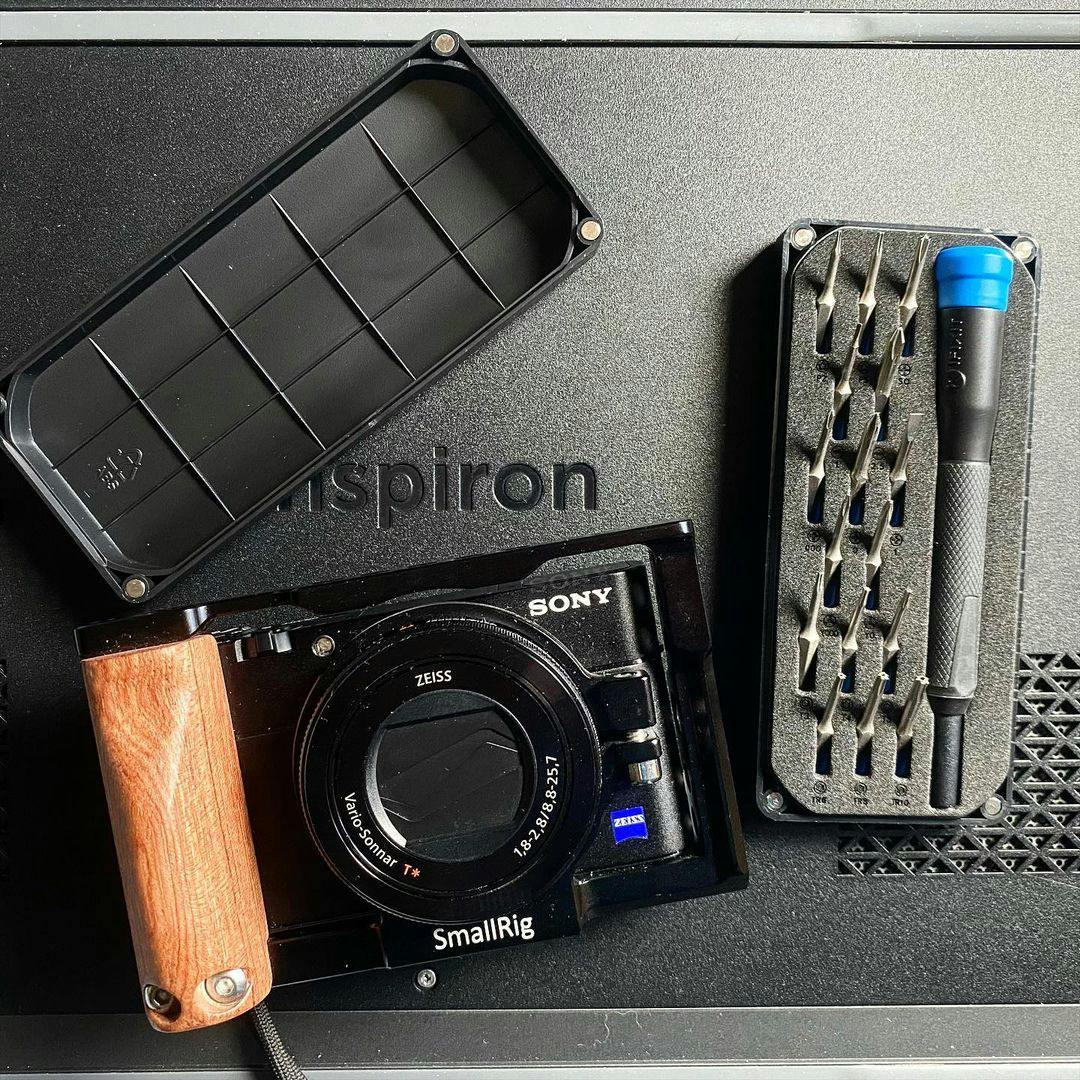
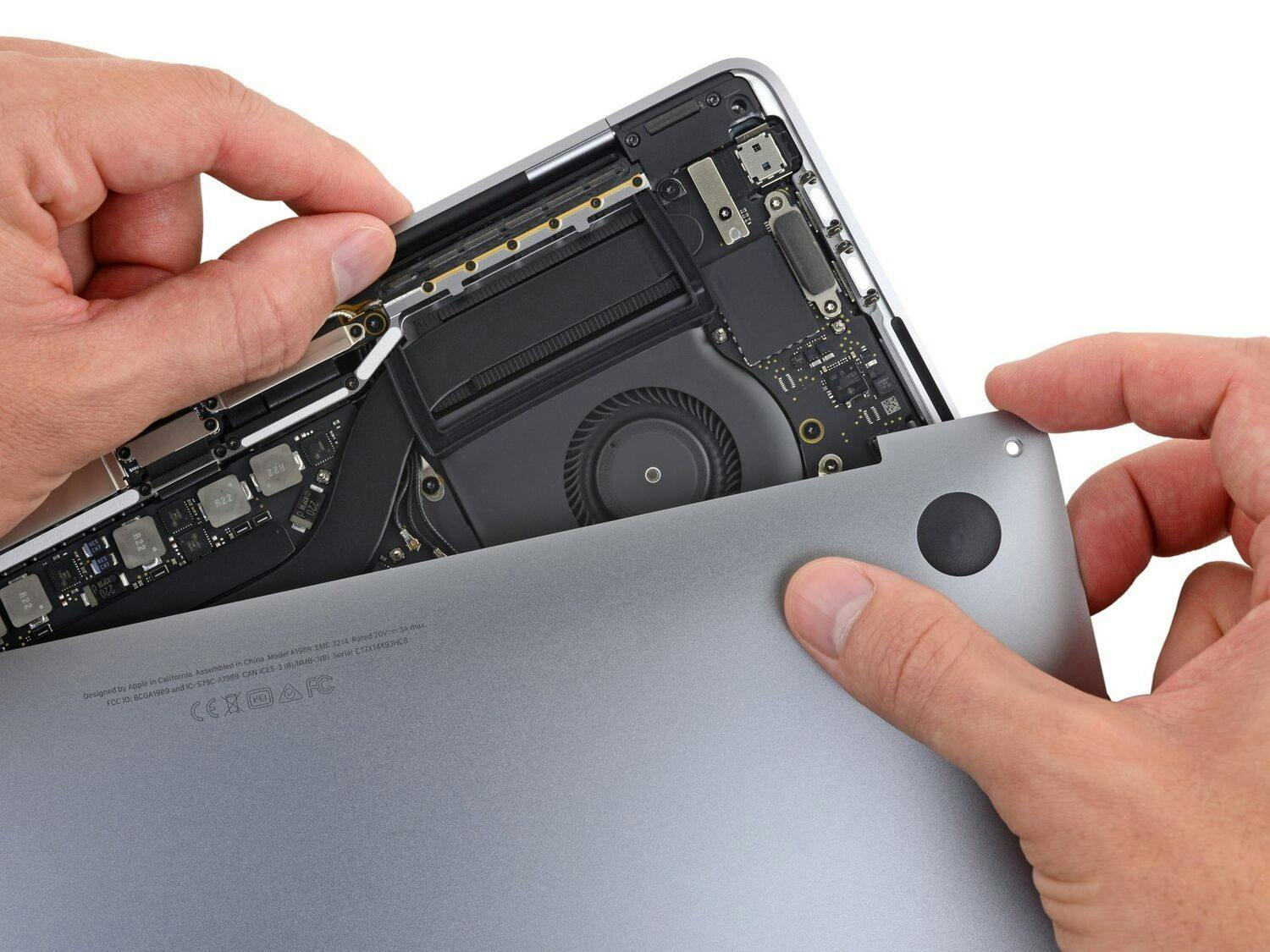
A 750 GB Hard Drive with the tools needed to swap it in.

  • Super fast Seagate 750 GB Drive.
  • Hard Drive enclosure used for transferring your files also converts your old drive into a handy external USB drive.
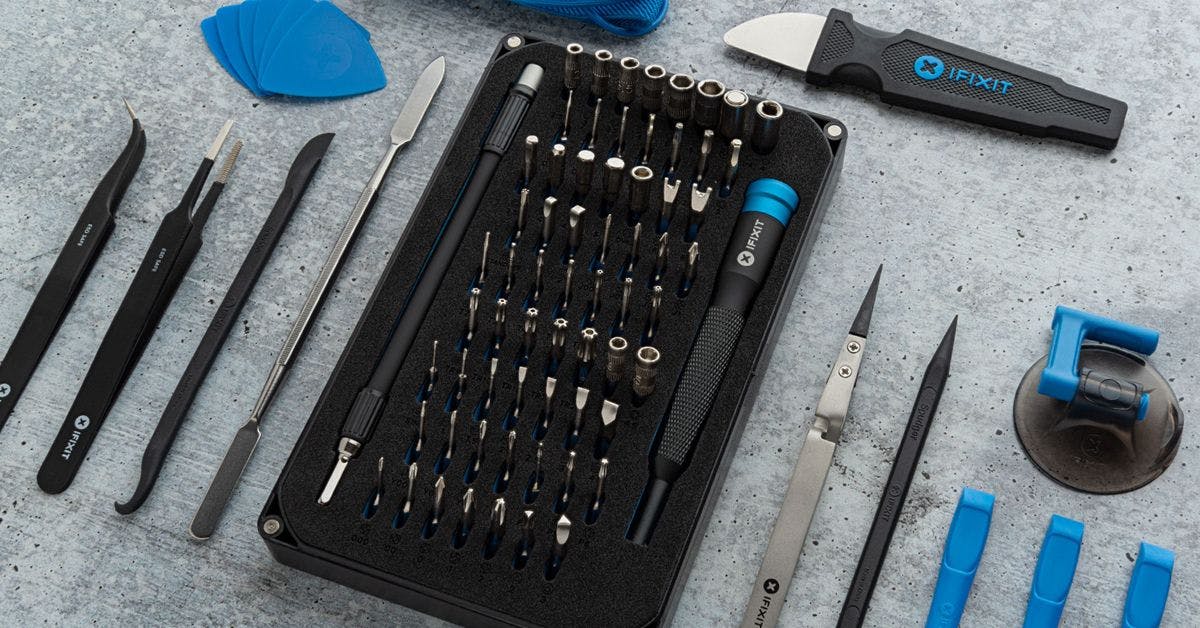
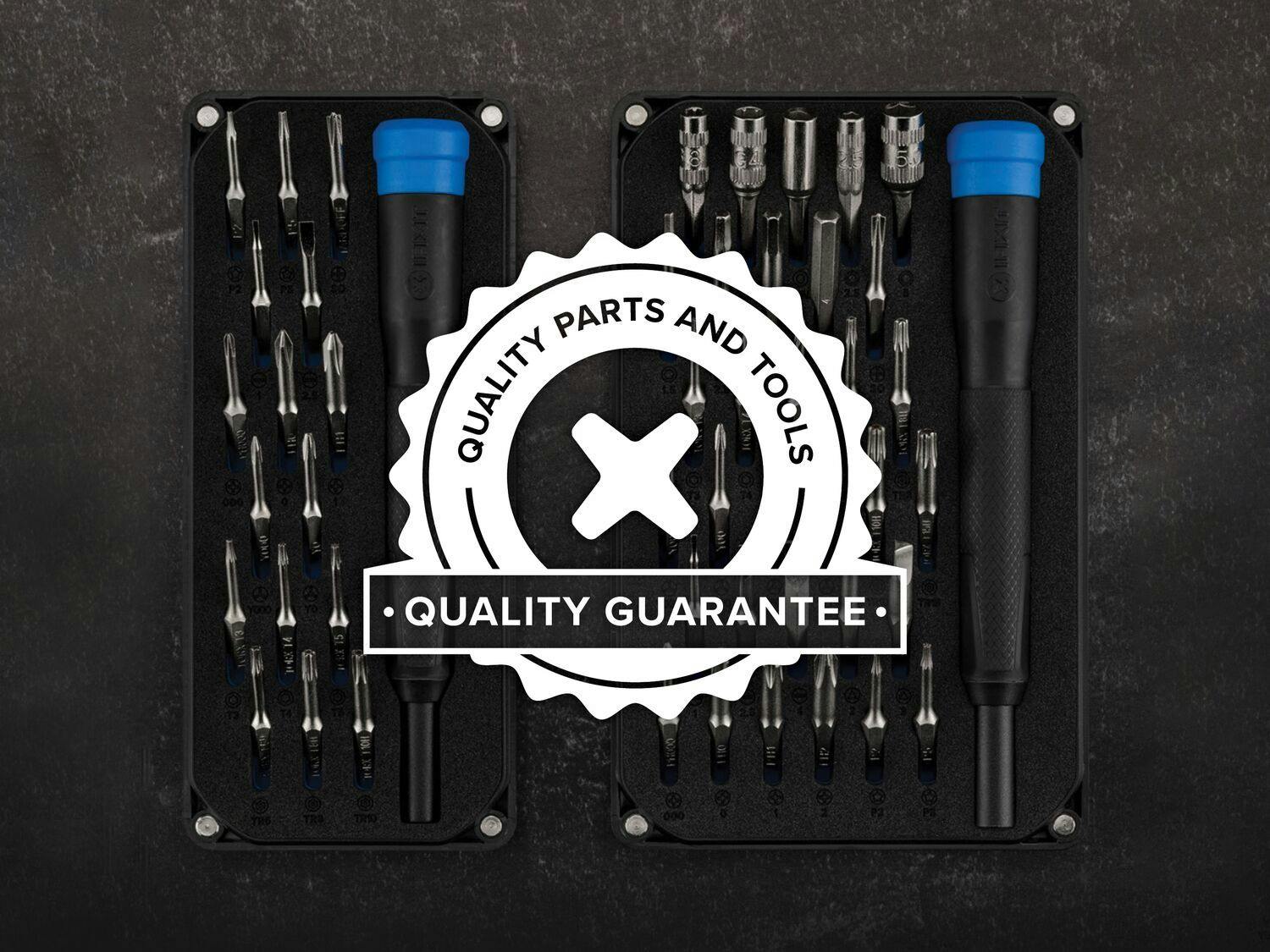
  • Don't get caught with the wrong equipment this kit has everything it takes to get into most laptops.
  • Use the free SuperDuper! to transfer your files with the enclosure.

Kit Contents:

Compatibility

Identify your Mac

  • All MacBooks and MacBook Pros (excluding MacBook Air and MacBook Pro Retina)

Product Details

  $129.95


Condition:

New

Warranty:

3-year manufacturer warranty

Notes:

The hard drive has a 3-year manufacturer warranty.

Add to Cart »

47 Available

Quantity:


Installation Guides

MacBook Core 2 Duo

Difficulty: Easy

MacBook Core Duo

Difficulty: Easy

MacBook Pro 13" Unibody Mid 2009

Difficulty: Moderate

MacBook Pro 13" Unibody Mid 2010

Difficulty: Moderate

MacBook Pro 15" Unibody Mid 2009

Difficulty: Moderate

MacBook Pro 15" Unibody Mid 2010

Difficulty: Moderate

MacBook Pro 17" Unibody

Difficulty: Moderate

MacBook Unibody Model A1278

Difficulty: Easy

MacBook Unibody Model A1342

Difficulty: Moderate


Product Details Edit

Tech Specs ¶ 

Drive ¶ 

Manufacturer: Seagate

Speed: 7200 RPM

Dimensions: 2.5" wide x 9.5mm tall

Capacity: 750 GB Unformatted

Buffer Size: 16 MB


Compatibility

MacBook Core 2 Duo
1.83 GHz (Core 2 Duo)
2 GHz (C2D, Late 2006)
2 GHz (C2D, Mid 2007)
2 GHz (Early 2009)
2 GHz (Santa Rosa)
2.1 GHz (Penryn)
2.13 GHz (Mid 2009)
2.16 GHz (Core 2 Duo)
2.2 GHz (Santa Rosa)
2.4 GHz (Penryn)
MacBook Core Duo
1.83 GHz (Core Duo)
2 GHz (Core Duo)
MacBook Pro 13" Unibody Early 2011
2.3 GHz (Early 2011)
2.7 GHz (Early 2011)
MacBook Pro 13" Unibody Late 2011
2.4 GHz (Late 2011)
2.8 GHz (Late 2011)
MacBook Pro 13" Unibody Mid 2009
2.26 GHz (Mid 2009)
2.53 GHz (Mid 2009)
MacBook Pro 13" Unibody Mid 2010
2.4 GHz (Mid 2010)
2.66 GHz (Mid 2010)
MacBook Pro 13" Unibody Mid 2012
2.5 GHz (Mid 2012)
2.9 GHz (Mid 2012)
MacBook Pro 15" Core 2 Duo Model A1211
2.16 GHz (Core 2 Duo)
2.33 GHz (Core 2 Duo)
MacBook Pro 15" Core 2 Duo Models A1226 and A1260
2.2 GHz (Santa Rosa)
2.4 GHz (Penryn)
2.4 GHz (Santa Rosa)
2.5 GHz (Penryn)
2.6 GHz (Penryn)
2.6 GHz (Santa Rosa)
MacBook Pro 15" Core Duo Model A1150
1.83 GHz (Core Duo)
2 GHz (Core Duo)
2.16 GHz (Core Duo)
MacBook Pro 15" Unibody 2.53 GHz Mid 2009
2.53 GHz (Mid 2009)
MacBook Pro 15" Unibody Early 2011
2 GHz (Early 2011)
2.2 GHz (Early 2011)
2.3 GHz (Early 2011)
MacBook Pro 15" Unibody Late 2008 and Early 2009
2.4 GHz (Late 2008)
2.53 GHz (Late 2008)
2.66 GHz (Early 2009)
2.8 GHz (Late 2008)
2.93 GHz (Early 2009)
MacBook Pro 15" Unibody Late 2011
2.2 GHz (Late 2011)
2.4 GHz (Late 2011)
2.5 GHz (Late 2011)
MacBook Pro 15" Unibody Mid 2009
2.66 GHz (Mid 2009)
2.8 GHz (Mid 2009)
3.06 GHz (Mid 2009)
MacBook Pro 15" Unibody Mid 2010
2.4 GHz (Mid 2010)
2.53 GHz (Mid 2010)
2.66 GHz (Mid 2010)
2.8 GHz (Mid 2010)
MacBook Pro 15" Unibody Mid 2012
2.3 GHz (Mid 2012)
2.6 GHz (Mid 2012)
2.7 GHz (Mid 2012)
MacBook Pro 17" Models A1151 A1212 A1229 and A1261
2.16 GHz (Core Duo)
2.33 GHz (Core 2 Duo)
2.4 GHz (Santa Rosa)
2.5 GHz (Penryn)
2.6 GHz (Penryn)
2.6 GHz (Santa Rosa)
MacBook Pro 17" Unibody
2.53 GHz (Mid 2010)
2.66 GHz (Early 2009)
2.66 GHz (Mid 2010)
2.8 GHz (Mid 2009)
2.8 GHz (Mid 2010)
2.93 GHz (Early 2009)
3.06 GHz (Mid 2009)
MacBook Pro 17" Unibody Early 2011
2.2 GHz (Early 2011)
2.3 GHz (Early 2011)
MacBook Pro 17" Unibody Late 2011
2.4 GHz (Late 2011)
2.5 GHz (Late 2011)
MacBook Unibody Model A1278
2 GHz (A1278)
2.4 GHz (A1278)
MacBook Unibody Model A1342
2.26 GHz (A1342)
2.4 GHz (A1342)
 

Stories

My Problem

Turned on my Mac one day, and a folder with a question mark turned up on the screen. Tried to reboot and find the startup disk, but the Mac did not recognize that there was a hard disk in the machine.

Turns out that for me it was the hard drive cable that was broken. But I couldn't know for sure. So I bought a new hard drive (750 gb), a hd cable and the upgrade kit that gave me a USB hard drive connector.

My Fix

I replaced the hd cable, installed the new hard drive and followed the instructions in the guide. After setting up the partitions on the new hd, I rebooted and was able to run internet recovery. While installing Mountain Lion again, the question of whether I wanted to transfer data from another disk appeared, and I connected my old hd with the USB connector, and it worked perfectly. Two hours later, my Macbook Pro was back to its old self, but now with a 750 gb hard drive, and my old one as a backup disk. :)

My Advice

I learned that it is pretty easy to fix a mac yourself. I the package from Ifixit came a bitset with all the bits you need for the screws on a Mac, and it was easy to follow the instructions of the guide. I recommend doing the same!

My Problem

I had a 320 GB hard drive earlier, it started getting full too easily & stalling the laptop whenever I ran more than one program (photoshop, autocad, etc). So I changed both the hard drive and upped the RAM.

My Fix

Pretty easy. Used SuperDuper to back up data then installed the hard drive using the guide available.

My Advice

It's a good chance to clean up the insides once you've popped open the cover.

My Problem

Now that my computer is being used by two people, the hard drive was quickly filled with double the songs, photos and other files we have. So it was time to upgrade.

My Fix

Repair went very smoothly. The IFix it guides were very clear and provided all the tools I needed. I purchased the replacement hard drive and tools directly from the site and received it in the mail in a couple days. Within the package was a set of instructions on how to clone my current drive, which I found very helpful. Wound up using the super duper tool to do the clone and it went perfect the first time. Very easy.

My Advice

IFix it is pretty great site.

My Problem

I record a lot of music and it was starting to devour my disk space. I needed to either get a new computer or upgrade my hard drive. Some friends recommended I come to ifixit.

My Fix

Smooth, easy and quick. I never dreamed it would be that smooth and simple.

My Advice

Youtube tutorials if you have any questions.

My Problem

I wanted a bigger hard drive for movies and photos, and a back-up drive as well, on the Macbook A1342 Late 2009

My Fix

Easy and fast. I installed the 750 GB 7200 RPM Seagate using the Upgrade Kit after using SuperDuper to back up. Every step was easy to follow and the hardware change took less than 30 minutes. I am very happy and will use these guides again on my family's 4 macbooks. Thank you all for an excellent guide.

My Advice

Do it, piece of cake. The hard drive is quieter than the original. I also changed a battery and upgraded Ram to PNY 8GB on my Macbook A1342 late 2009 model 13 inch. It's been running great with noticeable speed increase in very hot weather in the Philippines with no Air Conditioning, no cooling or noise issues.

My Problem

Hard drive died—I thought it was gone for good

My Fix

success! replaced HD, now running Lion

My Advice

remember to keep your screws organized—but really, the process was easier than pie.

My Problem

Básicamente porque la capacidad del disco duro de mi Macbook era de risa y necesitaba más espacio para hacer cualquier cosa. Llevaba mucho tiempo cansado de el tipico mensaje de "su disco duro se está quedando sin espacio...".

My Fix

Siguiendo la guia de ifixit ha sido muy sencillo de hacer. No he tenido ningún problema y, como tenía todas las herramientas que necesitaba gracias al kit que compré en ifixit, en unos 15 minutos ya tenía mi disco duro nuevo instalado.

My Advice

Totalmente recomendable. Ha sido una buena experiencia y ha sido más sencillo de hacer de lo que pensaba. La guia ha sido lo suficientemente sencilla y a la vez completa como para poder hacerlo perfectamente.

My Problem

Old hard drive had become too small.

My Fix

Very easy repair. Followed the online instructions (clone old hard drive and after that replacing the new for the old one) and it works like a charm.

Nothing was challenging because of the absolutely flawless instructions.

My Advice

I'm extremely pleased. Super cheap, super fast and super easy.

My Problem

I needed to upgrade because of the amount of space I needed for video processing and storage.

My Fix

As far as replacing the drive and memory it was a breeze, the only problem was Microsoft Office.

My Advice

I am running Lion and office 2011 so I don't know about other versions, when you clone the drive to the new drive, the license for office doesn't initialize properly. In order to have office function you need to have a "Product Key". Since mine was an upgrade from 2007, I didn't have a 2011 key, and subsequently I had to buy a replacement disk from Microsoft for $29.95.

My Problem

Need for more memory and speed from the hard drive.

My Fix

A few hiccups but otherwise smooth.

My Advice

1) Have a system in place to keep track of your screws.

2) Clone the old drive to the new one before you do anything else.

3) Skip step 11 as suggested by others.

4) Lock your 4-year old in the closet for the duration of the repair. ;-)