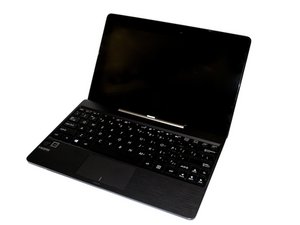
Asus Transformer will not turn on
Despite all your efforts, the tablet will not turn on.
Faulty power adapter
If your power adapter is no longer working, the tablet will continue to drain the battery, but it will no longer charge. Once it is completely empty, there is no way to charge the device. The best way to check is to borrow another T100 adapter or find one with similar specifications to try and charge your device. If it works, your original adapter is faulty and must be replaced.
Incorrect power adapter
The T100 only charges via the original adapter (or one with comparable specifications) and a micro-USB cable. A "charge-only" cable will not work. If you have lost the original power adapter, you will need to purchase a replacement.
Dead battery
If the battery is failed, the tablet only works when plugged in. If the power adapter is not plugged in, the device turns off quickly and will not turn on again. In this case, the battery must be replaced. You will find the necessary instructions to replace this device's battery here. I found a 5V 1A USB charger that works wonders with a suitable USB cable.
Faulty screen
To check if your screen is broken, plug in the power adapter and connect the tablet to it. An LED indicator should light up next to the power button. This means the tablet is receiving power. If the device's screen still does not display anything, it is possible that it is broken and needs to be replaced.
Be careful, a screen failure can be linked to a more complex problem inside the device. It is therefore not necessarily necessary to replace the screen to resolve an issue related to the screen.
The battery drains quickly when the tablet is in sleep mode
Once the tablet is closed or in sleep mode, the battery drains faster than normal.
Battery settings
Windows has provided customizable power settings in the software. To access them, click the battery icon on the right side of the taskbar, then click the "Power Options" link. In the new window, you will see the "Create a power plan" option on the left. Click "Next" on the next screen. You can now adjust the screen brightness options and set how long the screen remains on. If you reduce these two settings, you will save energy.
Dead battery
If the battery is failed, the tablet only works when plugged in. If the power adapter is not plugged in, the device turns off quickly and will not turn on again. In this case, the battery must be replaced. You will find the necessary instructions to replace this device's battery here.
The tablet does not charge or charges very slowly
The tablet's battery is charging more slowly than expected.
Faulty power adapter
If your power adapter is no longer working, the tablet will continue to drain the battery, but it will no longer charge. Once it is completely empty, there is no way to charge the device. The best way to check is to borrow another T100 adapter or find one with similar specifications to try and charge your device. If it works, your original adapter is faulty and must be replaced.
BIOS failure
The base BIOS (Basic Input/Output System) software for this device is not optimal. The BIOS is responsible for finding the hardware components and telling the operating system how to use them. Updating it can help increase battery life. The BIOS is part of a computer's software framework, so be very careful and follow the instructions. The following link explains how to update the BIOS from 2.14 (base version) to 2.2.0 (Post #5). BIOS 2.2 update (in English)
Dead battery
If the battery is failed, the tablet only works when plugged in. If the power adapter is not plugged in, the device turns off quickly and will not turn on again. In this case, the battery must be replaced. You will find the necessary instructions to replace this device's battery here.
Stuck power button
When you press the power button, it stays stuck under the tablet's outer casing.
The power button stays stuck when you press it
The tablet's layout is such that the power button gets stuck inside the casing. You can solve the problem by recentering the power button with a safety pin. If you cannot realign the button, try replacing the button with our guide.
Trackpad not responding
The Asus Transformer does not respond to trackpad commands.
Trackpad settings
In the original settings, the SmartGesture software is enabled. It translates various clicks and swipes on the trackpad into signals for a specific action. However, this can slow down your device when it tries to interpret a hand movement or performs an unintended action. To prevent this, go to the settings and disable the trackpad signals you do not want. It is also possible to disable the trackpad completely. You can re-enable it by pressing the "Fn" and "F9" buttons at the same time.
Faulty trackpad
If the trackpad still does not respond, it may be broken. This is not common, but it must be replaced in this case.
The device freezes suddenly
When the device is running and suddenly stops responding.
Restart the device
If your tablet freezes, try restarting it. To do this, turn it off manually using the power button at the top of the tablet.
Factory reset
If your device continues to freeze, it may be necessary to reset it. This will restore the original settings. Photos and applications saved on the tablet will be erased during the reset. Remember to back them up beforehand. To perform the reset, go to settings, select "Backup and reset" then "Factory reset". You can find more detailed instructions here (in English): Factory Reset.



0 Comments