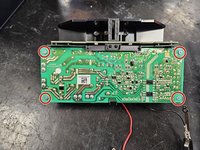
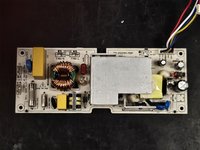
What you need

This teardown is not a repair guide. To repair your Roborock Auto-empty Dock, use our service manual.

  1. Roborock Auto-empty Dock (Onyx): Teardown, Roborock Auto-empty Dock (Onyx): Teardown: step 1, image 1 of 1
    • Let's begin by removing its ramp. Flip it on it's head.

    • Use a PH2 screwdriver to unscrew the screws, then take the ramp off.

  2. Roborock Auto-empty Dock (Onyx): Teardown: step 2, image 1 of 2 Roborock Auto-empty Dock (Onyx): Teardown: step 2, image 2 of 2
    • Remove the marked screws.

    • Circled in red are PH2.

    • Circled in orange are PH1.

    • Then pull the bottom cover off.

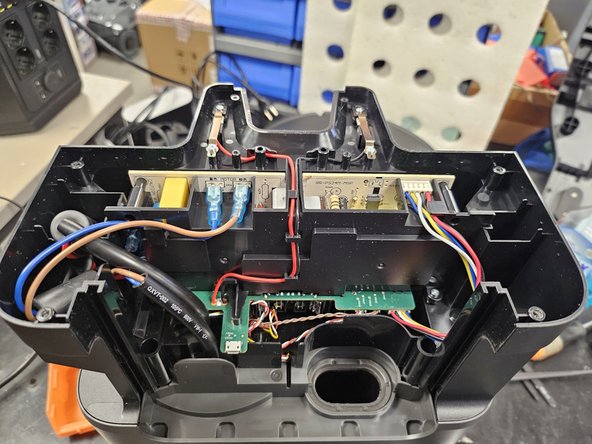
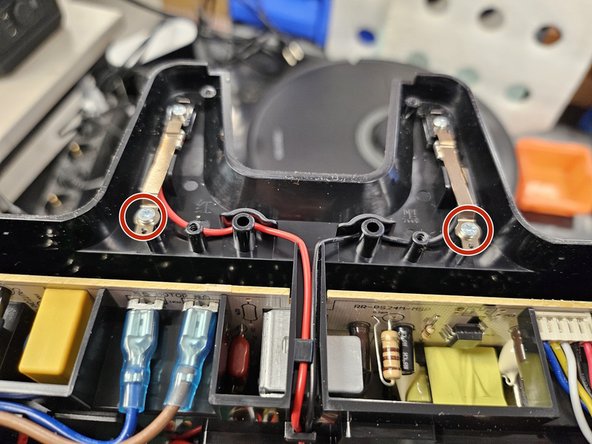
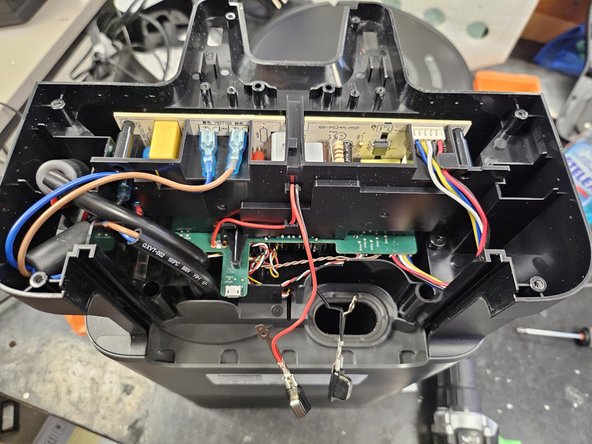
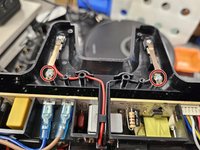
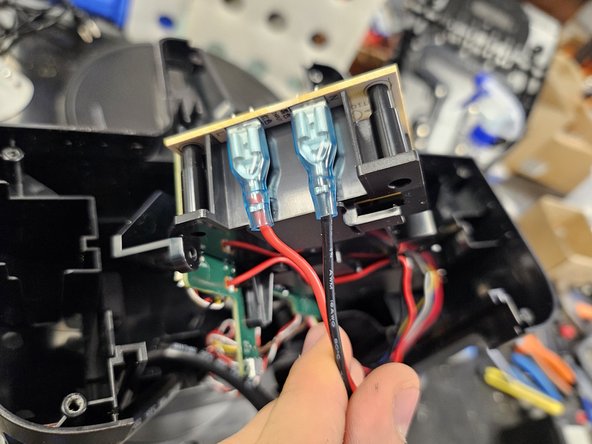
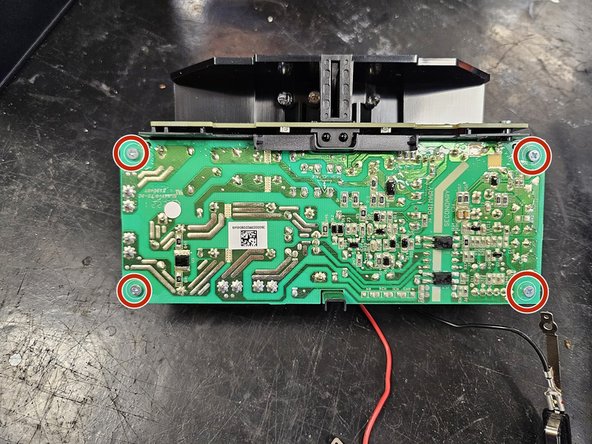
  3. Roborock Auto-empty Dock (Onyx): Teardown: step 3, image 1 of 3 Roborock Auto-empty Dock (Onyx): Teardown: step 3, image 2 of 3 Roborock Auto-empty Dock (Onyx): Teardown: step 3, image 3 of 3
    • Remove the marked screws.

    • All are PH1.

    • Bend the contacts back (img3) to prevent them from shorting the PSU once you pull the assembly out.

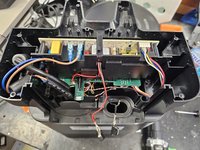
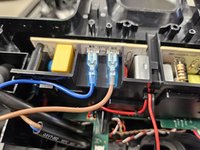
  4. Roborock Auto-empty Dock (Onyx): Teardown: step 4, image 1 of 2 Roborock Auto-empty Dock (Onyx): Teardown: step 4, image 2 of 2
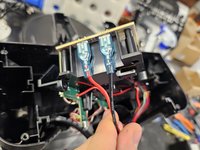
    • Remove the cables.

    • Use these images as reference when reassembling.

  5. Roborock Auto-empty Dock (Onyx): Teardown: step 5, image 1 of 3 Roborock Auto-empty Dock (Onyx): Teardown: step 5, image 2 of 3 Roborock Auto-empty Dock (Onyx): Teardown: step 5, image 3 of 3
    • Take out the PCBA+PSU assembly.

    • When taking out the assembly, make sure to disconnect the other connectors. I forgot to take pictures of these, so just take it out carefully.

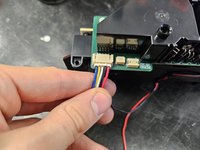
    • Remove the connecting cable between the PSU and the main PBCA.

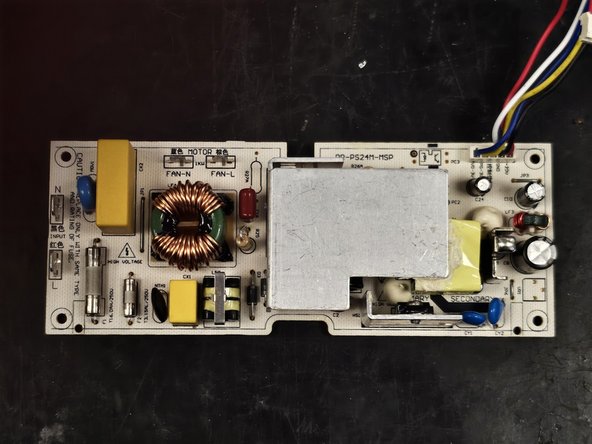
    • Unscrew the PSU.

    • Remove the PSU.

  6. Roborock Auto-empty Dock (Onyx): Teardown, Cat.: step 6, image 1 of 1
    • I caught her.

DegenFixer

Member since: 09/18/24

5,111 Reputation

24 Guides authored

0 Guide Comments

Add Comment

View Statistics:

Past 24 Hours: 3

Past 7 Days: 24

Past 30 Days: 101

All Time: 1,007