Free Shipping on Domestic Orders $75+

This translation was generated by a machine and has not been reviewed by a person yet. Speak this language? Review it.

why! N131WU/BU/ZU Upper Case Replacement

Views: 700

View statistics:

Past 24 Hours:
2
Past 7 Days:
18
Past 30 Days:
71
All Time:
700
Comments: 0

No one has left comments on this guide. Will you be first?

Go to guide comments
Completed: 1

1 person has marked this guide "completed." Will you be next?

Favorites: 0

No one has favorited (and subscribed to) this guide. Will you be the first?

Time Required: 1 hour
Difficulty: Moderate
Community-Contributed Guide

An awesome member of our community made this guide. It was not created by iFixit staff.

why! N131WU/BU/ZU Upper Case Replacement
    1. why! N131WU/BU/ZU Upper Case Replacement, Remove the Screws: step 1, image 1 of 1
      • Remove the frame screws (red).

      • Remove the two keyboard screws (green).

      Ask FixBot

      Add Comment

    2. why! N131WU/BU/ZU Upper Case Replacement, Remove the Keyboard: step 2, image 1 of 3 why! N131WU/BU/ZU Upper Case Replacement, Remove the Keyboard: step 2, image 2 of 3 why! N131WU/BU/ZU Upper Case Replacement, Remove the Keyboard: step 2, image 3 of 3
      • Using the hole provided under the case (see picture), push the keyboard out using a thin screwdriver or some other solid object.

      • Hold onto the keyboard as you push the keyboard so as not to damage the two cables still attached.

      Ask FixBot

      Add Comment

    3. why! N131WU/BU/ZU Upper Case Replacement, Remove Keyboard Connections: step 3, image 1 of 3 why! N131WU/BU/ZU Upper Case Replacement, Remove Keyboard Connections: step 3, image 2 of 3 why! N131WU/BU/ZU Upper Case Replacement, Remove Keyboard Connections: step 3, image 3 of 3
      • (Blue Cable) Push up on the thin black portion on the connector and gently pull out the blue ribbon cable until it comes out.

      • (Orange Cable) Remove the orange cable by sliding the gray part of the connector towards the screen, then gently pull on the ribbon cable.

      Ask FixBot

      Add Comment

    4. why! N131WU/BU/ZU Upper Case Replacement, Remove the upper screws: step 4, image 1 of 2 why! N131WU/BU/ZU Upper Case Replacement, Remove the upper screws: step 4, image 2 of 2
      • Unscrew the three screws that were under the keyboard. Be sure to hold onto these.

      • After these are removed, you can now remove the lower part of the case from the rest of the computer.

      Ask FixBot

      Add Comment

    1. why! N131WU/BU/ZU Upper Case Replacement, Remove the SSD: step 5, image 1 of 3 why! N131WU/BU/ZU Upper Case Replacement, Remove the SSD: step 5, image 2 of 3 why! N131WU/BU/ZU Upper Case Replacement, Remove the SSD: step 5, image 3 of 3
      • Remove the screw holding in the ssd.

      • Carefully remove the SSD from the connector.

      Ask FixBot

      Add Comment

    1. why! N131WU/BU/ZU Upper Case Replacement, RAM (Memory): step 6, image 1 of 3 why! N131WU/BU/ZU Upper Case Replacement, RAM (Memory): step 6, image 2 of 3 why! N131WU/BU/ZU Upper Case Replacement, RAM (Memory): step 6, image 3 of 3
      • Gently pull outwards on the clips to free the RAM stick.

      • Remove the RAM Stick from its slot.

      Ask FixBot

      Add Comment

    1. why! N131WU/BU/ZU Upper Case Replacement, Battery: step 7, image 1 of 2 why! N131WU/BU/ZU Upper Case Replacement, Battery: step 7, image 2 of 2
      • Remove the five Phillips screws securing the battery.

      • Unplug the power connector and lift the battery out in the direction of the arrows to remove it.

      Ask FixBot

      Add Comment

    2. why! N131WU/BU/ZU Upper Case Replacement, BIOS/CMOS Battery: step 8, image 1 of 3 why! N131WU/BU/ZU Upper Case Replacement, BIOS/CMOS Battery: step 8, image 2 of 3 why! N131WU/BU/ZU Upper Case Replacement, BIOS/CMOS Battery: step 8, image 3 of 3
      • Unplug the white connector: pry up to gradually move the connector

      • Peel off the adhesive foam holding the battery

      • To reinstall the replacement battery: use double-sided tape

      Ask FixBot

      Add Comment

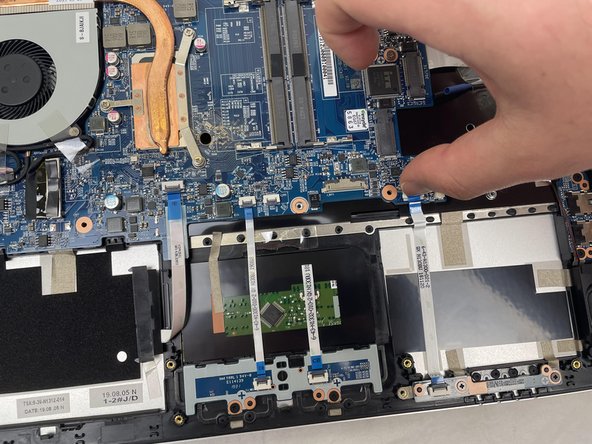
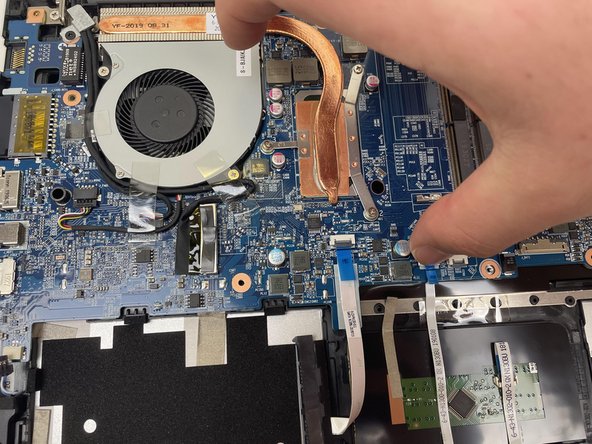
    1. why! N131WU/BU/ZU Upper Case Replacement, Motherboard: step 9, image 1 of 3 why! N131WU/BU/ZU Upper Case Replacement, Motherboard: step 9, image 2 of 3 why! N131WU/BU/ZU Upper Case Replacement, Motherboard: step 9, image 3 of 3
      • Lift the retaining latch and unplug the ZIF cable found under the keyboard.

      • Disconnect the nine marked cables as detailed in the following steps.

      • Remove the four screws securing the motherboard to the case.

      Ask FixBot

      Add Comment

    2. why! N131WU/BU/ZU Upper Case Replacement, ZIF Connectors: step 10, image 1 of 3 why! N131WU/BU/ZU Upper Case Replacement, ZIF Connectors: step 10, image 2 of 3 why! N131WU/BU/ZU Upper Case Replacement, ZIF Connectors: step 10, image 3 of 3
      • The cables with the blue reinforcing tabs are ZIF connectors that require you to lift the retaining lever before removing the cable.

      Ask FixBot

      Add Comment

    3. why! N131WU/BU/ZU Upper Case Replacement, SATA Cable: step 11, image 1 of 3 why! N131WU/BU/ZU Upper Case Replacement, SATA Cable: step 11, image 2 of 3 why! N131WU/BU/ZU Upper Case Replacement, SATA Cable: step 11, image 3 of 3
      • Remove the SATA3 cable from the motherboard after disconnecting it.

      Ask FixBot

      Add Comment

    4. why! N131WU/BU/ZU Upper Case Replacement, Motherboard (continued): step 12, image 1 of 2 why! N131WU/BU/ZU Upper Case Replacement, Motherboard (continued): step 12, image 2 of 2
      • Don't forget to remove these cables.

      Ask FixBot

      Add Comment

    5. why! N131WU/BU/ZU Upper Case Replacement, Display Connector: step 13, image 1 of 2 why! N131WU/BU/ZU Upper Case Replacement, Display Connector: step 13, image 2 of 2
      • Note: The original instructions call for inserting your thumbnail firmly under the base of the display connector

      • However, the proper way to remove the display connector is to grasp the plastic strap on top of the connector and use it to pull the connector straight up.

      Ask FixBot

      Add Comment

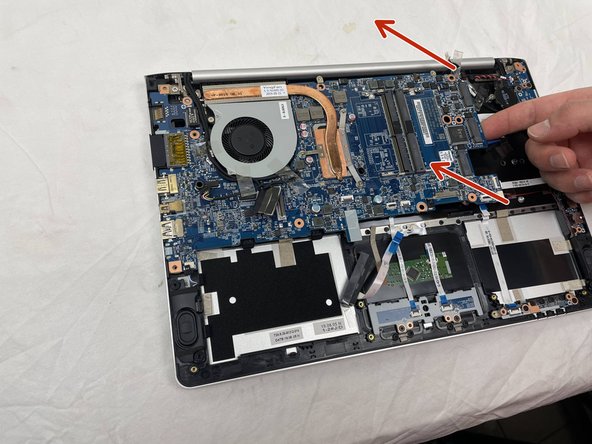
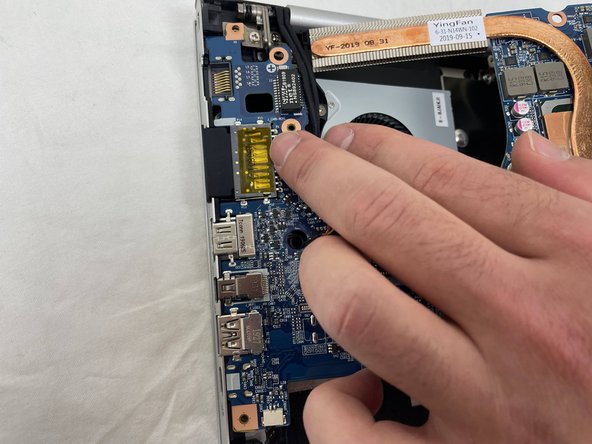
    6. why! N131WU/BU/ZU Upper Case Replacement, Remove the Motherboard: step 14, image 1 of 3 why! N131WU/BU/ZU Upper Case Replacement, Remove the Motherboard: step 14, image 2 of 3 why! N131WU/BU/ZU Upper Case Replacement, Remove the Motherboard: step 14, image 3 of 3
      • Once the screws have been removed, carefully lift the motherboard from the end indicated by the arrows.

      • Remember to disconnect the cables near the fan.

      Ask FixBot

      Add Comment

    7. why! N131WU/BU/ZU Upper Case Replacement, Motherboard (continued): step 15, image 1 of 1
      • The motherboard has been successfully removed.

      Ask FixBot

      Add Comment

    1. why! N131WU/BU/ZU Upper Case Replacement, Speakers: step 16, image 1 of 3 why! N131WU/BU/ZU Upper Case Replacement, Speakers: step 16, image 2 of 3 why! N131WU/BU/ZU Upper Case Replacement, Speakers: step 16, image 3 of 3
      • Remove the right speaker.

      • To remove the left speaker, first peel off the microphone/headset cable, then the adhesive strips.

      Ask FixBot

      Add Comment

    2. why! N131WU/BU/ZU Upper Case Replacement, Speaker/Fan/Headset connector: step 17, image 1 of 3 why! N131WU/BU/ZU Upper Case Replacement, Speaker/Fan/Headset connector: step 17, image 2 of 3 why! N131WU/BU/ZU Upper Case Replacement, Speaker/Fan/Headset connector: step 17, image 3 of 3
      • Remove the left speaker.

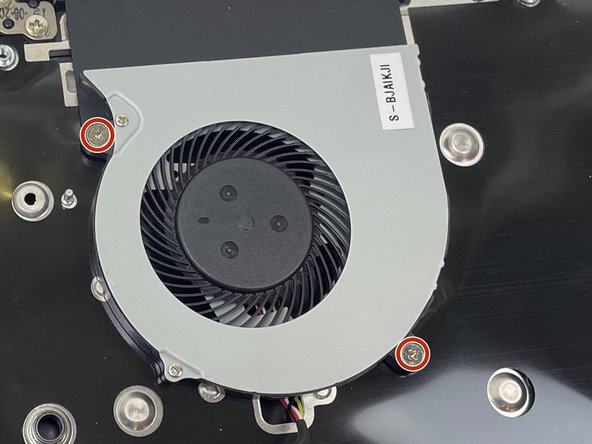
      • Remove the two Phillips screws securing the CPU fan to the case and remove the fan.

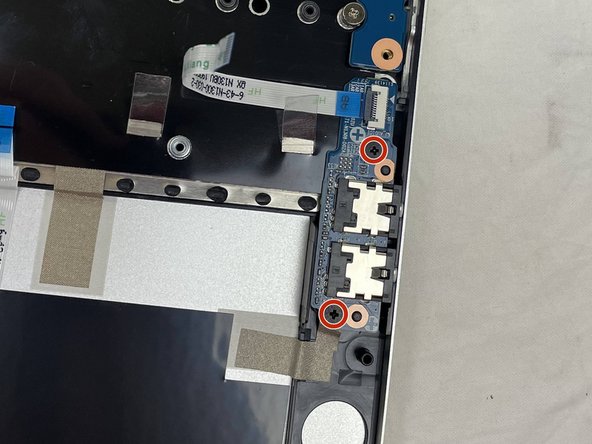
      • Remove the two screws securing the audio connector board.

      Ask FixBot

      Add Comment

    3. why! N131WU/BU/ZU Upper Case Replacement, Headset and USB Boards: step 18, image 1 of 3 why! N131WU/BU/ZU Upper Case Replacement, Headset and USB Boards: step 18, image 2 of 3 why! N131WU/BU/ZU Upper Case Replacement, Headset and USB Boards: step 18, image 3 of 3
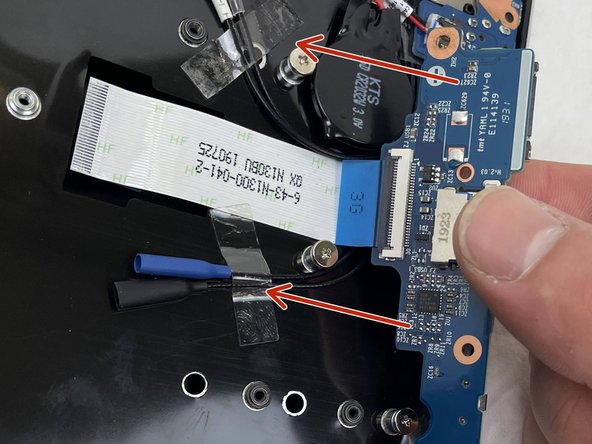
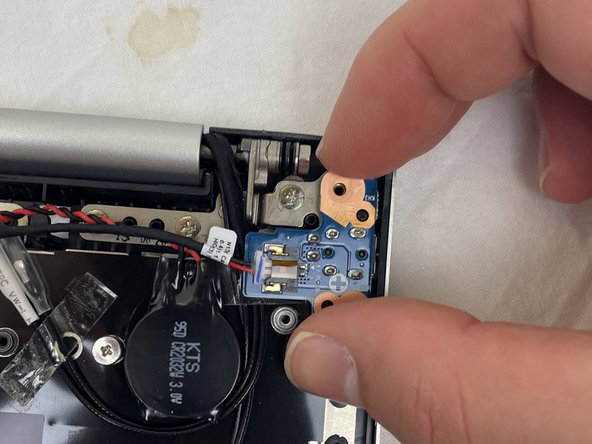
      • Gently lift the board as indicated by the red arrow, then remove it in the direction of the orange arrow.

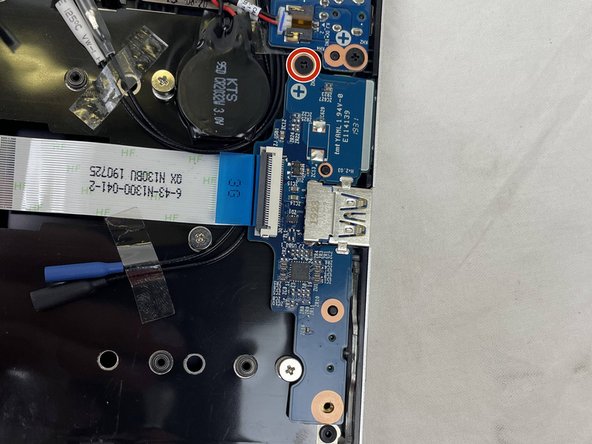
      • Unscrew the screw circled in red, then remove the power board in the direction indicated by the red arrows.

      • The cable is glued to the upper housing; it is not necessary to force it to unstick it, being delicate while following the direction of the arrows will do the trick.

      Ask FixBot

      Add Comment

    4. why! N131WU/BU/ZU Upper Case Replacement, DC Board and CMOS Battery: step 19, image 1 of 3 why! N131WU/BU/ZU Upper Case Replacement, DC Board and CMOS Battery: step 19, image 2 of 3 why! N131WU/BU/ZU Upper Case Replacement, DC Board and CMOS Battery: step 19, image 3 of 3
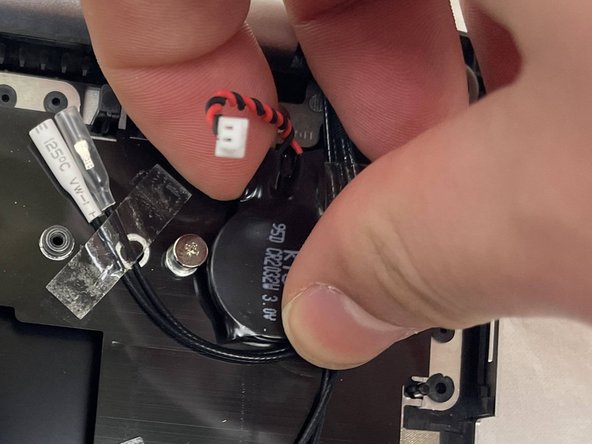
      • Unplug the DC input board, remove the single Phillips screw securing it and remove it.

      • The DC power wires can remain in place.

      • The CMOS battery is secured to the case with adhesive. Simply peel it off to remove it.

      Ask FixBot

      Add Comment

    5. why! N131WU/BU/ZU Upper Case Replacement, LED Board / Touchpad Button Plate: step 20, image 1 of 3 why! N131WU/BU/ZU Upper Case Replacement, LED Board / Touchpad Button Plate: step 20, image 2 of 3 why! N131WU/BU/ZU Upper Case Replacement, LED Board / Touchpad Button Plate: step 20, image 3 of 3
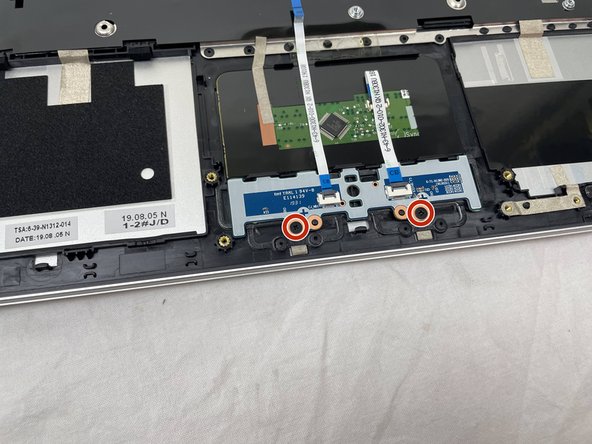
      • Remove the two screws holding the LED board on the chassis and remove it along with the ribbon cable.

      • No force is necessary; it is lightly adhered to the board and can easily be peeled off.

      • Remove the two screws securing the touchpad button plate.

      Ask FixBot

      Add Comment

    6. why! N131WU/BU/ZU Upper Case Replacement, Touchpad Button Board: step 21, image 1 of 3 why! N131WU/BU/ZU Upper Case Replacement, Touchpad Button Board: step 21, image 2 of 3 why! N131WU/BU/ZU Upper Case Replacement, Touchpad Button Board: step 21, image 3 of 3
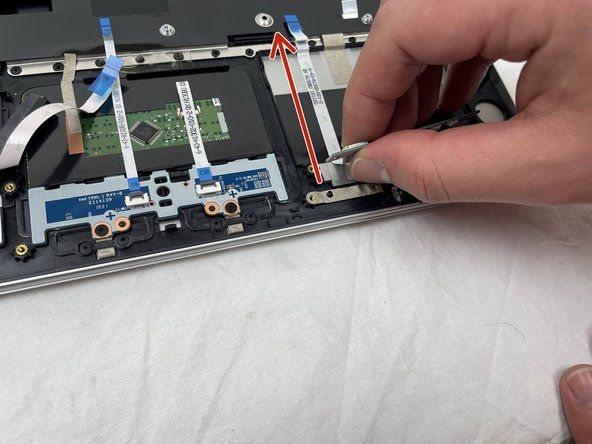
      • Lift the ZIF connector retaining tab and unplug the button cable on the right.

      • Grasp the LED board between the two cables.

      • Following the direction of the red arrow, peel the two cables from the case.

      Ask FixBot

      Add Comment

    7. why! N131WU/BU/ZU Upper Case Replacement, Cable Tapes / Hinge Screws: step 22, image 1 of 3 why! N131WU/BU/ZU Upper Case Replacement, Cable Tapes / Hinge Screws: step 22, image 2 of 3 why! N131WU/BU/ZU Upper Case Replacement, Cable Tapes / Hinge Screws: step 22, image 3 of 3
      • Peel off the pieces of tape holding the cables onto the chassis.

      • Remove the six Phillips screws securing the hinges, three on each side.

      Ask FixBot

      Add Comment

    8. why! N131WU/BU/ZU Upper Case Replacement, Upper Case: step 23, image 1 of 3 why! N131WU/BU/ZU Upper Case Replacement, Upper Case: step 23, image 2 of 3 why! N131WU/BU/ZU Upper Case Replacement, Upper Case: step 23, image 3 of 3
      • While holding down the display, lift the chassis up to about a 45 degree angle.

      • The case will slide out once there is sufficient clearance.

      Ask FixBot

      Add Comment

Conclusion

To reassemble your device, follow these instructions in reverse order.

Cancel: I did not complete this guide.

One other person completed this guide.

Special thanks to these translators:

fr en

100%

These translators are helping us fix the world! Want to contribute?
Start translating ›

Felice Suglia

Member since: 06/15/13

33,634 Reputation

283 Guides authored

0 Guide Comments

Add Comment

View Statistics:

Past 24 Hours: 2

Past 7 Days: 18

Past 30 Days: 71

All Time: 700