Free Shipping on Domestic Orders $75+

This translation was generated by a machine and has not been reviewed by a person yet. Speak this language? Review it.

why! N131WU Laptop: Accessing the main components

Views: 2.3K

View statistics:

Past 24 Hours:
1
Past 7 Days:
16
Past 30 Days:
64
All Time:
2,346
Comments: 9

9 guide comments.

Go to guide comments
Completed: 6

6 people have marked this guide "completed." Will you be next?

Favorites: 0

No one has favorited (and subscribed to) this guide. Will you be the first?

Time Required: 5 minutes
Difficulty: Easy
Community-Contributed Guide

An awesome member of our community made this guide. It was not created by iFixit staff.

why! N131WU Laptop: Accessing the main components
    1. why! N131WU Laptop: Accessing the main components, Remove the Screws: step 1, image 1 of 1
      • Remove the frame screws (red).

      • Remove the two keyboard screws (green).

      Ask FixBot

      Add Comment

    2. why! N131WU Laptop: Accessing the main components, Remove the Keyboard: step 2, image 1 of 3 why! N131WU Laptop: Accessing the main components, Remove the Keyboard: step 2, image 2 of 3 why! N131WU Laptop: Accessing the main components, Remove the Keyboard: step 2, image 3 of 3
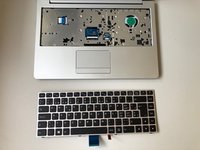
      • Using the hole provided under the case (see picture), push the keyboard out using a thin screwdriver or some other solid object.

      • Hold onto the keyboard as you push the keyboard so as not to damage the two cables still attached.

      Ask FixBot

      Add Comment

    3. why! N131WU Laptop: Accessing the main components, Remove Keyboard Connections: step 3, image 1 of 3 why! N131WU Laptop: Accessing the main components, Remove Keyboard Connections: step 3, image 2 of 3 why! N131WU Laptop: Accessing the main components, Remove Keyboard Connections: step 3, image 3 of 3
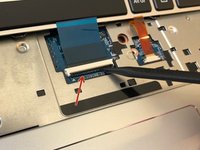
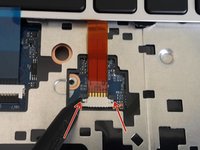
      • (Blue Cable) Push up on the thin black portion on the connector and gently pull out the blue ribbon cable until it comes out.

      • (Orange Cable) Remove the orange cable by sliding the gray part of the connector towards the screen, then gently pull on the ribbon cable.

      Ask FixBot

      Add Comment

    4. why! N131WU Laptop: Accessing the main components, Remove the upper screws: step 4, image 1 of 2 why! N131WU Laptop: Accessing the main components, Remove the upper screws: step 4, image 2 of 2
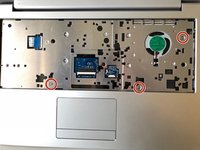
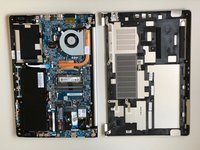
      • Unscrew the three screws that were under the keyboard. Be sure to hold onto these.

      • After these are removed, you can now remove the lower part of the case from the rest of the computer.

      Ask FixBot

      Add Comment

Conclusion

To reassemble your laptop, follow the instructions in reverse.

Cancel: I did not complete this guide.

6 other people completed this guide.

Special thanks to these translators:

fr en

100%

These translators are helping us fix the world! Want to contribute?
Start translating ›

Felice Suglia

Member since: 06/15/13

33,634 Reputation

283 Guides authored

9 Guide Comments

Valable aussi pour le portable CLEVO N141ZU

Thomas B - Reply Share

Merci nous avons ajouté les autres modèles compatibles

EkimiaMichel - Reply Share

Bonjour MANIP pour sortir clavier, ce dernier ne vient pas ! ça tient par vis centrale VERTE impossible de le sortir sur CLEVO N141ZU précision toutes les vis sont sorties ( 10 rouges et 2 vertes ça retient vers intérieur a moins de tout casser ! ) a plus Merci Raymond Feix

Raymond Feix - Reply Share

Si les 2 vertes sont bien retirées , il n y a aucun risque à pousser

EkimiaMichel - Reply Share

Bonjour, une fois toutes les vis retirées, il faut vraiment appuyer assez fortement pour déclipser le clavier sur un côté. Pour la suite du déclipsage, il faut reprendre délicatement depuis dessus en faisant le tour du clavier depuis la partie déclipsée.

Bonne chance!

Felice Suglia - Reply Share

Add Comment

View Statistics:

Past 24 Hours: 1

Past 7 Days: 16

Past 30 Days: 64

All Time: 2,346