
Canon PowerShot SD30 Screen Replacement

Erin Brophy and 6 other contributors
Last updated on Jan 12, 2026
Views: 544
View statistics:
- Past 24 Hours:
- 4
- Past 7 Days:
- 18
- Past 30 Days:
- 68
- All Time:
- 544
Comments: 0
No one has left comments on this guide. Will you be first?
Go to guide commentsCompleted: 2 3
2 people have marked this guide "completed." Will you be next?
3 people have marked this guide "completed." Including you — great job!
Favorites: 0 1
No one has favorited (and subscribed to) this guide. Will you be the first?
1 person has favorited (and subscribed to) this guide — and that's you!
Introduction
Go to step 1 ↓If your Canon PowerShot SD30 is showing a flickering, distorted, cracked, or completely blank display, use this guide to replace the rear LCD screen. The LCD allows you to review photos, frame shots, and navigate settings—so when it fails, normal use of the camera becomes difficult or impossible.
Common symptoms of a failing screen include no image output, unresponsive or partially lit areas, color distortion, or visible physical damage. For help identifying these issues, refer to the relevant sections of the PowerShot SD30 Troubleshooting page.
Before beginning the repair, make sure to power off the camera and remove the battery and memory card. If your existing screen is cracked or shattered, take care when handling broken glass. Because this guide involves opening the camera’s casing and exposing internal components, an ESD-safe work area is recommended to prevent static damage.
This guide will walk you step-by-step through removing the damaged LCD and installing a replacement screen, allowing you to restore full display functionality and get your Canon PowerShot SD30 working properly again.
What you need
Tools


-
-
-
Remove the two 2mm black screws that are located on the underside of the camera.
-
Remove the two 3mm silver screws from the right side of camera.
 Ask FixBot
-
-
-
-
-
Remove the 2mm screw from the back of the camera.
-
Remove two 2mm screws from the bottom of the camera.
-
Remove two 2mm screws the left side of camera.
-
-
-
-
-
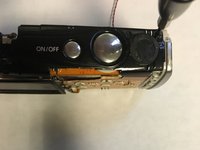
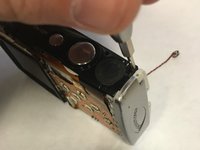
Remove top button panel by removing the screw located at the top right of the panel.
-
-
-
Tool used on this step:Tweezers$4.99
-
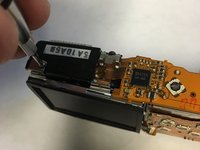
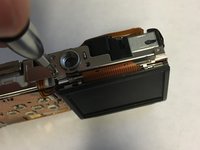
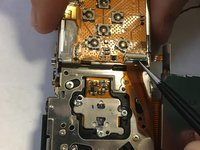
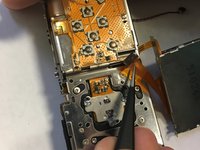
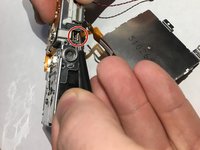
Use tweezers to lift the tab that secures the screen wire and remove.
-
-






To reassemble your device, follow these instructions in reverse order.
Cancel: I did not complete this guide.
2 other people completed this guide.

Team

University of North Texas, Team S5-G3, Thompson Fall 2018 Member of University of North Texas, Team S5-G3, Thompson Fall 2018
UNT-THOMPSON-F18S5G3
4 Members
60 Guides authored
