Free Shipping on Domestic Orders $75+

Sony Vaio SVT151A11L Multimedia Card Replacement

What you need

    1. Sony Vaio SVT151A11L Multimedia Card Replacement, Battery: step 1, image 1 of 2 Sony Vaio SVT151A11L Multimedia Card Replacement, Battery: step 1, image 2 of 2
      • Flip the laptop over so that the battery on the underside of the device is revealed.

      • Unscrew the two 11mm slotted silver screws that can be found at the top of the battery.

      Ask FixBot

      Add Comment

    2. Sony Vaio SVT151A11L Multimedia Card Replacement: step 2, image 1 of 3 Sony Vaio SVT151A11L Multimedia Card Replacement: step 2, image 2 of 3 Sony Vaio SVT151A11L Multimedia Card Replacement: step 2, image 3 of 3
      • Wedge the plastic opening tool between the back panel and the battery on the top left side of the device.

      • Push down on the plastic opening tool until the battery lifts from the back of the laptop.

      • Grab the battery and remove it from the device.

      Ask FixBot

      Add Comment

    1. Sony Vaio SVT151A11L Multimedia Card Replacement, Back Panel: step 3, image 1 of 3 Sony Vaio SVT151A11L Multimedia Card Replacement, Back Panel: step 3, image 2 of 3 Sony Vaio SVT151A11L Multimedia Card Replacement, Back Panel: step 3, image 3 of 3
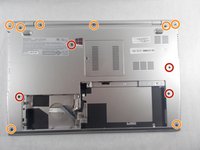
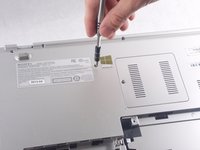
      • Unscrew the three 4mm screws using a JIS #0 screwdriver.

      • Unscrew the eight 7 mm screws using a JIS #0 screwdriver.

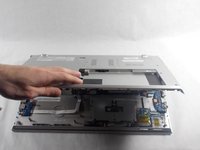
      • Grab and lift the edge of the panel to pull it free from the rest of the computer.

      Ask FixBot

      Add Comment

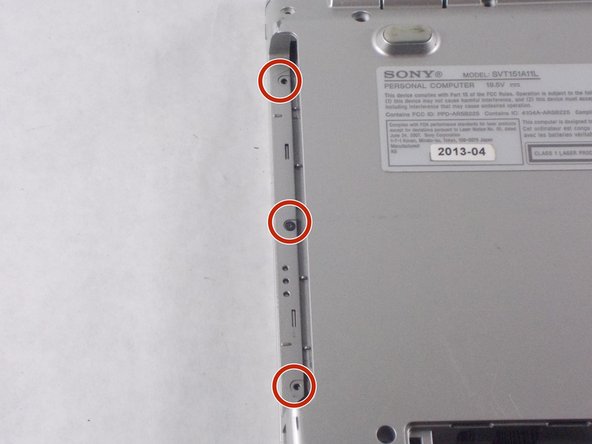
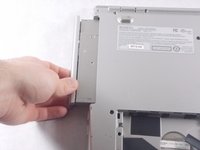
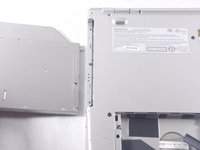
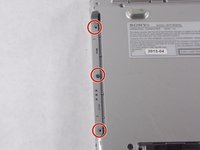
    2. Sony Vaio SVT151A11L Multimedia Card Replacement: step 4, image 1 of 3 Sony Vaio SVT151A11L Multimedia Card Replacement: step 4, image 2 of 3 Sony Vaio SVT151A11L Multimedia Card Replacement: step 4, image 3 of 3
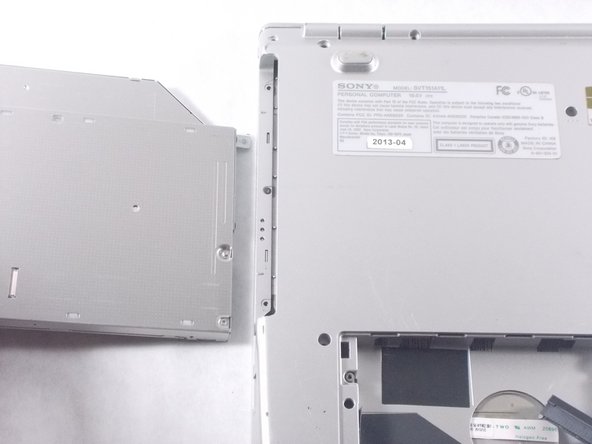
      • Grab the disk drive located at the edge of the computer and pull it it out.

      • Unscrew the three 7 mm screws with a JIS #0 screwdriver.

      Ask FixBot

      Add Comment

    1. Sony Vaio SVT151A11L Multimedia Card Replacement, Multimedia Card: step 5, image 1 of 1
      • Get unobstructed access to the multimedia card.

      Ask FixBot

      Add Comment

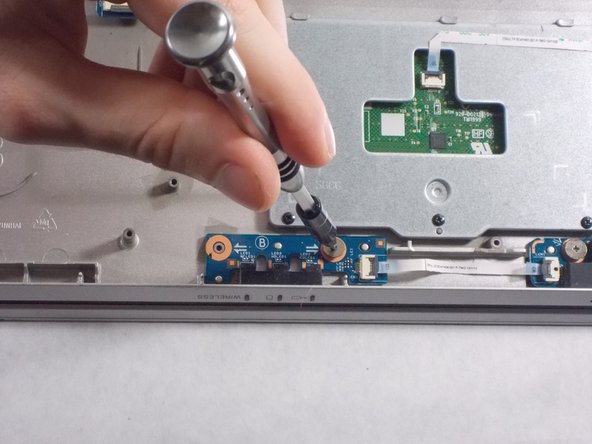
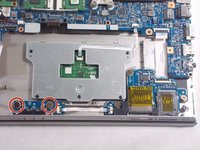
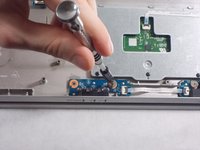
    2. Sony Vaio SVT151A11L Multimedia Card Replacement: step 6, image 1 of 2 Sony Vaio SVT151A11L Multimedia Card Replacement: step 6, image 2 of 2
      • Unscrew the two 2mm screws from the board using JIS #0 screwdriver.

      Ask FixBot

      Add Comment

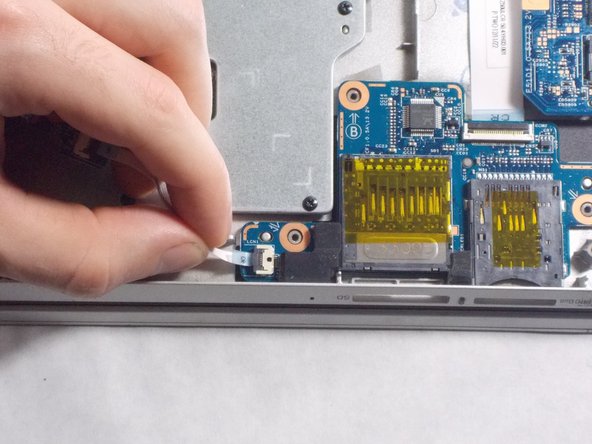
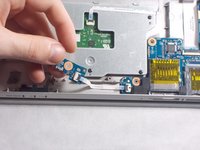
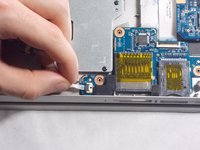
    3. Sony Vaio SVT151A11L Multimedia Card Replacement: step 7, image 1 of 2 Sony Vaio SVT151A11L Multimedia Card Replacement: step 7, image 2 of 2
      • Lift up multimedia card.

      • Pull out ribbon cable from connected board.

      Ask FixBot

      Add Comment

Conclusion

To reassemble your device, follow these instructions in reverse order.

Cancel: I did not complete this guide.

Namuundari Zorigtbaatar

Member since: 10/18/17

216 Reputation

2 Guides authored

Team

0 Guide Comments

Add Comment

View Statistics:

Past 24 Hours: 1

Past 7 Days: 2

Past 30 Days: 19

All Time: 1,043