
Toshiba Satellite U405D-S2902 Keyboard Replacement

Brandon Kirklen and
Last updated on Jun 25, 2014
Views: 1.2K
View statistics:
- Past 24 Hours:
- 2
- Past 7 Days:
- 21
- Past 30 Days:
- 82
- All Time:
- 1,215
Comments: 0
No one has left comments on this guide. Will you be first?
Go to guide commentsCompleted: 2 3
2 people have marked this guide "completed." Will you be next?
3 people have marked this guide "completed." Including you — great job!
Favorites: 1 2
1 person has favorited (and subscribed to) this guide. Will you be next?
2 people have favorited (and subscribed to) this guide — including you!
Needs Better Images
Better photos will improve this guide. Help out by taking, editing, or uploading new ones!
Introduction
Go to step 1 ↓The function of the keyboard is to allow you to type on the computer. Sometimes it can break and need to be replaced.
What you need
Tools


-
-
-
Situate the laptop so that it is open and the display is facing you.
-
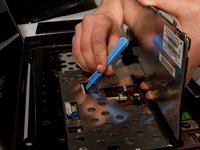
Use the plastic opening tool to pry the black plastic insert upward. The insert can be found at the top of the keyboard.
-
Once the insert is loose, carefully remove it from the device.
 Ask FixBot
-
-
-
Using #1 Phillips Screwdriver, remove both of the 5 mm screws that are located beneath the insert.
-
-
-
-
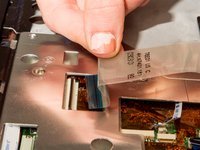
Lift up the gate on the ZIF socket to release the ribbon.
-
Ease the ribbon connecting the keyboard to the motherboard out of the ZIF socket.
-
-






To reassemble your device, follow these instructions in reverse order.
Cancel: I did not complete this guide.
2 other people completed this guide.

Team

Cal Poly, Team 7-8, Maness Winter 2013 Member of Cal Poly, Team 7-8, Maness Winter 2013
CPSU-MANESS-W13S7G8
4 Members
96 Guides authored
