Free Shipping on Domestic Orders $75+

Framework Desktop RTC Battery Removal

Views: 45

View statistics:

Past 24 Hours:
1
Past 7 Days:
1
Past 30 Days:
4
All Time:
45
Comments: 1

1 comment on steps.

Completed: 0

No one has marked this guide "completed." Will you be the first?

Favorites: 0

No one has favorited (and subscribed to) this guide. Will you be the first?

Time Required: No estimate
Difficulty: Moderate
Framework Desktop RTC Battery Removal
Prerequisite Only This is a prerequisite-only guide! This guide is part of another procedure and isn’t meant to be used alone.
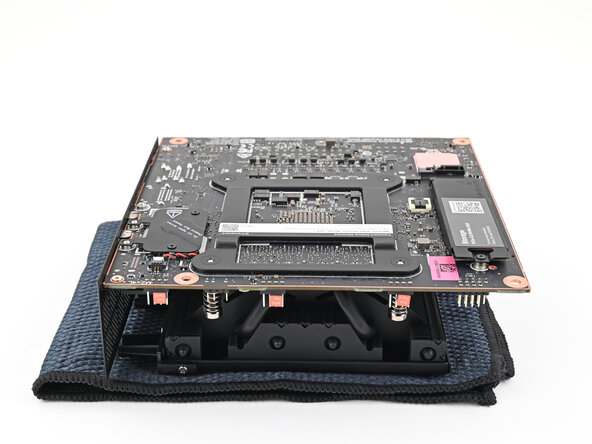
    1. Framework Desktop RTC Battery Removal, Place the Mainboard: step 1, image 1 of 2 Framework Desktop RTC Battery Removal, Place the Mainboard: step 1, image 2 of 2
      • Place the Mainboard on your work surface with its heatsink resting on a soft, clean cloth.

      Ask FixBot

      Add Comment

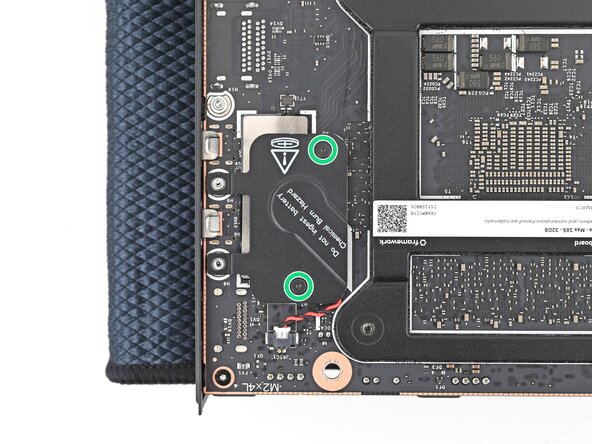
    2. Framework Desktop RTC Battery Removal, Loosen the RTC battery cover screws: step 2, image 1 of 2 Framework Desktop RTC Battery Removal, Loosen the RTC battery cover screws: step 2, image 2 of 2
      • Use your Framework Desktop Screwdriver to loosen the two captive T5 Torx screws securing the RTC battery cover.

      Ask FixBot

      Add Comment

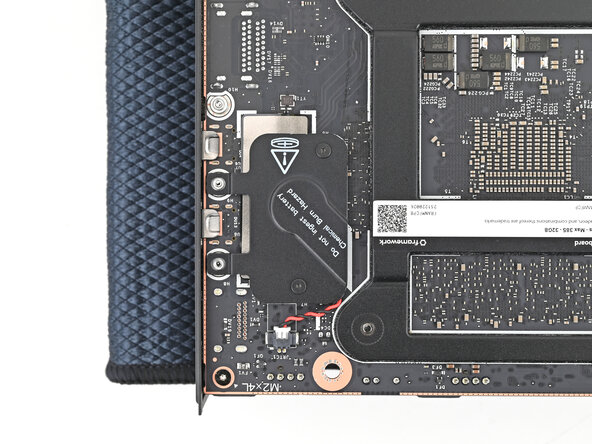
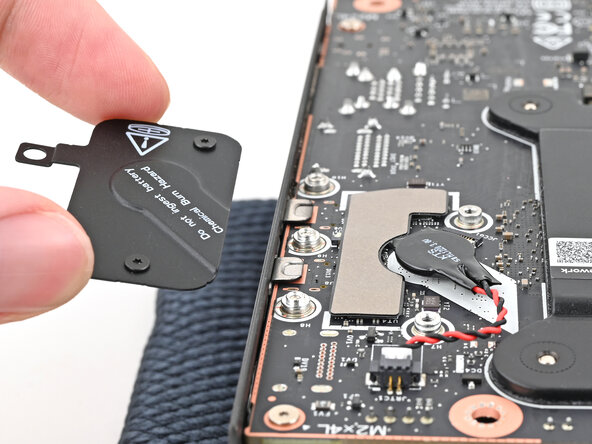
    3. Framework Desktop RTC Battery Removal, Remove the RTC battery cover: step 3, image 1 of 2 Framework Desktop RTC Battery Removal, Remove the RTC battery cover: step 3, image 2 of 2
      • Lift the RTC battery cover off the Mainboard and remove it.

      Ask FixBot

      Add Comment

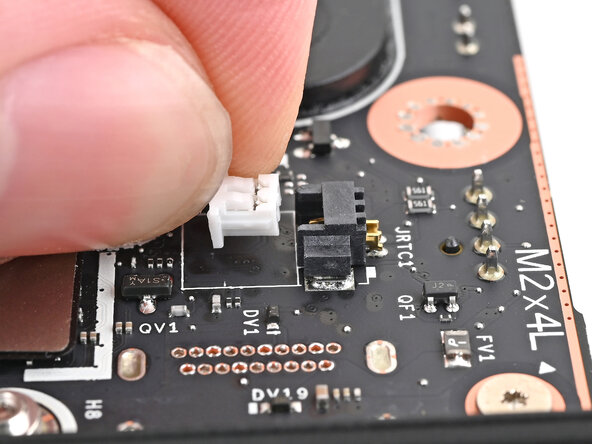
    4. Framework Desktop RTC Battery Removal, Disconnect the RTC battery: step 4, image 1 of 2 Framework Desktop RTC Battery Removal, Disconnect the RTC battery: step 4, image 2 of 2
      • Grip the RTC battery connector and pull it straight out of its socket to disconnect it.

      Ask FixBot

      Add Comment

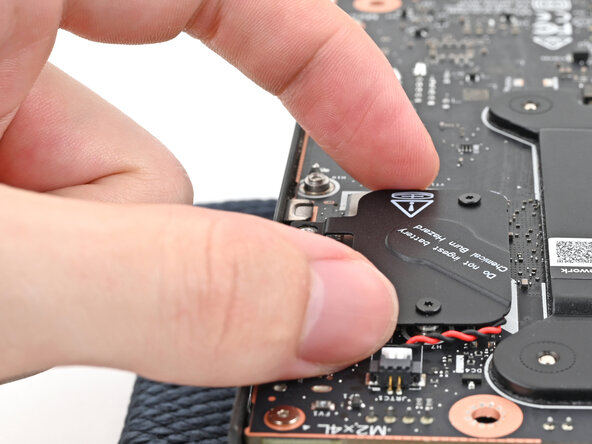
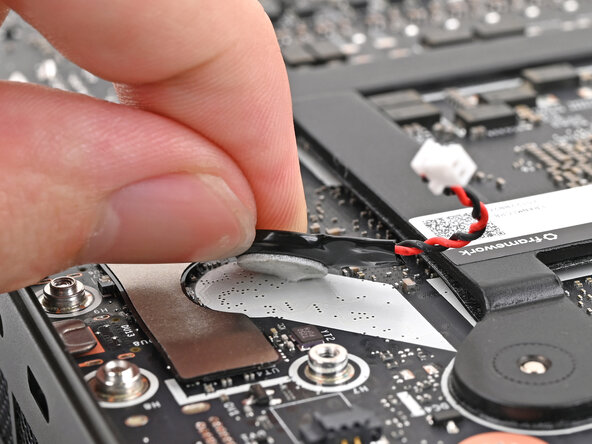
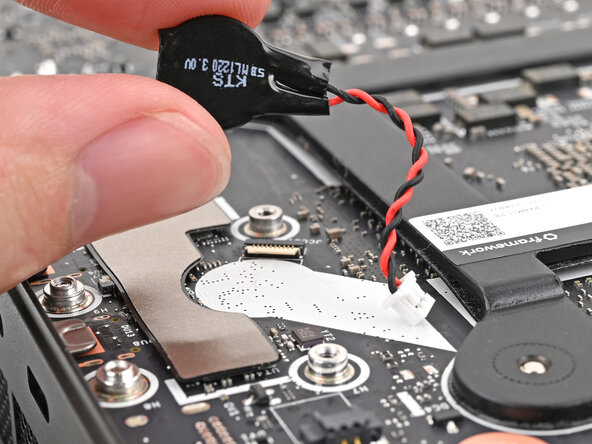
    5. Framework Desktop RTC Battery Removal, Remove the RTC battery: step 5, image 1 of 3 Framework Desktop RTC Battery Removal, Remove the RTC battery: step 5, image 2 of 3 Framework Desktop RTC Battery Removal, Remove the RTC battery: step 5, image 3 of 3
      • The RTC battery is lightly adhered to the Mainboard.

      • Use your fingers to peel the RTC battery off the Mainboard and remove it.

      Ask FixBot

      Add Comment

Conclusion

To reassemble your device, follow these instructions in reverse order.

Cancel: I did not complete this guide.

Alex Diaz-Kokaisl

Member since: 01/16/22

250,886 Reputation

1,200 Guides authored

0 Guide Comments

Add Comment

View Statistics:

Past 24 Hours: 1

Past 7 Days: 1

Past 30 Days: 4

All Time: 45