Free Shipping on Domestic Orders $75+

iPad Pro 13" Rear Camera Removal

Prerequisite Only
This is a prerequisite-only guide! This guide is part of another procedure and isn’t meant to be used alone.

What you need

    1. iPad Pro 13" Rear Camera Removal, Remove the grounding sticker: step 1, image 1 of 3 iPad Pro 13" Rear Camera Removal, Remove the grounding sticker: step 1, image 2 of 3 iPad Pro 13" Rear Camera Removal, Remove the grounding sticker: step 1, image 3 of 3
      • Use a pair of angled tweezers to gently peel up the black grounding sticker covering the back of the camera.

      • Check the replacement camera. If it doesn't have a grounding sticker, set the sticker aside carefully so you can put it on the new camera later.

      Ask FixBot

      Add Comment

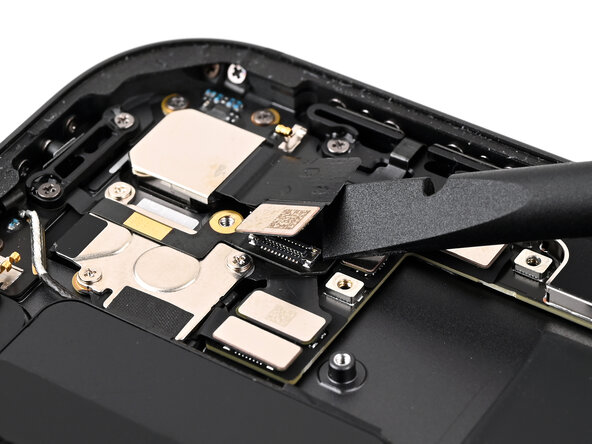
    2. iPad Pro 13" Rear Camera Removal, Disconnect the camera: step 2, image 1 of 2 iPad Pro 13" Rear Camera Removal, Disconnect the camera: step 2, image 2 of 2
      • Place the flat end of a spudger between the camera ribbon cable and the top button ribbon cable, against the camera press connector.

      • While holding the top button ribbon cable down with the spudger, twist the spudger to disconnect the rear camera press connector.

      Ask FixBot

      Add Comment

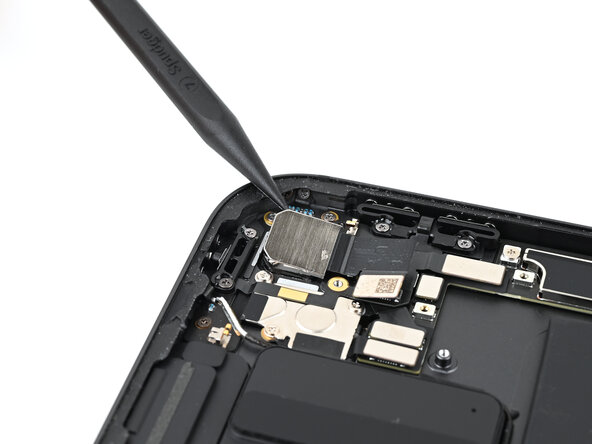
    3. iPad Pro 13" Rear Camera Removal, Remove the camera: step 3, image 1 of 1
      • Use a spudger to break the glue dots near the top-left and bottom-right corners of the camera.

      • These glue dots are small and hard to see. If the camera doesn't pry up easily in the next step, look for more glue dots.

      Ask FixBot

      Add Comment

    4. iPad Pro 13" Rear Camera Removal: step 4, image 1 of 3 iPad Pro 13" Rear Camera Removal: step 4, image 2 of 3 iPad Pro 13" Rear Camera Removal: step 4, image 3 of 3
      • Use the point of a spudger to pry the camera up from the top-left corner.

      • The camera is adhered to the iPad. Apply slow, firm pressure to give it time to release.

      • Once the camera is free, grab it by the ribbon cable and remove it.

      Ask FixBot

      Add Comment

Finish Line

Cancel: I did not complete this guide.

Nick Schultz

Member since: 03/24/24

65,497 Reputation

343 Guides authored

0 Guide Comments

Add Comment

View Statistics:

Past 24 Hours: 0

Past 7 Days: 3

Past 30 Days: 10

All Time: 66