Introduction
Use this guide to replace the RAM.
What you need
-
-
Tool used on this step:iMac Intel 21.5" Cardboard Service Wedge$4.99
-
Before beginning any work on your iMac: Unplug the computer and press and hold the power button for ten seconds to discharge the power supply's capacitors.
 Ask FixBot
-
-
-
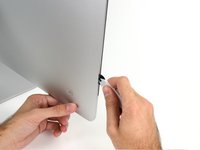
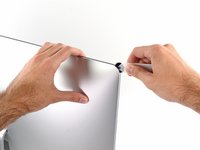
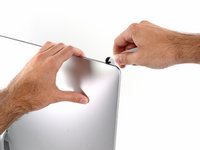
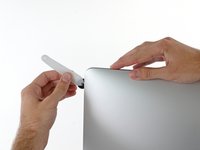
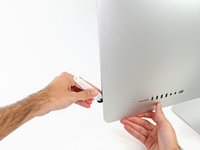
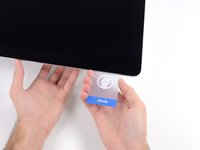
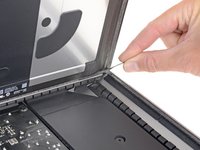
Starting on the left of the display, near the power button, insert the iMac Opening Tool into the gap between the glass panel and the rear enclosure.
-
-
-
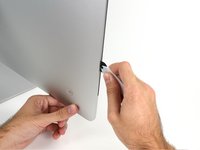
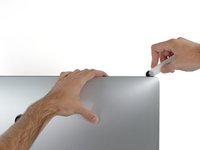
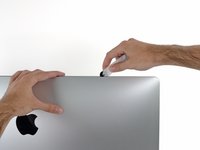
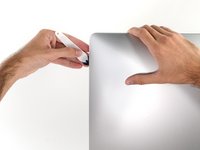
Use the tool like a pizza cutter—roll it along through the gap, and it will cut the foam adhesive through the center.
-
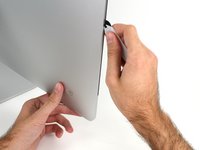
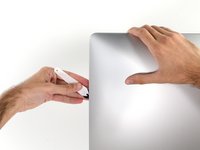
Run the tool up along the left side of the display.
-
-
-
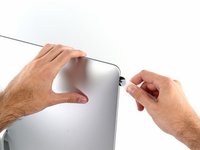
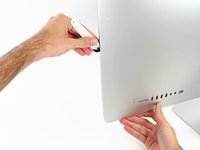
Finish pushing the opening tool to the bottom of the right side of the display.
-
-
Tool used on this step:Plastic Cards$2.99
-
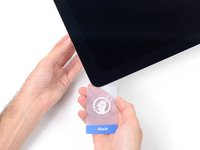
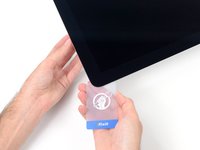
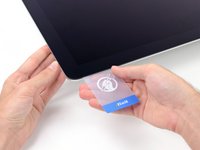
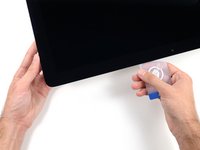
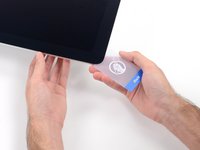
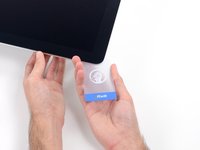
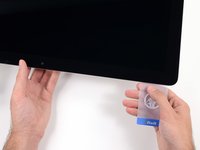
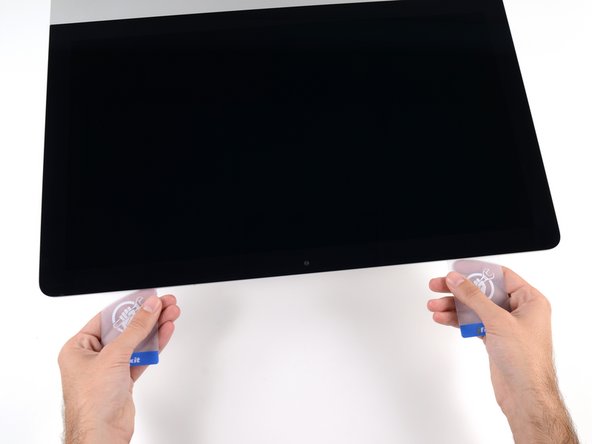
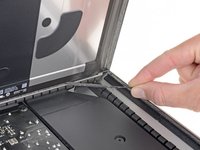
Starting from the top right corner of the iMac, wedge a plastic card between the display and frame.
-
-
-
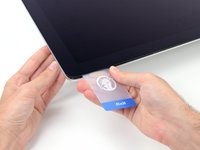
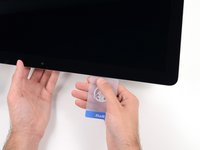
Gently twist the plastic card sideways to create a gap between the display and frame.
-
Move slowly and be careful not to stress the display glass too much—you only need to make a gap of about 1/4".
-
-
-
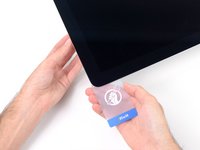
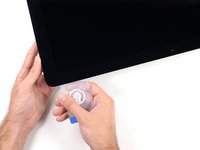
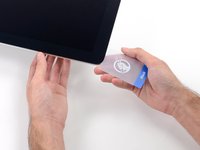
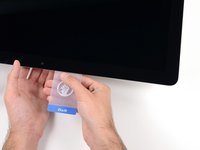
Slide the card toward the center of the display to cut any of the remaining adhesive along the top right corner of the iMac.
-
-
-
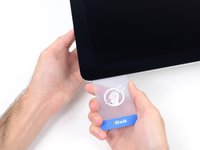
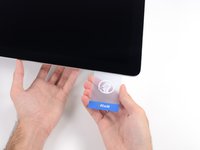
Wedge the plastic card into the top right corner once again, and leave it there to prevent the adhesive from resticking.
-
-
-
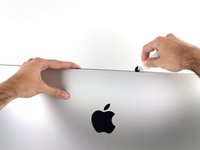
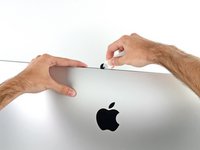
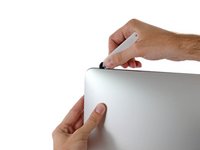
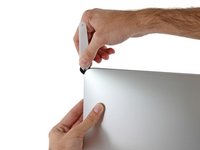
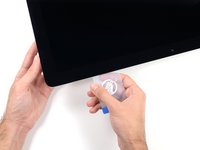
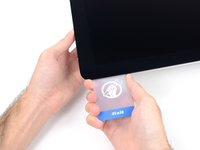
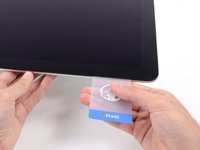
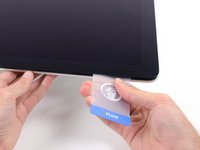
Insert a second plastic card into the gap between the display and frame near the top left corner of the iMac.
-
-
-
Gently twist the card upward, slightly increasing the space between the display and frame.
-
-
-
Slide the plastic card toward the center, again stopping just before the iSight camera.
-
-
-
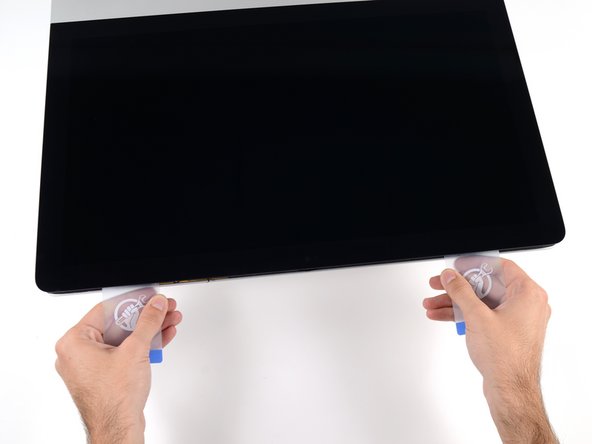
With both plastic cards inserted as shown near the corners, gently twist the cards sideways to increase the gap between display and case.
-
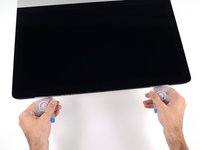
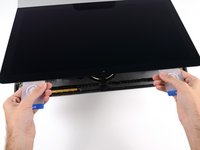
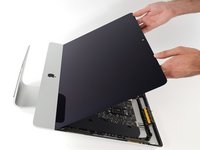
Begin to lift the top of the display up from the frame.
-
-
-
-
-
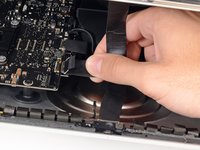
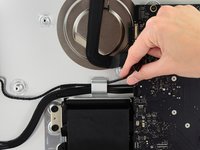
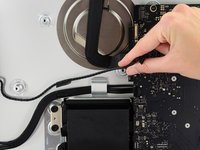
While holding the display up with one hand, use the other hand to unplug the display power cable.
-
-
-
-
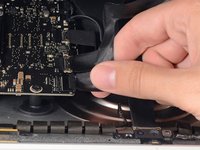
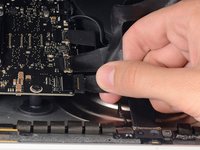
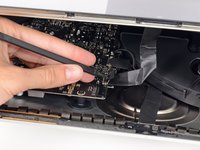
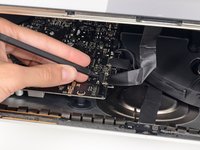
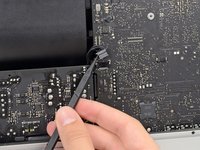
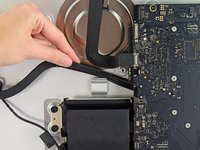
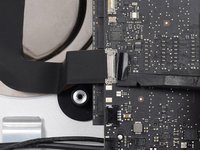
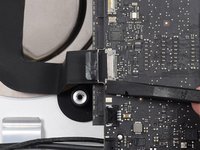
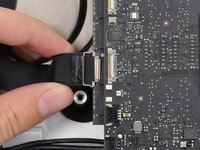
Use the tip of a spudger to flip up the metal retaining bracket on the display data cable.
-
Carefully pull the display data cable from its socket on the logic board.
-
-
Tool used on this step:Plastic Cards$2.99
-
Grasp the small tab at the end of one of the bottom edge display adhesive strips and pull the adhesive toward the top of the iMac to remove it.
-
Repeat this step with the other adhesive strip and remove it.
-
-
-
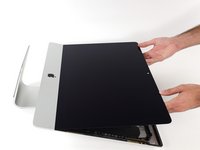
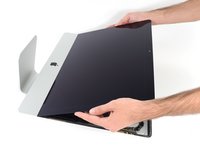
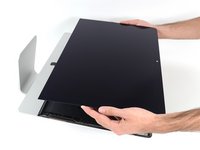
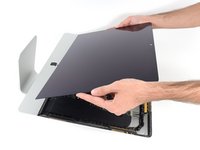
Lift the display up from the frame and remove it from the iMac.
-
It may be necessary to slowly lift from one side, to peel against the remaining adhesive.
-
-
-
-
-
Remove the following five Phillips screws holding the lower support bracket in place:
-
Four 3.2 mm screws
-
One 1.7 mm screw
-
-
-
-
-
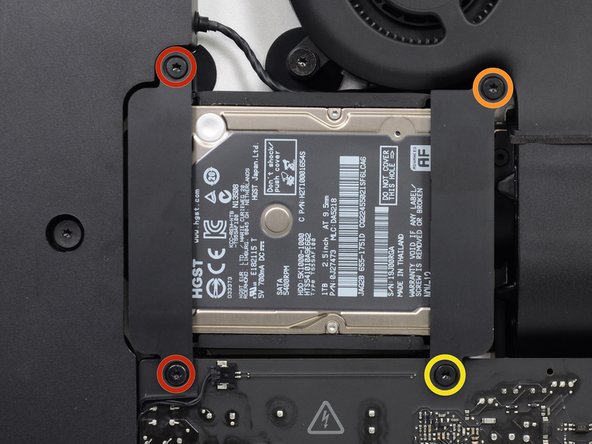
Remove the following screws securing the hard drive bracket to the rear enclosure:
-
Two 21 mm T10 Torx screws from the left-hand hard drive bracket.
-
One 9 mm T10 Torx screw.
-
One 27 mm T10 Torx screw.
-
-
-
-
-
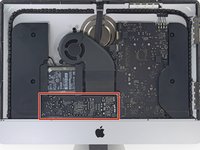
Use the tip of a spudger to push each side of the power button cable connector and gently walk it out of its socket.
-
-
-
Use the tip of a spudger to push each side of the power supply control cable connector and gently walk it out of its socket.
-
-
-
Remove the two 7.2 mm T10 Torx screws securing the power supply to the rear enclosure.
-
-
-
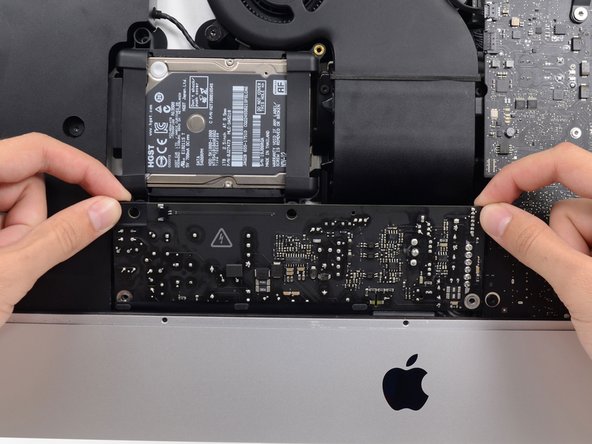
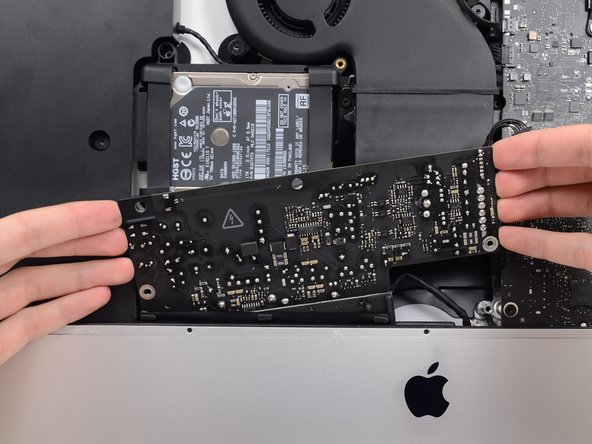
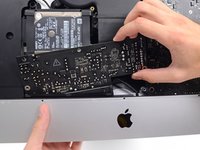
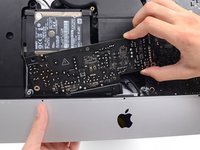
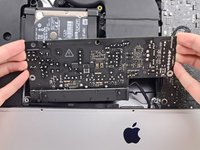
Pull the power supply slightly up and out from the rear enclosure.
-
Rotate the power supply counterclockwise, lifting the right side up about an inch higher than the left.
-
-
-
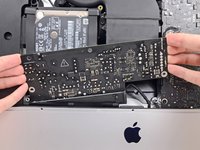
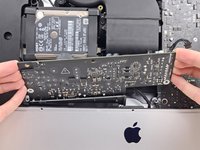
Slide the power supply to the right to clear the screw posts on the rear enclosure.
-
-
-
Rock the power supply forward and remove it from its recess in the rear enclosure.
-
-
-
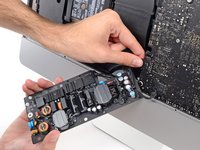
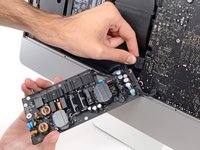
Squeeze the tab on the back side of the DC power cable connector and pull it straight out of its socket on the back of the logic board.
-
-
-
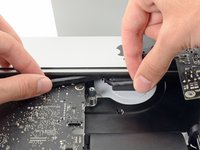
Use the flat end of a spudger to press the clip on the side of the AC inlet cable connector inward.
-
While pressing on the release clip with the spudger, grasp the AC inlet cable, and pull the connector straight out of its socket.
-
-
-
-
-
Gently pull the fan cable connector straight away from its socket on the logic board.
-
-
-
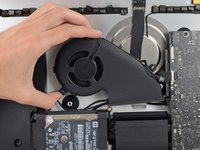
Remove the three 12.3 mm T10 shoulder screws securing the fan to the rear enclosure.
-
-
-
-
-
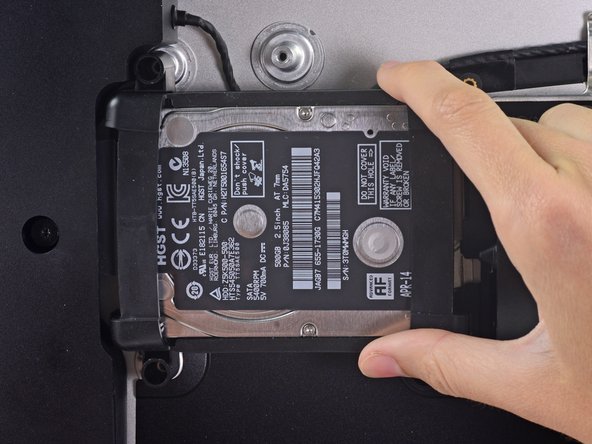
Lift the hard drive from the edge nearest the logic board and pull it slightly out of its recess.
-
-
-
Use a spudger to disconnect the single SATA power and data combo cable by gently prying its large plastic connector away from the hard drive.
-
-
-
-
-
Remove the single 7.2 mm T10 screw securing the hard drive tray to the rear enclosure.
-
-
-
-
-
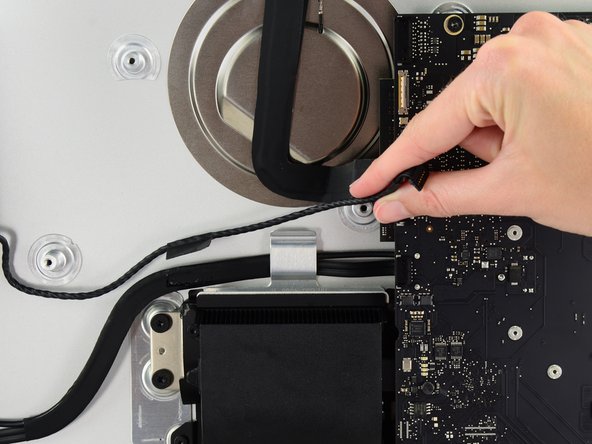
Push on each side of the left speaker cable connector with the tip of a spudger and gently walk it out of its socket.
-
-
Tool used on this step:Tweezers$4.99
-
If necessary, use a pair of tweezers to gently peel the tape securing the left speaker cable to the SATA data/power cable.
-
-
-
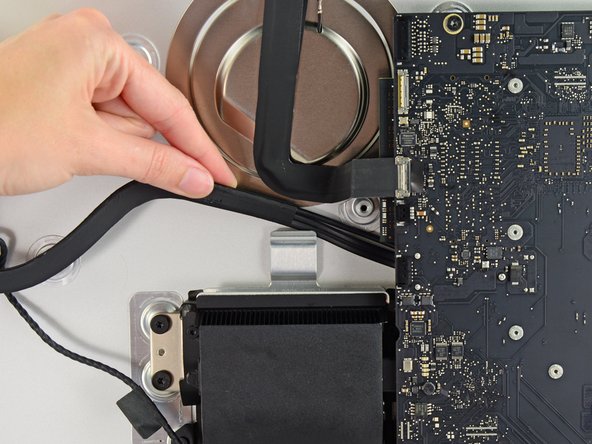
De-route the left speaker cable by pulling it straight up out of the retaining clip in the back of the rear enclosure.
-
-
-
Use the flat edge of a spudger to flip up the metal retaining bracket on the iSight camera cable connector.
-
Pull the iSight camera cable straight out of its socket on the logic board.
-
-
-
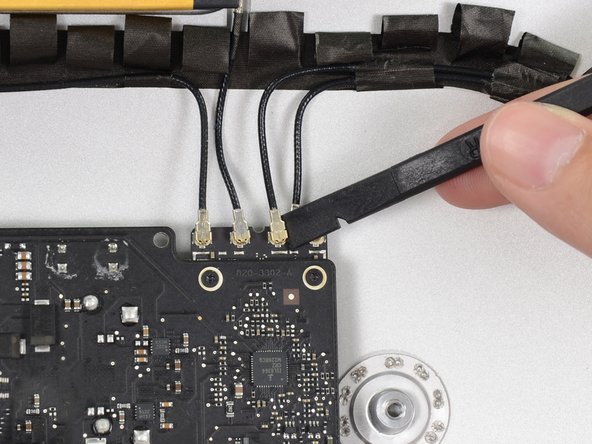
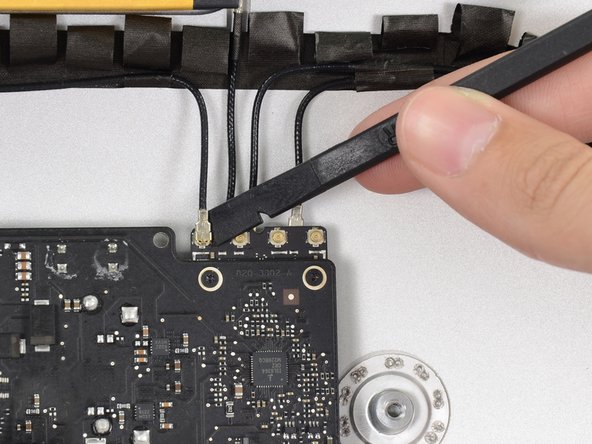
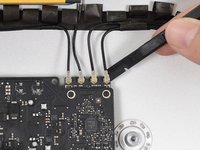
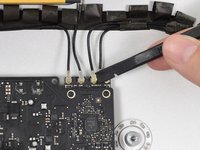
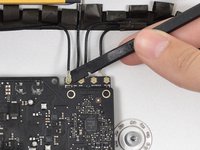
Use the flat edge of a spudger to disconnect each of the four antenna connectors from the AirPort/Bluetooth card.
-
-
-
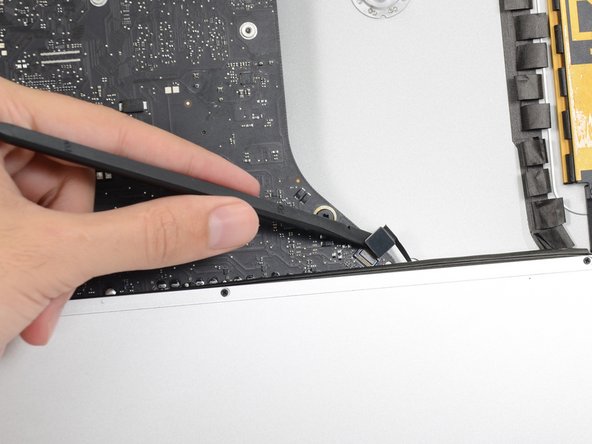
Use the flat edge of a spudger to pry the headphone jack cable connector from its socket on the logic board.
-
-
-
Remove the following screws securing the exhaust duct to the rear enclosure:
-
Two 6.3 mm T8 screws
-
Two 4.7 mm T8 screws
-
-
-
Remove the four 7.2 mm T10 screws securing the logic board to the rear enclosure.
-
-
-
Tilt the top of the logic board away from the rear enclosure.
-
Lift the logic board straight up and out of the iMac.
-
-
-
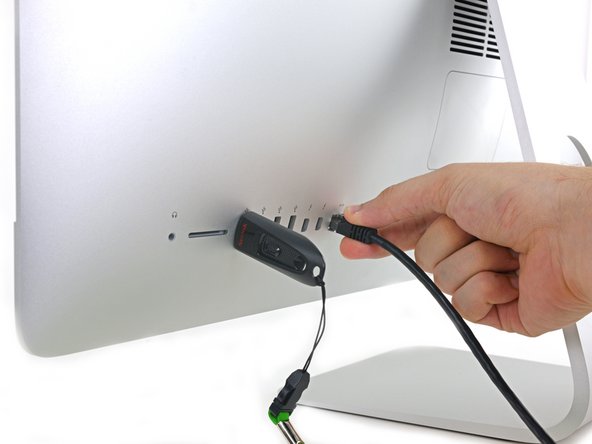
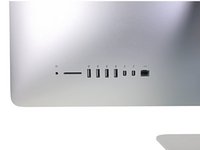
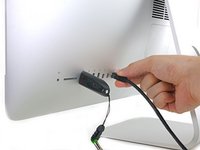
Use a USB flash drive and/or ethernet cable to ensure the logic board is seated correctly while you screw it in.
-
-
-
-
-
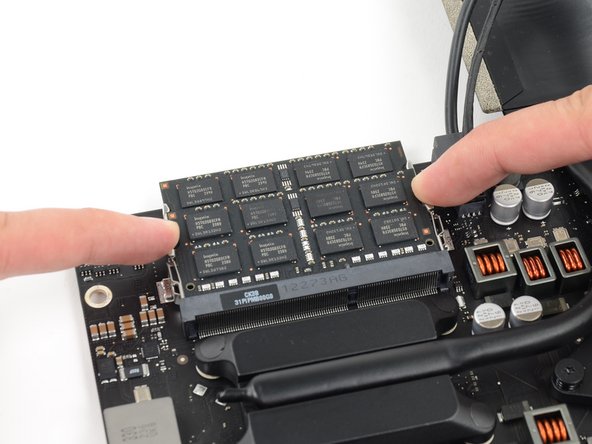
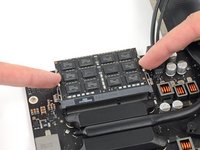
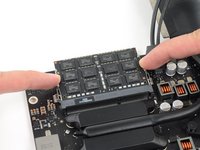
Release the tabs on each side of the RAM module by simultaneously pushing each tab away.
-
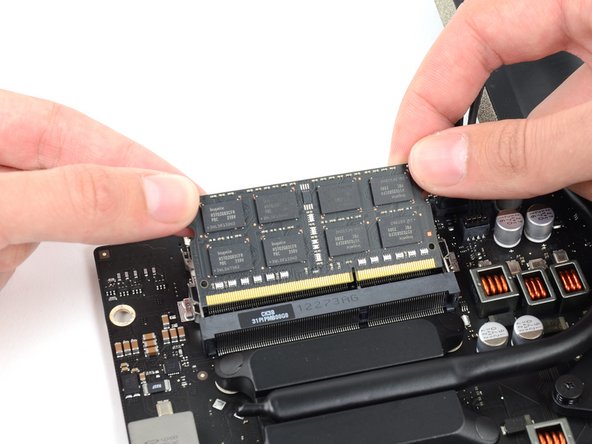
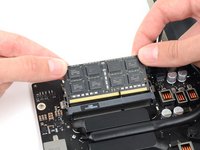
Grab the top left and right corners of the RAM module and carefully pull it straight out of its socket.
-
-













































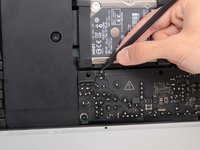
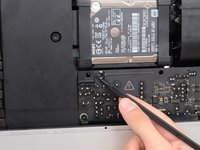
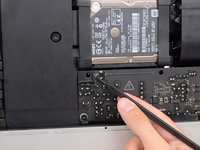


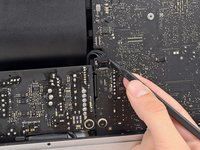












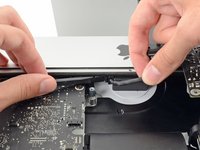
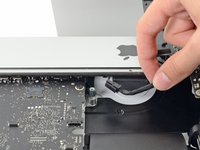


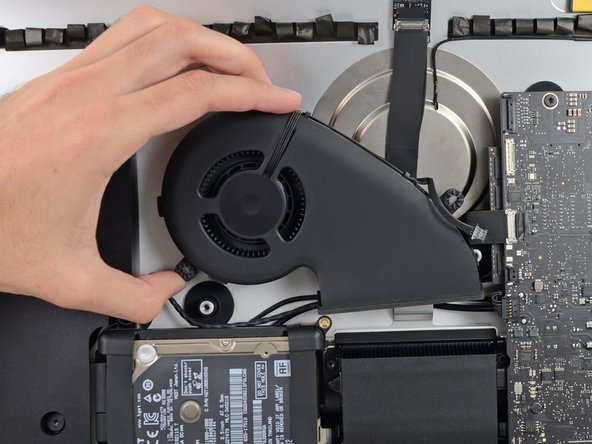






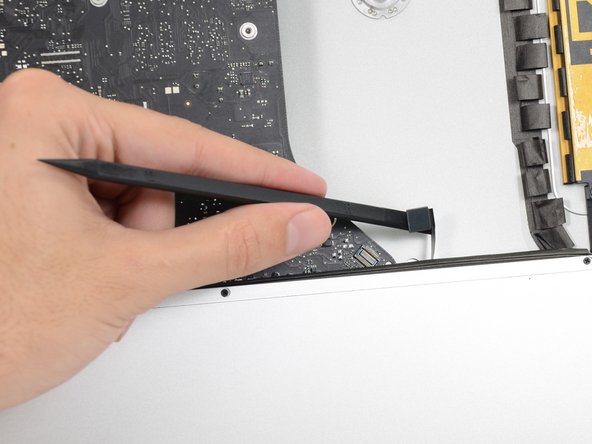


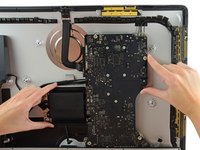
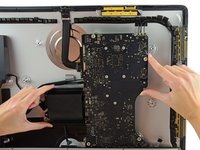
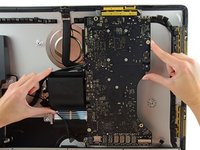


To reassemble your device, follow these instructions in reverse order.
Cancel: I did not complete this guide.
171 other people completed this guide.

43 Guide Comments
Holy jesus - just to replace/upgrade some RAM? Wow. What advice do you have for the final stage of reassembly if you've had to take the strips of adhesive off - what (if anything) do you replace it with?
James, in the parts section at the top you can purchase the adhesive strips that are a custom fit ([linked product missing or disabled: IF173-005]). I just replaced the hard drive and these strips are quite easy to work with. It's just a pain that you have to replace the adhesive anytime you need to go inside. Apple is getting lazy.
This was very easy to follow. The number of steps seem high, but half are just removing the display to make sure you are very careful with the fragile glass, so there are really only about 35 steps. You may also need to remove the right speaker before disconnecting the 4 AirPort/Bluetooth antennae, currently before step 50. The speaker is shown in earlier pics, then "disappears."
yes from what I went through it made sense to unscrew both speakers so you can move them a little bit to get things down like that and plugging the hard drive back in
