Free Shipping on Domestic Orders $75+

iMac Intel 17" Hard Drive Replacement

Prerequisite Only
This is a prerequisite-only guide! This guide is part of another procedure and isn’t meant to be used alone.

What you need

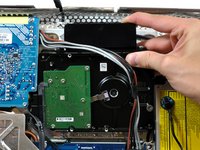
    1. iMac Intel 17" Hard Drive Replacement, Hard Drive: step 1, image 1 of 1
      • De-route the bundle of power supply cables from behind the hard drive bracket.

      Ask FixBot

      Add Comment

    2. iMac Intel 17" Hard Drive Replacement: step 2, image 1 of 3 iMac Intel 17" Hard Drive Replacement: step 2, image 2 of 3 iMac Intel 17" Hard Drive Replacement: step 2, image 3 of 3
      • A hard drive thermal sensor may be present on some models. If your logic board is missing the hard drive thermal sensor socket highlighted in red in the first picture, skip this step.

      • Pull the hard drive thermal sensor connector away from its socket on the logic board.

      • Pull this connector parallel to the face of the logic board toward the top edge of the iMac.

      • Use a spudger to pry the thermal sensor and adhesive off the hard drive and install it in the same location on the replacement drive.

      Ask FixBot

      Add Comment

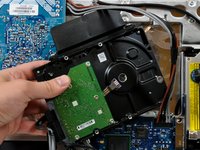
    3. iMac Intel 17" Hard Drive Replacement: step 3, image 1 of 1
      • Press the hard drive bracket down to free it from the rear case, then rotate the top of the drive toward yourself.

      • Pressing the top of the hard drive bracket down to release it from the rear case requires a substantial amount of force, so we recommend laying your iMac stand-side down on a table to avoid knocking it over.

      • If you have trouble releasing the hard drive bracket, it can be removed from the hard drive, by removing the two T8 or T10 Torx screws securing the bracket to the drive.

      Ask FixBot

      Add Comment

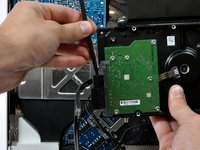
    4. iMac Intel 17" Hard Drive Replacement: step 4, image 1 of 2 iMac Intel 17" Hard Drive Replacement: step 4, image 2 of 2
      • Lift the hard drive off its lower pins and pull it out of the rear case, minding the power supply cables that may get caught.

      • When reinstalling your hard drive, be careful not to push the two rubber grommets through their holes in the chassis. Retrieving them would require removing the logic board.

      Ask FixBot

      Add Comment

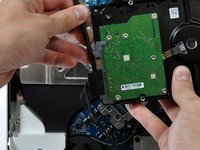
    5. iMac Intel 17" Hard Drive Replacement: step 5, image 1 of 2 iMac Intel 17" Hard Drive Replacement: step 5, image 2 of 2
      • Insert a spudger between the SATA connectors and twist it to separate the connector from the hard drive.

      • Disconnect both SATA connectors.

      Ask FixBot

      Add Comment

Conclusion

To reassemble your device, follow these instructions in reverse order.

Cancel: I did not complete this guide.

0 Guide Comments

Add Comment

View Statistics:

Past 24 Hours: 2

Past 7 Days: 5

Past 30 Days: 18

All Time: 1,573