15% Off Selected iFixit Tools — Limited Time
Free Shipping on Domestic Orders $75+

iMac G5 20" Model A1076 Display Replacement

What you need

  1. iMac G5 20" Model A1076 Display Replacement, Rear Panel: step 1, image 1 of 1
    • Lay the iMac display-side down on a flat surface (putting a cloth under the screen to protect it from bumps).

    • Loosen the three Phillips screws securing the rear panel to the iMac.

    • These screws are captive in the iMac. The center screw will stop turning after about 3.5 turns and the outer screws will stop turning after about 5.5 turns. Do not try to remove these screws from your iMac.

    Ask FixBot

    Add Comment

  2. iMac G5 20" Model A1076 Display Replacement: step 2, image 1 of 2 iMac G5 20" Model A1076 Display Replacement: step 2, image 2 of 2
    • Lift the rear panel slightly near the bottom of the iMac.

    • Pull the rear panel toward yourself and remove it from the iMac.

    Ask FixBot

    Add Comment

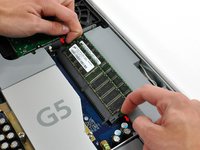
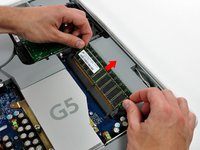
  3. iMac G5 20" Model A1076 Display Replacement, RAM: step 3, image 1 of 2 iMac G5 20" Model A1076 Display Replacement, RAM: step 3, image 2 of 2
    • Rotate each of the two RAM retaining arms away from the RAM chip.

    • The chip will partially pop out at the same time as the arms are pulled out to either side.

    • Pull the RAM chip straight away from its socket.

    • Repeat this process for the other RAM chip.

    • Be sure the RAM arms are rotated fully outward before installing new RAM chips.

    Ask FixBot

    Add Comment

  4. iMac G5 20" Model A1076 Display Replacement, Inverter: step 4, image 1 of 1
    • Remove the following three screws securing the inverter to the chassis:

    • Two 7.9 mm Phillips.

    • One 26 mm Phillips.

    • When reinstalling the inverter, be careful to route the purple and black cables around the screw mount. It is very easy to pinch the cable and damage the insulation.

    Ask FixBot

    Add Comment

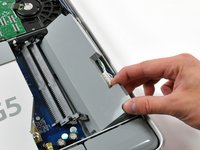
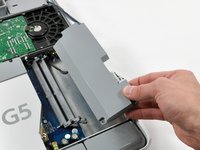
  5. iMac G5 20" Model A1076 Display Replacement: step 5, image 1 of 2 iMac G5 20" Model A1076 Display Replacement: step 5, image 2 of 2
    • Slide the inverter toward the edge of the mid-plane, then lift it out of the iMac.

    • Be careful to not pry up against the RAM brackets.

    • When reinstalling the inverter, press the blue and white cables down in the edge of the midplane before lowering the inverter down into the midplane. The black cable can be routed near the hard drive thermal sensor cable.

    Ask FixBot

    Add Comment

  6. iMac G5 20" Model A1076 Display Replacement: step 6, image 1 of 1
    • Disconnect the large inverter cable connector from the inverter by pulling straight away from its socket.

    Ask FixBot

    Add Comment

  7. iMac G5 20" Model A1076 Display Replacement: step 7, image 1 of 1
    • Disconnect the small inverter cable connector by pulling it straight away from its socket.

    Ask FixBot

    Add Comment

  8. iMac G5 20" Model A1076 Display Replacement: step 8, image 1 of 1
    • Disconnect the hard drive thermal sensor cable from the thermal sensor board on the hard drive bracket by pulling the cable away from the heat sink.

    Ask FixBot

    Add Comment

  9. iMac G5 20" Model A1076 Display Replacement: step 9, image 1 of 1
    • Gently pull the black inverter cable to disconnect it from the logic board.

    • If you have trouble plugging this cable back in during reinstallation, remove the fan duct for more room to work.

    Ask FixBot

    Add Comment

  10. iMac G5 20" Model A1076 Display Replacement: step 10, image 1 of 1
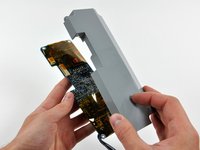
    • Flip up the inverter cable cover from its left edge and lift it out of the chassis.

    Ask FixBot

    Add Comment

  11. iMac G5 20" Model A1076 Display Replacement: step 11, image 1 of 1
    • De-route the inverter cables from the inverter cable cover hook.

    Ask FixBot

    Add Comment

  12. iMac G5 20" Model A1076 Display Replacement: step 12, image 1 of 3 iMac G5 20" Model A1076 Display Replacement: step 12, image 2 of 3 iMac G5 20" Model A1076 Display Replacement: step 12, image 3 of 3
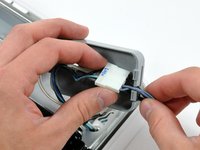
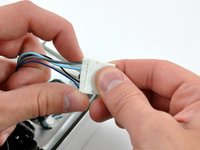
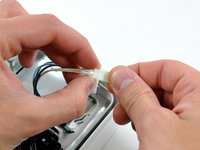
    • Remove the inverter cables from the inverter cable cover, and disconnect both connectors.

    Ask FixBot

    Add Comment

  13. iMac G5 20" Model A1076 Display Replacement: step 13, image 1 of 2 iMac G5 20" Model A1076 Display Replacement: step 13, image 2 of 2
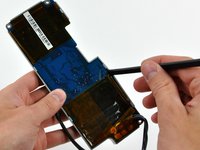
    • If you wish to replace just the inverter board, use a spudger to pry off its plastic cover.

    Ask FixBot

    Add Comment

  14. iMac G5 20" Model A1076 Display Replacement, Optical Drive: step 14, image 1 of 1
    • Remove the four 7 mm Phillips screws securing the optical drive to the midplane.

    Ask FixBot

    Add Comment

  15. iMac G5 20" Model A1076 Display Replacement: step 15, image 1 of 2 iMac G5 20" Model A1076 Display Replacement: step 15, image 2 of 2
    • Pull the optical drive up by its white pull tab to disconnect it from the logic board.

    • Lift the free end of the optical drive just enough to clear the fan cover. Lifting the free end of the optical drive too far may break the plastic positioning pins off the front bezel.

    • Lift the free end of the optical drive slightly, then pull it away from the edge of the rear case to clear the two plastic positioning pins.

    • Lift the optical drive out of your iMac.

    • When reinstalling your optical drive it may be necessary to set the bezel attached to the open end of the drive on the plastic positioning pins molded into the front bezel of the iMac and pull the connector side of the drive toward the edge of the rear case, bending it outward slightly, to properly seat the connector.

    Ask FixBot

    Add Comment

  16. iMac G5 20" Model A1076 Display Replacement, Display: step 16, image 1 of 1
    • Remove the two 7.3 mm shouldered Phillips screws securing the display cable connector to the logic board.

    Ask FixBot

    Add Comment

  17. iMac G5 20" Model A1076 Display Replacement: step 17, image 1 of 2 iMac G5 20" Model A1076 Display Replacement: step 17, image 2 of 2
    • Pull the display data cable up off the logic board by its black pull tab.

    • De-route the display cable from the two aluminum fingers in the mid-plane.

    Ask FixBot

    Add Comment

  18. iMac G5 20" Model A1076 Display Replacement: step 18, image 1 of 1
    • Loosen the center Phillips screw securing the power supply to the front case.

    • This screw will remain captive in the power supply.

    Ask FixBot

    Add Comment

  19. iMac G5 20" Model A1076 Display Replacement: step 19, image 1 of 1
    • Remove the four coarse-thread 7.8 mm Phillips screws along the top edge of the iMac.

    Ask FixBot

    Add Comment

  20. iMac G5 20" Model A1076 Display Replacement: step 20, image 1 of 1
    • Remove the following two screws:

    • One 7 mm Phillips.

    • One 26 mm Phillips.

    Ask FixBot

    Add Comment

  21. iMac G5 20" Model A1076 Display Replacement: step 21, image 1 of 1
    • Lift the midplane assembly out of the front case.

    • Be mindful of the inverter cables on the hard drive side of the midplane that may get caught as you lift out the midplane.

    • During reinstallation, insert the screw heads protruding from the speakers along the lower edge of the midplane into the holes in the front bezel and thread the inverter cables through the openings in the midplane before lowering the top edge down into the front bezel.

    Ask FixBot

    Add Comment

  22. iMac G5 20" Model A1076 Display Replacement: step 22, image 1 of 1
    • Remove the six 7.2 mm coarse-thread T10 Torx screws securing the display to the front case.

    Ask FixBot

    Add Comment

  23. iMac G5 20" Model A1076 Display Replacement: step 23, image 1 of 1
    • Lift the display out of the front case.

    Ask FixBot

    Add Comment

Conclusion

To reassemble your device, follow these instructions in reverse order.

Cancel: I did not complete this guide.

21 other people completed this guide.

2 Guide Comments

Excellent Thank you

Richard Miller - Reply Share

Very detailed. Thank you.

Nicolas Pasquier - Reply Share

Add Comment

View Statistics:

Past 24 Hours: 1

Past 7 Days: 15

Past 30 Days: 82

All Time: 32,499