
ZTE Lever Power Button Replacement

Michael Gonzalez and 3 other contributors
Last updated on Jan 10, 2025
Views: 645
View statistics:
- Past 24 Hours:
- 3
- Past 7 Days:
- 23
- Past 30 Days:
- 74
- All Time:
- 645
Comments: 0
No one has left comments on this guide. Will you be first?
Go to guide commentsCompleted: 0 1
No one has marked this guide "completed." Will you be the first?
1 person has marked this guide "completed." It's you — great job!
Favorites: 0 1
No one has favorited (and subscribed to) this guide. Will you be the first?
1 person has favorited (and subscribed to) this guide — and that's you!
Better Introduction
Improve this guide by completing or revising its introduction.
Introduction
Go to step 1 ↓Follow this replacement guide to replace the power button on a ZTE Lever smartphone.
What you need
Tools


-
-
-
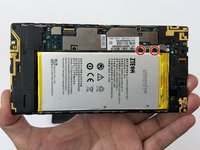
Remove the two 1.6mm Phillips #0 screws from the battery plug cover.
-
Remove the cover.
-
-
-
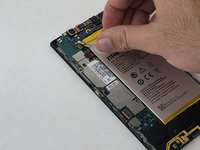
Disconnect the battery cable from the motherboard with a plastic opening tool.
-
-
-
-
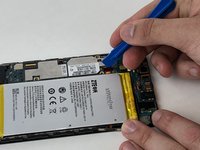
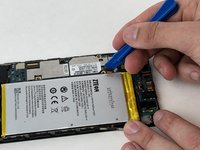
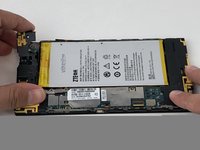
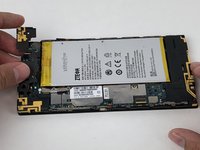
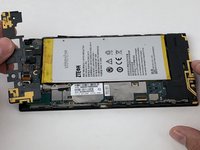
Use your hands, or a plastic opening tool, to pry the battery from the phone.
-
-
-
-
Remove the three 1.6mm Phillips #0 screws from the plastic cover on the motherboard.
-
-
-
Use a plastic opening tool to flip up the retaining flap on the volume ribbon cable ZIF socket.
-
-
-
Peel up the volume button cable from the phone with hands, or plastic opening tool.
-
-
-
-
-
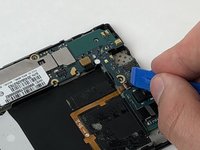
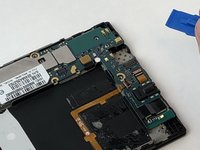
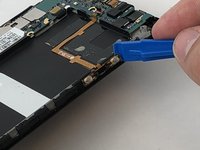
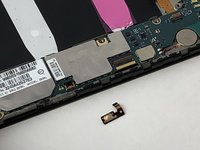
Disconnect the power button from the motherboard with a plastic opening tool.
-
-
-
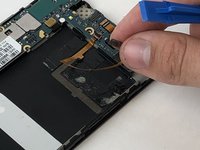
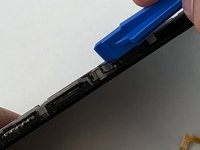
Peel the power button cable up from the phone with you hands, or a plastic opening tool.
-
-

 Ask FixBot












To reassemble your device, follow these instructions in reverse order.

Team

USF Tampa, Team S5-G2, Passmore Spring 2018 Member of USF Tampa, Team S5-G2, Passmore Spring 2018
USFT-PASSMORE-S18S5G2
3 Members
72 Guides authored
