
Digitac Jazz Ultratab C725 Volume and Screen Buttons Replacement

Seth York and 7 other contributors
Last updated on May 7, 2024
Views: 770
View statistics:
- Past 24 Hours:
- 2
- Past 7 Days:
- 25
- Past 30 Days:
- 101
- All Time:
- 770
Comments: 0
No one has left comments on this guide. Will you be first?
Go to guide commentsCompleted: 0 1
No one has marked this guide "completed." Will you be the first?
1 person has marked this guide "completed." It's you — great job!
Favorites: 0 1
No one has favorited (and subscribed to) this guide. Will you be the first?
1 person has favorited (and subscribed to) this guide — and that's you!
Slice and Dice
The steps in this guide should be split up and made into a series of prerequisite guides.
Introduction
Go to step 1 ↓The following guide will show how to remove the volume control and screen lock buttons from the Digitac Jazz Ultratab C725 for replacement.
What you need
Tools


-
-
-
Locate the four 3.5 mm Phillips screws holding the silver back plate and the screen together. There are two screws on the top and two screws on the bottom.
-
Using the Phillips #00 Screwdriver, remove all four screws.
 Ask FixBot
-
-
-
Flip your device so that the long side without the buttons faces you.
-
Insert the Plastic Opening Tool between the silver back plate and the screen about one inch from the corner of the device on either side.
-
Using the Plastic Opening Tool, pry open the screen until it unsnaps from the back plate.
-
Work your way down the edge of the device, unsnapping all locations where the screen meets the silver back plate.
-
Go around the corners with the Plastic Opening Tool and unsnap additional snap-in locations as necessary.
-
-
-
Tool used on this step:Tweezers$4.99
-
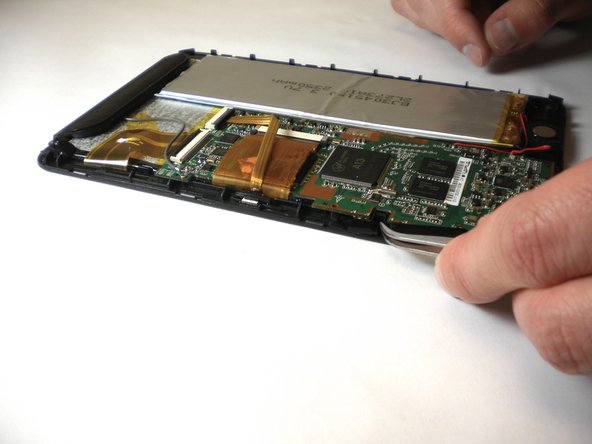
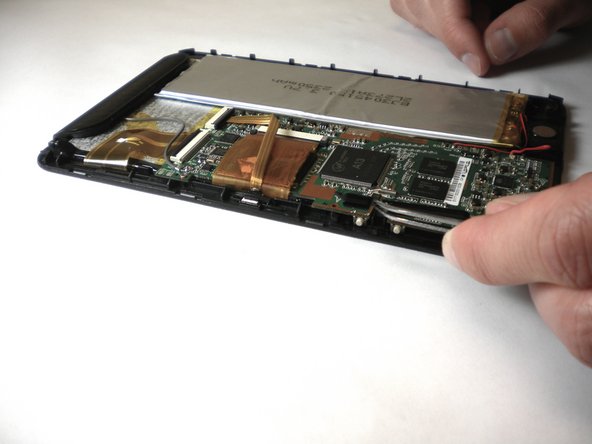
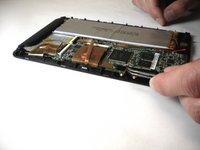
Using a pair of tweezers, poke the square plastic piece between each of the buttons that connect them together. Each button has a plastic piece between their gaps.
-
While poking the square piece in, simultaneously push it upward to release it.
-
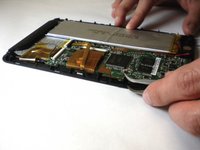
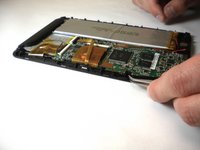
After releasing the first one, use the pair of tweezers, and do the same with the second one. This should free all buttons from the device.
-
Once the buttons are free, use the set of tweezers to grab the buttons and pull them out.
-
-


To reassemble your device, follow these instructions in reverse order.

Team

USF Tampa, Team 11-6, Blackwell Winter 2015 Member of USF Tampa, Team 11-6, Blackwell Winter 2015
USFT-BLACKWELL-W15S11G6
2 Members
60 Guides authored
