
Visioneer OneTouch 7400 USB Sensor Bar Replacement

Last updated on Jan 28, 2014
Views: 846
View statistics:
- Past 24 Hours:
- 2
- Past 7 Days:
- 17
- Past 30 Days:
- 77
- All Time:
- 846
Comments: 0
No one has left comments on this guide. Will you be first?
Go to guide commentsCompleted: 0 1
No one has marked this guide "completed." Will you be the first?
1 person has marked this guide "completed." It's you — great job!
Favorites: 1 2
1 person has favorited (and subscribed to) this guide. Will you be next?
2 people have favorited (and subscribed to) this guide — including you!
Incorrect Tools
Help make this guide better by using the correct tools in images and/or text.
Introduction
Go to step 1 ↓Use this guide to remove and replace the sensor bar in the scanner bed of the Visioneer OneTouch 7400 USB.
What you need
Tools
-
×2


-
-
-
On the bottom of the scanner, remove the screw at the top left side.
 Ask FixBot
-
-
-
Remove the rubber foot pad opposite the screw hole to expose a second screw hole.
-
Remove the screw beneath the foot-pad.
-
-
-
Rotate the scanner so the screw hole is located on the top left hand side.
-
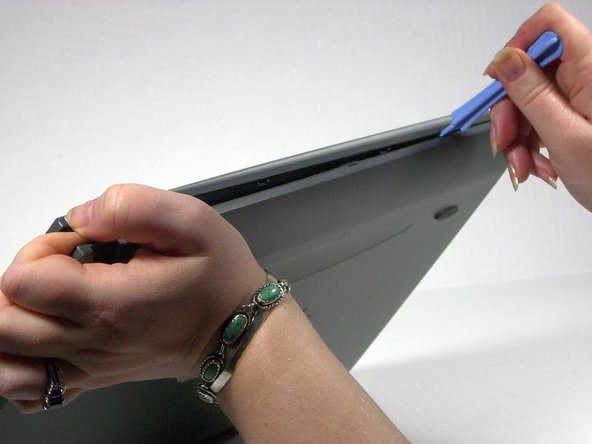
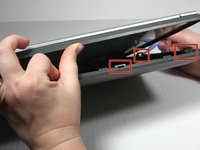
Place the plastic opening tool between the top casement and bottom casement of scanner with the hook facing up.
-
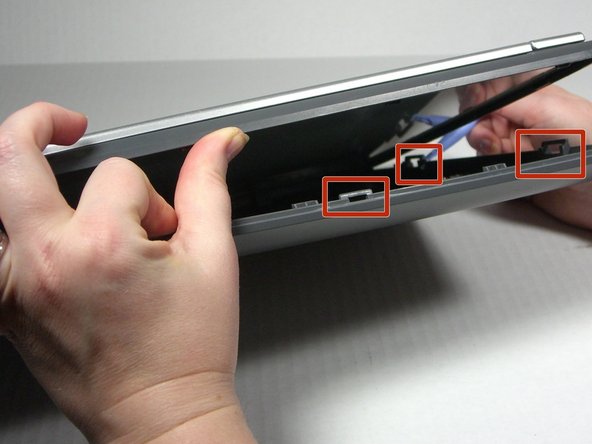
Gently pry the two casements apart beginning above the screw hole and working your way around.
-
-
-
-
-
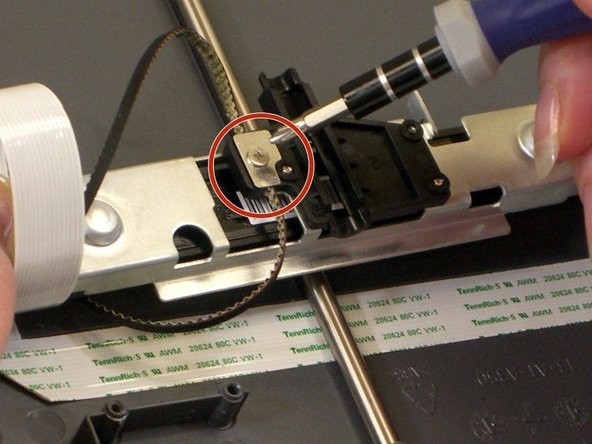
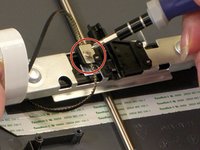
With the sensor bar turned upside down, remove the screw in the middle of the bar.
-
Lift off the metal plate if it does not come away with the screw.
-
-
-
-
With the sensor bar upside down, lift the metal tab near the center.
-
Slide the metal casing on top of the sensor bar to the left to disengage it from the plastic.
-
-
-
-
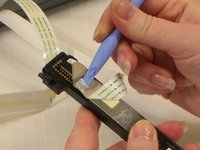
Use the spudger to pry loose the ribbon tab on the inside surface of the casement.
-
-
-
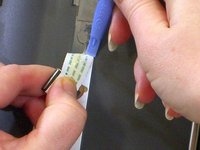
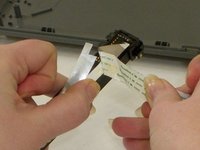
Detach the ribbon from the other end and pull the plastic tab from the ribbon.
-
-
-
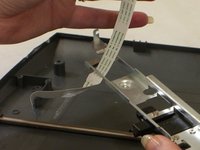
Carefully peel the ribbon off of the casing. The ribbon is held with two-sided tape. Use the spudger to help as needed.
-
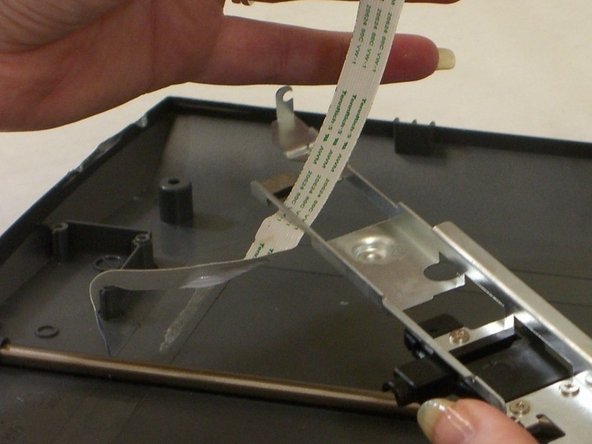
The ribbon goes under the metal bar. Gently pull the ribbon under the metal bar to remove it.
-
-
-
Lift the sensor bar from the scanner bed.
-
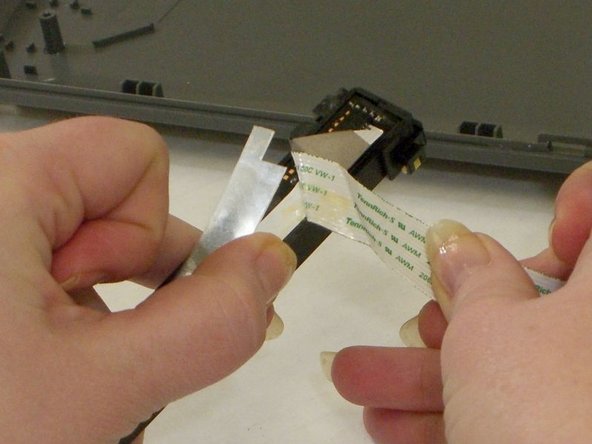
To finish removing the ribbon from the sensor bar, use the spudger to pry away the clear plastic piece securing the ribbon to the bar. Detach the ribbon from the sensor bar by peeling it away from the double-sided tape.
-
-








To reassemble your device, follow these instructions in reverse order.

Team

University of Maine, Team 1-13, Diaz Fall 2013 Member of University of Maine, Team 1-13, Diaz Fall 2013
UMAINE-DIAZ-F13S1G13
3 Members
84 Guides authored
