15% Off Selected iFixit Tools — Limited Time
Free Shipping on Domestic Orders $75+

VTech MobiGo Touch Learning System Screen Replacement

What you need

  1. VTech MobiGo Touch Learning System Screen Replacement, Case: step 1, image 1 of 1
    • Remove the battery covers and the four batteries.

    Ask FixBot

    Add Comment

  2. VTech MobiGo Touch Learning System Screen Replacement: step 2, image 1 of 2 VTech MobiGo Touch Learning System Screen Replacement: step 2, image 2 of 2
    • Remove the four plastic caps with a metal spudger to expose the 6.0 mm Philips JIS #0 case screws.

    • Remove the eight 6.0 mm JIS #0 case screws.

    Ask FixBot

    Add Comment

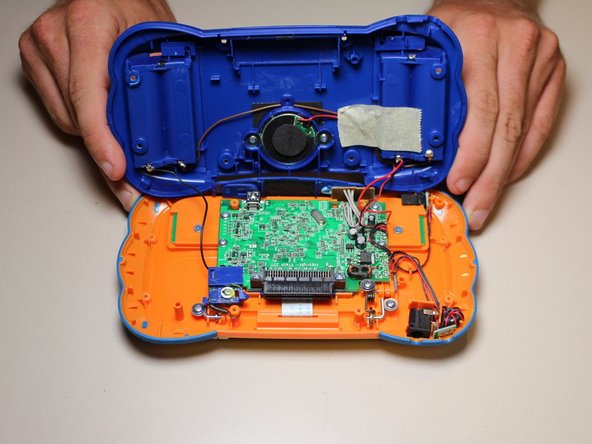
  3. VTech MobiGo Touch Learning System Screen Replacement: step 3, image 1 of 2 VTech MobiGo Touch Learning System Screen Replacement: step 3, image 2 of 2
    • Using a plastic opening tool, separate the two pieces of the case carefully.

    Ask FixBot

    Add Comment

  4. VTech MobiGo Touch Learning System Screen Replacement, Disassembling VTech MobiGo Touch Learning System Screen Enclosure: step 4, image 1 of 1
    • Remove the three 4.0 mm Philips J0 screws holding the "L" shaped brackets in place.

    Ask FixBot

    Add Comment

  5. VTech MobiGo Touch Learning System Screen Replacement: step 5, image 1 of 1
    • Remove the three "L" shaped brackets and the spring.

    Ask FixBot

    Add Comment

  6. VTech MobiGo Touch Learning System Screen Replacement: step 6, image 1 of 1
    • Flip the device over and remove the three 4.0 mm Philips J0 case screws.

    Ask FixBot

    Add Comment

  7. VTech MobiGo Touch Learning System Screen Replacement: step 7, image 1 of 1
    • Separate the front and back of the case.

    • Use a plastic opening tool if necessary.

    Ask FixBot

    Add Comment

  8. VTech MobiGo Touch Learning System Screen Replacement, Screen: step 8, image 1 of 1
    • Remove the 4 (3.4 mm Philips J0) screws holding the screen in

    Ask FixBot

    Add Comment

  9. VTech MobiGo Touch Learning System Screen Replacement: step 9, image 1 of 1
    • Remove the black tape

    Ask FixBot

    Add Comment

  10. VTech MobiGo Touch Learning System Screen Replacement: step 10, image 1 of 1
    • Remove the circuit board from the back of the screen.

    • The circuit board has double sided tape on the back side holding it to the screen.

    Ask FixBot

    Add Comment

  11. VTech MobiGo Touch Learning System Screen Replacement: step 11, image 1 of 1
    • Peel the ribbon wire off of the circuit board. Now the screen should be free to remove.

    Ask FixBot

    Add Comment

  12. VTech MobiGo Touch Learning System Screen Replacement: step 12, image 1 of 1
    • Resolder the new screens ribbon cable on the the circuit board.

    • Always be careful when soldering.

    Ask FixBot

    Add Comment

Conclusion

To reassemble your device, follow these instructions in reverse order.

Cancel: I did not complete this guide.

One other person completed this guide.

Daniel Kresge

Member since: 09/01/15

385 Reputation

4 Guides authored

Team

USF Tampa, Team 8-3, Eyestone Fall 2015 Member of USF Tampa, Team 8-3, Eyestone Fall 2015

USFT-EYESTONE-F15S8G3

3 Members

17 Guides authored

1 Guide Comment

mine i droped a rock on so i don’t get it

Jesse Eagan - Reply Share

Add Comment

View Statistics:

Past 24 Hours: 2

Past 7 Days: 19

Past 30 Days: 41

All Time: 1,205