
Turtle Beach Pure Air Optical Sensor Replacement

Preston Sanchez and 2 other contributors
Last updated on May 22, 2026
Views: 248
View statistics:
- Past 24 Hours:
- 1
- Past 7 Days:
- 13
- Past 30 Days:
- 59
- All Time:
- 248
Comments: 0
No one has left comments on this guide. Will you be first?
Go to guide commentsCompleted: 0 1
No one has marked this guide "completed." Will you be the first?
1 person has marked this guide "completed." It's you — great job!
Favorites: 0 1
No one has favorited (and subscribed to) this guide. Will you be the first?
1 person has favorited (and subscribed to) this guide — and that's you!
Introduction
Go to step 1 ↓Use this guide to replace the optical sensor in the Turtle Beach Pure Air Wireless Mouse. A failing sensor can cause tracking loss, inconsistent cursor movement, or complete failure to detect surface input, which you can confirm using the troubleshooting page.
Review iFixit’s How to Solder and Desolder Connections guide before beginning: How To Solder and Desolder Connections. Power off the device and follow all safety precautions while working around delicate circuitry and soldered joints.
What you need


-
-
-
Peel back the mouse feet.
-
Remove the three 1.6mm screws using a JIS #000 screwdriver.
-
Remove the single 1.6mm screws using remove using a 1.3 mm hex screwdriver.
-
-
-
-
Disconnect the ribbon cable securing the upper shell to the motherboard.
-
Lift the locking clip to release the cable from its connector.
-
-
-
-
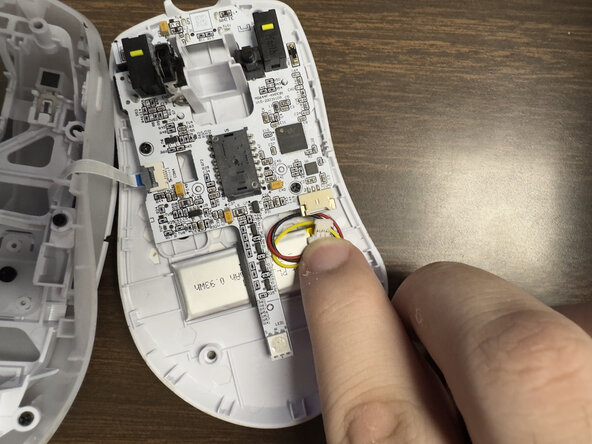
Carefully disconnect the battery clip from the motherboard socket by softly pulling the bottom of the clip.
-
-
-
Remove the two 1.6 mm screws on the middle left and lower right sides with a JIS000 screwdriver to disconnect the motherboard from the lower shell.
-
-
-
-
-
-
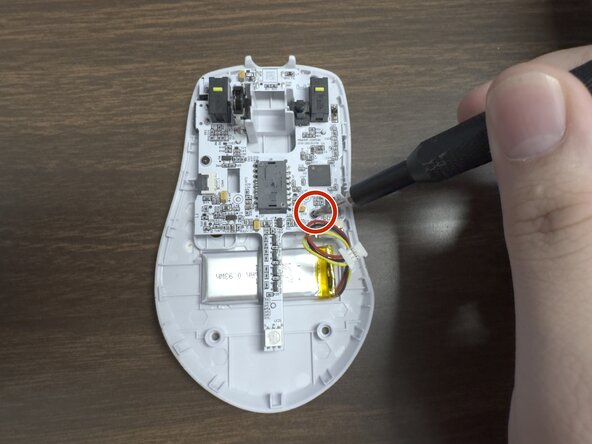
Use a pointed soldering iron to desolder the sensor’s pins from the motherboard.
-
-


 Ask FixBot






To reassemble your device, follow these instructions in reverse order.

Team

Austin Community College, Team 9-1, Watkins Spring 2026 Member of Austin Community College, Team 9-1, Watkins Spring 2026
AUSTINCC-WATKINS-S26S9G1
3 Members
72 Guides authored
