
Samsung Juke Click Wheel Replacement

Ryan Turner and 8 other contributors
Last updated on Jan 4, 2024
Views: 4K
View statistics:
- Past 24 Hours:
- 2
- Past 7 Days:
- 24
- Past 30 Days:
- 110
- All Time:
- 4,004
Comments: 1
1 guide comment.
Go to guide commentsCompleted: 1 2
1 person has marked this guide "completed." Will you be next?
2 people have marked this guide "completed." Including you — great job!
Favorites: 2 3
2 people have favorited (and subscribed to) this guide. Will you be next?
3 people have favorited (and subscribed to) this guide — including you!
Needs Better Images
Better photos will improve this guide. Help out by taking, editing, or uploading new ones!
Introduction
Go to step 1 ↓Use this guide to replace the click wheel on a Samsung Juke. The click wheel is an essential part of a Samsung Juke since its main function is to navigate through the phone and music player. If the click wheel is malfunctioning, you cannot access the Home Screen and music player.
Before starting your repair, make sure to turn off the phone. Failure to do so can damage the motherboard.
What you need
Tools
-
Spudger4.9


-
-
-
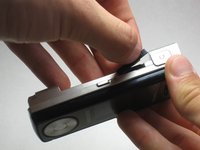
Press and hold down the button on the bottom side of the phone with your finger.
 Ask FixBot
-
-
-
-
-
Remove the four screws from the back of the phone using a Phillips #00 screwdriver.
-
-
-
Remove the two 7.3 mm screws from the camera and the speaker at the bottom back plate of the phone using a Phillips #00 screwdriver.
-
-
-
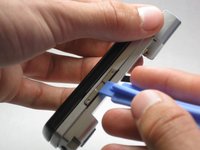
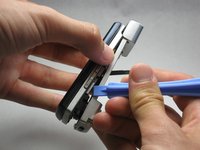
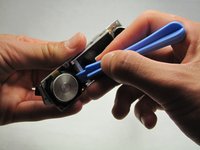
Locate the USB port (where the charger can be plugged in). Using the iFixit opening tool, open the phone cover.
-
-
-
Remove the 5.5 mm screws from both sides of the camera/speaker with a Phillips #00 screwdriver.
-
-
-
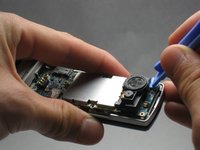
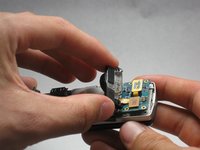
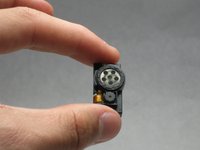
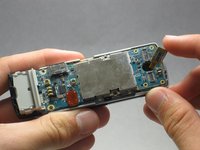
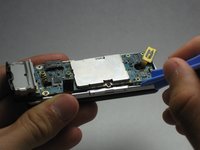
Use the iFixit opening tool to remove the camera/speaker from the motherboard.
-
-
-
-
-
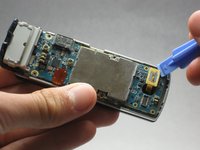
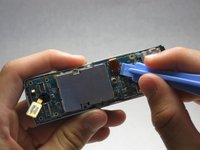
Use the iFixit opening tool to remove the yellow tab on the motherboard.
-
-
-
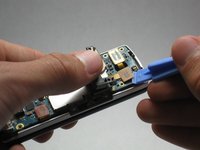
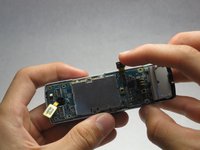
Use the iFixit opening tool to remove the other orange tab to free the motherboard.
-
-
-
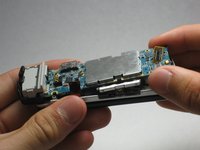
To completely remove the motherboard, use the iFixit opening tool to leverage it up, then use your fingers to pull it out.
-
-
-
-
-
-
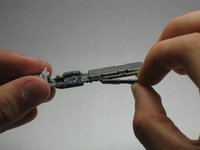
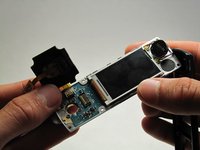
Open/swivel the phone so the back of the LCD panel is visible.
-
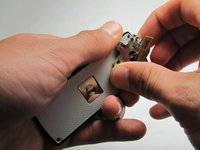
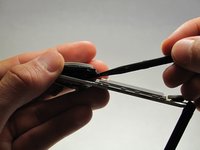
Use the iFixit opening tool to pry the keypad from the hinge on the back of the device.
-
-
-
-
-
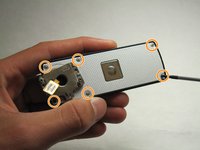
Using your fingernail, remove the stickers covering the screws on the back of the LCD casing.
-
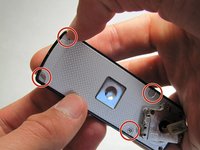
Remove six 3.5 mm screws from the back of the device using a Phillips #00 screwdriver.
-
-
-
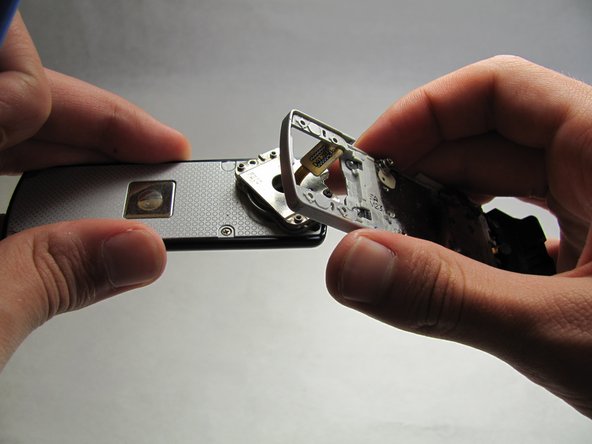
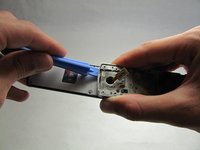
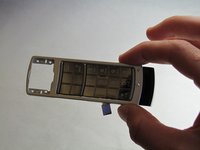
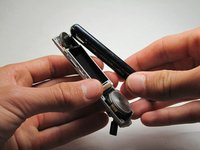
Using a generous amount of force, use your hands to pry loose the casing from the LCD panel.
-
-
-
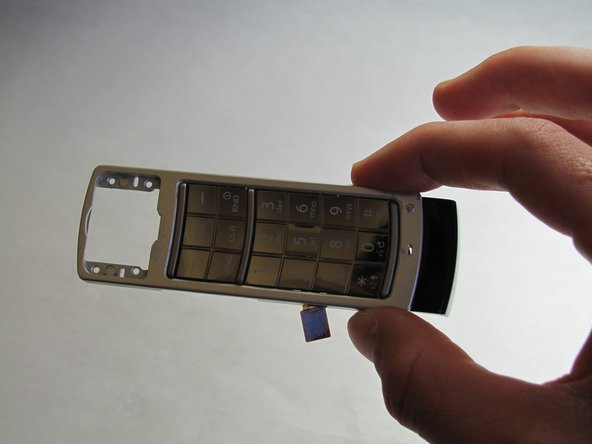
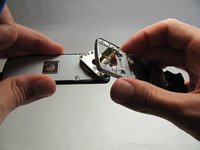
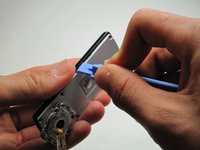
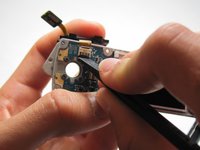
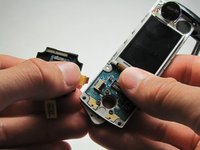
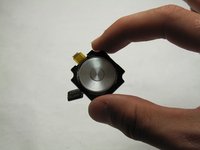
Using the iFixit opening tool, remove the click wheel from the board.
-
After you have freed the edges, use the spudger to release the clip holding it flush to the board.
-
-
-
Unlock the ribbon connection by pressing down on the black clip.
-
Carefully pull the click wheel away from the device.
-
-





















To reassemble your device, follow these instructions in reverse order.
Cancel: I did not complete this guide.
One other person completed this guide.

Team

Cal Poly, Team 6-18, Maness Spring 2010 Member of Cal Poly, Team 6-18, Maness Spring 2010
CPSU-MANESS-S10S6G18
3 Members
72 Guides authored
1 Guide Comment
All I have to say is: THANK YOU!
My juke's click wheel got stuck, which was draining my battery. I followed the incredibly easy to understand instructions and pictures and was able to free my click wheel. I cleaned the wheel and put my phone back together by going backward though the instructions, turned on my phone, and IT WORKED PERFECTLY. This saved my from having to buy a new, large and extremely expensive phone.
Thank You so much for these great, step-by-step instructions!
