Free Shipping on Domestic Orders $75+

TRS-80 Color Computer Fuse Replacement

What you need

  1. TRS-80 Color Computer Fuse Replacement, Outside Casing: step 1, image 1 of 1
    • Flip the computer over.

    • Remove the two 24.1mm Phillips screws near the front of the case.

    • Remove the five 33.0 mm Phillips screws towards the back of the case.

    Ask FixBot

    Add Comment

  2. TRS-80 Color Computer Fuse Replacement: step 2, image 1 of 2 TRS-80 Color Computer Fuse Replacement: step 2, image 2 of 2
    • Carefully flip the computer right side up.

    • Lift off the top half of the case.

    Ask FixBot

    Add Comment

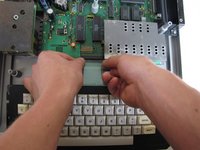
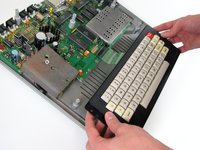
  3. TRS-80 Color Computer Fuse Replacement, Keyboard: step 3, image 1 of 2 TRS-80 Color Computer Fuse Replacement, Keyboard: step 3, image 2 of 2
    • Near the motherboard, gently pull the keyboard ribbon cable until it becomes free.

    • Lift the keyboard out of the case.

    Ask FixBot

    Add Comment

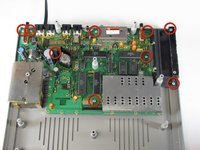
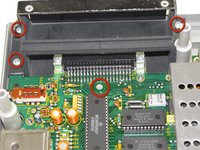
  4. TRS-80 Color Computer Fuse Replacement, Motherboard: step 4, image 1 of 3 TRS-80 Color Computer Fuse Replacement, Motherboard: step 4, image 2 of 3 TRS-80 Color Computer Fuse Replacement, Motherboard: step 4, image 3 of 3
    • Remove the nine 15.24 mm Phillips screws securing the motherboard in place.

    • When removing the spring door, make sure to keep the door closed.

    Ask FixBot

    Add Comment

  5. TRS-80 Color Computer Fuse Replacement: step 5, image 1 of 3 TRS-80 Color Computer Fuse Replacement: step 5, image 2 of 3 TRS-80 Color Computer Fuse Replacement: step 5, image 3 of 3
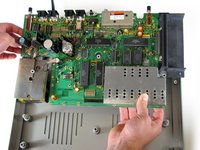
    • Remove the 5 jumper cables from the motherboard.

    • Once the jumper cables lift the motherboard up gently; it should lift out easily.

    Ask FixBot

    Add Comment

  6. TRS-80 Color Computer Fuse Replacement, Fuse: step 6, image 1 of 2 TRS-80 Color Computer Fuse Replacement, Fuse: step 6, image 2 of 2
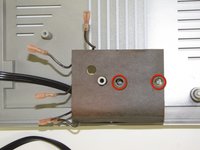
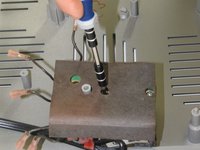
    • Remove the two 40.6mm Philips screws securing the TRS-80 transformer.

    Ask FixBot

    Add Comment

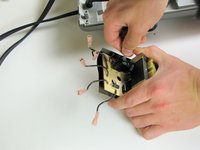
  7. TRS-80 Color Computer Fuse Replacement: step 7, image 1 of 3 TRS-80 Color Computer Fuse Replacement: step 7, image 2 of 3 TRS-80 Color Computer Fuse Replacement: step 7, image 3 of 3
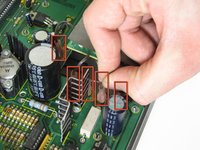
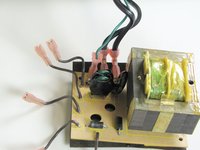
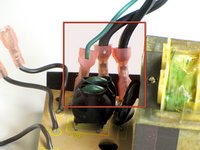
    • Remove the power cable jumpers from the power supply.

    Ask FixBot

    Add Comment

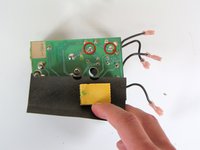
  8. TRS-80 Color Computer Fuse Replacement: step 8, image 1 of 1
    • Gently peel back the protective film on the top of the transformer.

    Ask FixBot

    Add Comment

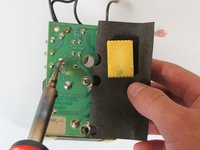
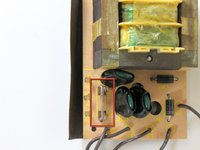
  9. TRS-80 Color Computer Fuse Replacement: step 9, image 1 of 3 TRS-80 Color Computer Fuse Replacement: step 9, image 2 of 3 TRS-80 Color Computer Fuse Replacement: step 9, image 3 of 3
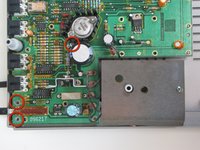
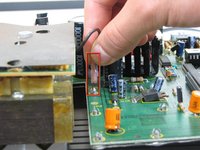
    • Locate the two points the fuse is soldered into the circuit board.

    • Using a soldering iron and soldering wick, desolder and remove the fuse.

    • Place the new fuse into the location of the old one, and solder it in place.

    Ask FixBot

    Add Comment

Conclusion

To reassemble your device, follow these instructions in reverse order.

Cancel: I did not complete this guide.

3 other people completed this guide.

Christopher Paige

Member since: 01/21/11

553 Reputation

3 Guides authored

Team

Cal Poly, Team 11-24, Maness Winter 2011 Member of Cal Poly, Team 11-24, Maness Winter 2011

CPSU-MANESS-W11S11G24

4 Members

10 Guides authored

0 Guide Comments

Add Comment

View Statistics:

Past 24 Hours: 0

Past 7 Days: 12

Past 30 Days: 71

All Time: 3,333