15% Off Selected iFixit Tools — Limited Time
Free Shipping on Domestic Orders $75+

Synology DiskStation DS412+ RAM Replacement

What you need

  1. Synology DiskStation DS412+ RAM Replacement, DS412+: step 1, image 1 of 2 Synology DiskStation DS412+ RAM Replacement, DS412+: step 1, image 2 of 2
    • DS412+

    • Remove the front panel

    Ask FixBot

    Add Comment

  2. Synology DiskStation DS412+ RAM Replacement: step 2, image 1 of 1
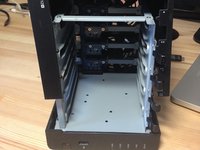
    • Remove the hard disks

    Ask FixBot

    Add Comment

  3. Synology DiskStation DS412+ RAM Replacement: step 3, image 1 of 2 Synology DiskStation DS412+ RAM Replacement: step 3, image 2 of 2
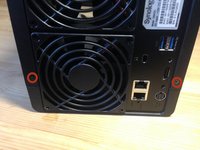
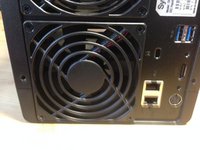
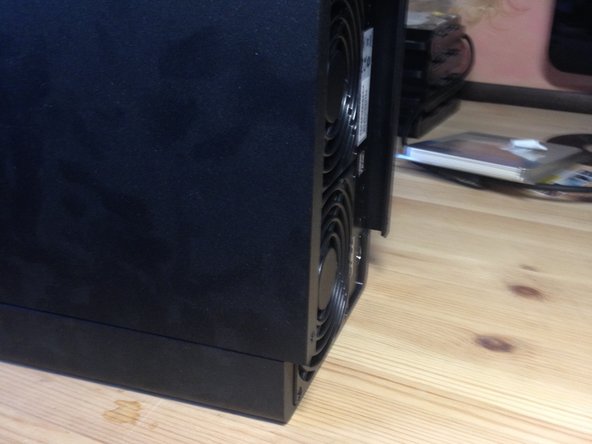
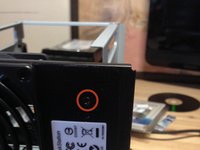
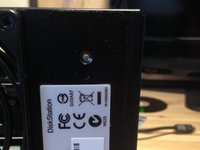
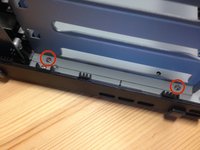
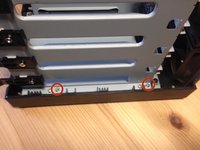
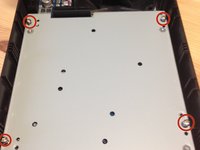
    • Remove the two screws in the back of the NAS, on the top and bottom.

    Ask FixBot

    Add Comment

  4. Synology DiskStation DS412+ RAM Replacement: step 4, image 1 of 2 Synology DiskStation DS412+ RAM Replacement: step 4, image 2 of 2
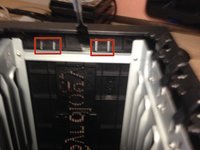
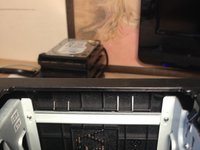
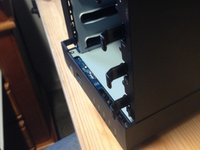
    • Locate those 2 tabs on the left side inside the device.

    • Lift them up off the metal brace

    • You may have to bend the metal support bar to remove the case. Bend it back if you do.

    Ask FixBot

    Add Comment

  5. Synology DiskStation DS412+ RAM Replacement: step 5, image 1 of 2 Synology DiskStation DS412+ RAM Replacement: step 5, image 2 of 2
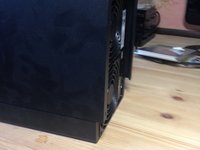
    • Push the case away towards the back about 1 cm

    Ask FixBot

    Add Comment

  6. Synology DiskStation DS412+ RAM Replacement: step 6, image 1 of 2 Synology DiskStation DS412+ RAM Replacement: step 6, image 2 of 2
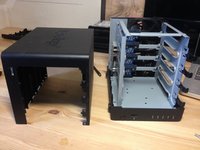
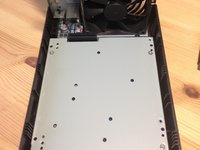
    • With the NAS on its right side, lift up the enclosure, mind the tabs on the top of the case.

    Ask FixBot

    Add Comment

  7. Synology DiskStation DS412+ RAM Replacement: step 7, image 1 of 2 Synology DiskStation DS412+ RAM Replacement: step 7, image 2 of 2
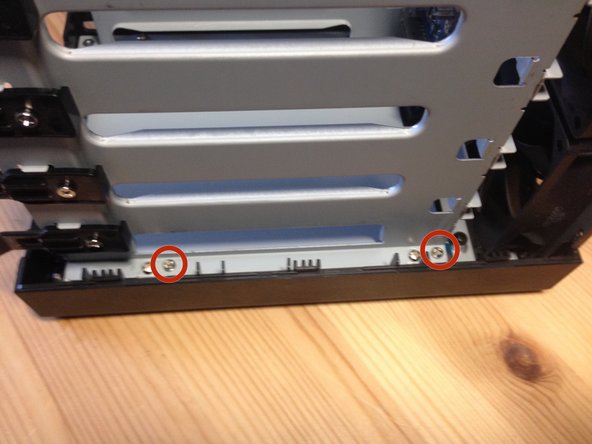
    • Remove the screw securing the HDD bays enclosure.

    Ask FixBot

    Add Comment

  8. Synology DiskStation DS412+ RAM Replacement: step 8, image 1 of 1
    • Remove the screw securing the I/O board.

    Ask FixBot

    Add Comment

  9. Synology DiskStation DS412+ RAM Replacement: step 9, image 1 of 2 Synology DiskStation DS412+ RAM Replacement: step 9, image 2 of 2
    • Remove the four screws securing the HDD bays

    Ask FixBot

    Add Comment

  10. Synology DiskStation DS412+ RAM Replacement: step 10, image 1 of 2 Synology DiskStation DS412+ RAM Replacement: step 10, image 2 of 2
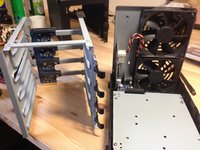
    • Pull the fan a little bit away

    Ask FixBot

    Add Comment

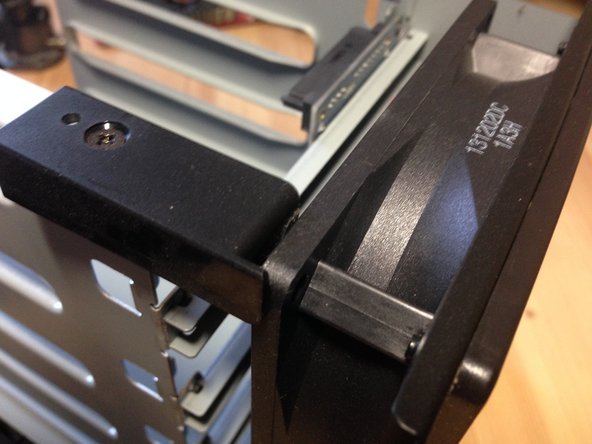
  11. Synology DiskStation DS412+ RAM Replacement: step 11, image 1 of 2 Synology DiskStation DS412+ RAM Replacement: step 11, image 2 of 2
    • Watch out for this plug

    • Lift the metal bracket out

    Ask FixBot
    Add Comment

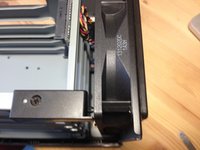
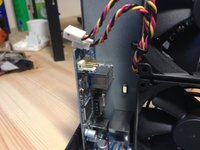
  12. Synology DiskStation DS412+ RAM Replacement: step 12, image 1 of 2 Synology DiskStation DS412+ RAM Replacement: step 12, image 2 of 2
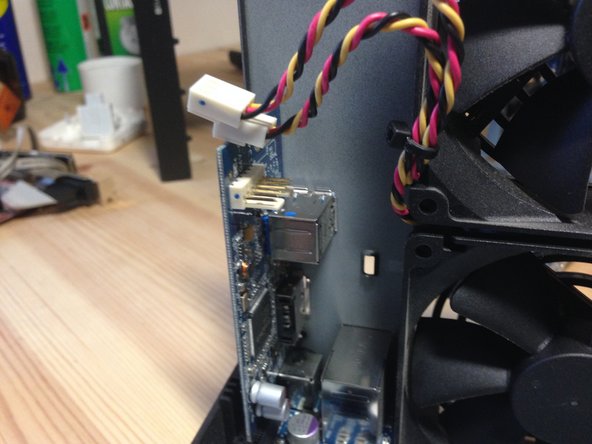
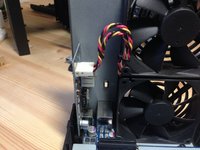
    • Remove the fan power headers

    Ask FixBot
    Add Comment

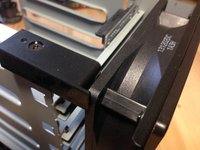
  13. Synology DiskStation DS412+ RAM Replacement: step 13, image 1 of 1
    • Remove the I/O board by lifting it up

    Ask FixBot
    Add Comment

  14. Synology DiskStation DS412+ RAM Replacement: step 14, image 1 of 2 Synology DiskStation DS412+ RAM Replacement: step 14, image 2 of 2
    • Remove those 4 screws

    Ask FixBot

    Add Comment

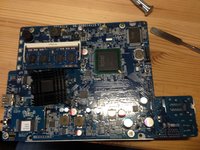
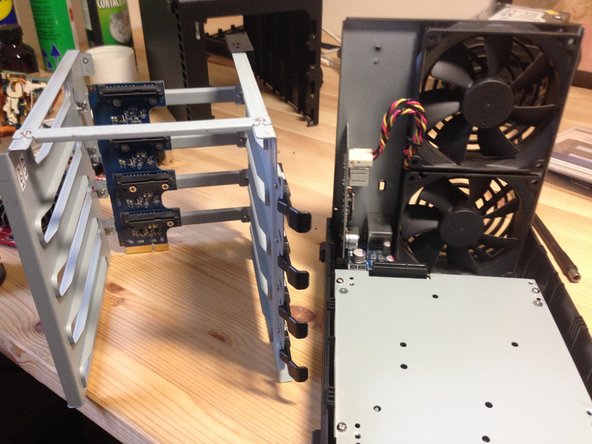
  15. Synology DiskStation DS412+ RAM Replacement: step 15, image 1 of 1
    • Starting from the front of the unit, remove the motherboard from the unit.

    Ask FixBot
    Add Comment

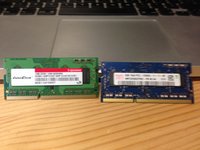
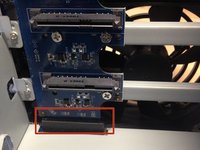
  16. Synology DiskStation DS412+ RAM Replacement: step 16, image 1 of 3 Synology DiskStation DS412+ RAM Replacement: step 16, image 2 of 3 Synology DiskStation DS412+ RAM Replacement: step 16, image 3 of 3
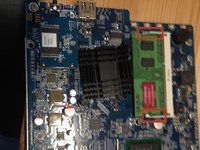
    • Pull these tabs and remove the ram

    • Old and new Ram

    • The old RAM's part number is: M3SN-1GSFCCM7-GA14

    • To reassemble your device, follow these instructions in reverse order.

    Ask FixBot
    Add Comment

Conclusion

To reassemble your device, follow these instructions in reverse order.

Cancel: I did not complete this guide.
35 other people completed this guide.

gieljnssns

Member since: 06/26/11

981 Reputation

1 Guide authored

19 Guide Comments

Hi is it also possible with a Synology ds216play? Or is the RAM not modular in this Drives?

markusguenther30684 - Reply Share

Very nice guide. Thank you!

mbs - Reply Share

Thank you for the guide, just to ease it up a bit for everybody following, the best way to pull the two tabs from step 4 was to use small spoon (or anything metal) and use it as a crowbar from the inside (do not try to put force from the outer rim, but really from inside of the Synology itself (against the metal beam the tabs are holding to).

Ondrej Palat - Reply Share

Thank you very much.

Olivier Claude - Reply Share

did these steps and now my DS412+ won't boot anymore. just the blue power light for a few seconds, no hard drive or fan will turn on.

after putting the old RAM in the slot nothing changed. cannot find any error, how do I find out what's wrong here???

Andreas Hanny - Reply Share

Add Comment

View Statistics:

Past 24 Hours: 2

Past 7 Days: 29

Past 30 Days: 146

All Time: 29,800