
Surface Studio M.2 SSD Replacement

The Raptor and 2 other contributors
Last updated on Jul 27, 2023
Views: 15K
View statistics:
- Past 24 Hours:
- 4
- Past 7 Days:
- 42
- Past 30 Days:
- 163
- All Time:
- 14,607
Comments: 23
2 comments on steps, 21 guide comments.
Go to guide commentsCompleted: 8 9
8 people have marked this guide "completed." Will you be next?
9 people have marked this guide "completed." Including you — great job!
Favorites: 1 2
1 person has favorited (and subscribed to) this guide. Will you be next?
2 people have favorited (and subscribed to) this guide — including you!
Community-Contributed Guide
An awesome member of our community made this guide. It was not created by iFixit staff.
Introduction
Go to step 1 ↓Do you want a bigger SSD or perhaps a faster PCIe NVMe SSD? Follow this guide to replace your SSD.
(Note: Surface Studio with Intel Core i5 comes with SATA III SSD while Surface Studio with Intel Core i7 comes with PCIe NVMe SSD.)
What you need
Parts
Tools


-
-
-
Lay the Surface face down on a padded surface
-
Remove the four rubber feet at each corner concealing the Torx screws
-
Remove the four Torx screws under the rubber feet.
-
Two screws on the upper corners are longer than two screws on the lower corners.
-
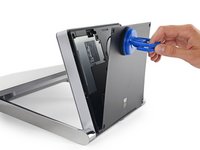
Attach suction cups to the bottom cover and then pull on the suction cups to free the bottom cover.
 Ask FixBot
-
-
-
Remove five torx screws holding the two fans to the midframe
-
Remove the two fans
-
Remove four large torx screws holding the midframe
-
Remove four small torx screws holding the midframe
-
-
-
Slowly remove the midframe
-
Detach the connectors for the two fans and the speaker
-
-
-
-
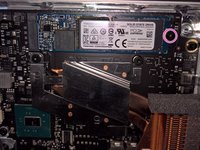
With the midframe removed, the M.2 SSD is now accessible
-
Remove a torx screw holding the M.2 holding the SSD to the motherboard
-
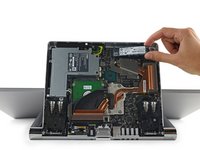
Pull the SSD straight back
-
-




To reassemble your device, follow these instructions in reverse order.
Cancel: I did not complete this guide.
8 other people completed this guide.

21 Guide Comments
I know that one of the very first questions would be: Does the M.2 slot supports PCIe NVMe ?
The answer is: Yes it does.
Does it support bootable NVMe?
Sure. When installing Windows, choose to install Windows to "Drive 1" instead of "Drive 0"
Is there any raid options that need to be configured?
