Free Shipping on Domestic Orders $75+

Lenovo ThinkPad Yoga 370 Fingerprint Reader Replacement

Views: 969

View statistics:

Past 24 Hours:
2
Past 7 Days:
19
Past 30 Days:
68
All Time:
969
Comments: 1

1 comment on steps.

Completed: 0

No one has marked this guide "completed." Will you be the first?

Favorites: 0

No one has favorited (and subscribed to) this guide. Will you be the first?

Time Required: 15 - 30 minutes
Difficulty: Moderate
Lenovo ThinkPad Yoga 370 Fingerprint Reader Replacement

Introduction

Go to step 1 ↓

The fingerprint reader is feature of the ThinkPad laptop that allows the laptop to scan the user's fingerprint instead of a password to make securing the laptop a more efficient process. Sometimes the fingerprint reader breaks, stops working, or falls down into the computer. This guide shows how to gain access to, remove, and replace the fingerprint reader from the Lenovo ThinkPad Yoga 370 Laptop.

Be sure to power off your laptop and disconnect from the power adapter prior to starting this repair.

What you need

Fix Kit

This kit contains all the parts and tools needed to complete this guide.

Parts

Tools

    1. Lenovo ThinkPad Yoga 370 Fingerprint Reader Replacement, Battery: step 1, image 1 of 1
      • Device needs to be powered off and unplugged.

      • Remove the stylus from the device and set it aside.

      Ask FixBot

      Add Comment

    2. Lenovo ThinkPad Yoga 370 Fingerprint Reader Replacement: step 2, image 1 of 2 Lenovo ThinkPad Yoga 370 Fingerprint Reader Replacement: step 2, image 2 of 2
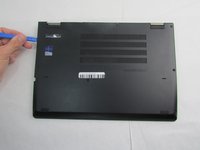
      • Using the Phillips #00 screwdriver unscrew the eight circled 4mm screws until you hear a click.

      • The screws will remain attached to the back cover.

      Ask FixBot
      Add Comment

    3. Lenovo ThinkPad Yoga 370 Fingerprint Reader Replacement: step 3, image 1 of 2 Lenovo ThinkPad Yoga 370 Fingerprint Reader Replacement: step 3, image 2 of 2
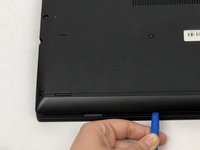
      • Note that while the screws are undone, the bottom cover is still attached by several plastic clips around the edges.

      • Using the plastic opening tool, work around the edges of the bottom cover to undo the plastic clips.

      Ask FixBot
      Add Comment

    4. Lenovo ThinkPad Yoga 370 Fingerprint Reader Replacement: step 4, image 1 of 2 Lenovo ThinkPad Yoga 370 Fingerprint Reader Replacement: step 4, image 2 of 2
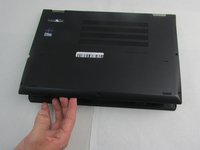
      • Gently remove the cover by placing your fingers around the edges.

      Ask FixBot

      Add Comment

    5. Lenovo ThinkPad Yoga 370 Fingerprint Reader Replacement: step 5, image 1 of 3 Lenovo ThinkPad Yoga 370 Fingerprint Reader Replacement: step 5, image 2 of 3 Lenovo ThinkPad Yoga 370 Fingerprint Reader Replacement: step 5, image 3 of 3
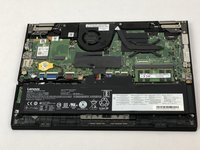
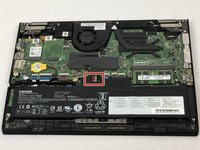
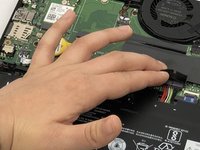
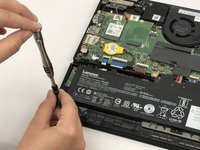
      • With your fingers, fold back the plastic cover highlighted.

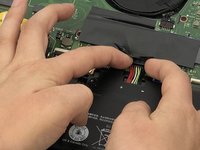
      • Using two fingers, gently remove the battery connectors.

      Ask FixBot

      Add Comment

    6. Lenovo ThinkPad Yoga 370 Fingerprint Reader Replacement: step 6, image 1 of 3 Lenovo ThinkPad Yoga 370 Fingerprint Reader Replacement: step 6, image 2 of 3 Lenovo ThinkPad Yoga 370 Fingerprint Reader Replacement: step 6, image 3 of 3
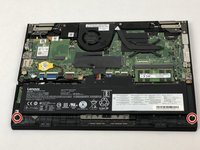
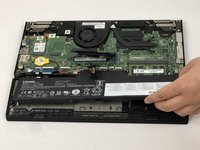
      • Using the Phillips #00 screwdriver, remove the two 4mm screws.

      • Remove the battery.

      • Make sure to only replace with a battery that matches your computer, any other battery could ignite or explode.

      Ask FixBot

      Add Comment

    1. Lenovo ThinkPad Yoga 370 Fingerprint Reader Replacement, Fingerprint Reader: step 7, image 1 of 1
      • Identify the fingerprint reader on the left side of the laptop.

      Ask FixBot

      Add Comment

    2. Lenovo ThinkPad Yoga 370 Fingerprint Reader Replacement: step 8, image 1 of 1
      Tool used on this step:
      Tweezers
      $4.99
      Buy
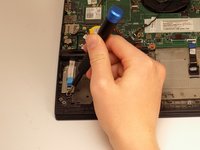
      • To disconnect the fingerprint reader from the motherboard, unlock the ZIF connector and pull it out using tweezers.

      Ask FixBot

      Add Comment

    3. Lenovo ThinkPad Yoga 370 Fingerprint Reader Replacement: step 9, image 1 of 2 Lenovo ThinkPad Yoga 370 Fingerprint Reader Replacement: step 9, image 2 of 2
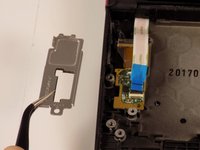
      • Remove the one 4 mm screw from the metal covering with the Phillips #00 screwdriver.

      • Remove the metal cover.

      Ask FixBot

      Add Comment

    4. Lenovo ThinkPad Yoga 370 Fingerprint Reader Replacement: step 10, image 1 of 1
      • Using tweezers, remove the fingerprint reader from the inset.

      Ask FixBot

      Add Comment

Conclusion

To reassemble your device, follow these instructions in reverse order.

Cancel: I did not complete this guide.

0 Guide Comments

Add Comment

View Statistics:

Past 24 Hours: 2

Past 7 Days: 19

Past 30 Days: 68

All Time: 969