Free Shipping on Domestic Orders $75+

Sony Xperia E - Password Removal Firmware Update

Video Overview

    1. Sony Xperia E - Password Removal  Firmware Update, Sony Xperia E - Password Removal  Firmware Update: step 1, image 1 of 2 Sony Xperia E - Password Removal  Firmware Update, Sony Xperia E - Password Removal  Firmware Update: step 1, image 2 of 2
      • First you can try to enter into the phone menu with your Google account, registered from before on this phone.

      • Your must be in range of WiFi network, used before with this phone.

      Ask FixBot

      Add Comment

    2. Sony Xperia E - Password Removal  Firmware Update: step 2, image 1 of 3 Sony Xperia E - Password Removal  Firmware Update: step 2, image 2 of 3 Sony Xperia E - Password Removal  Firmware Update: step 2, image 3 of 3
      Ask FixBot

      Add Comment

    3. Sony Xperia E - Password Removal  Firmware Update: step 3, image 1 of 2 Sony Xperia E - Password Removal  Firmware Update: step 3, image 2 of 2
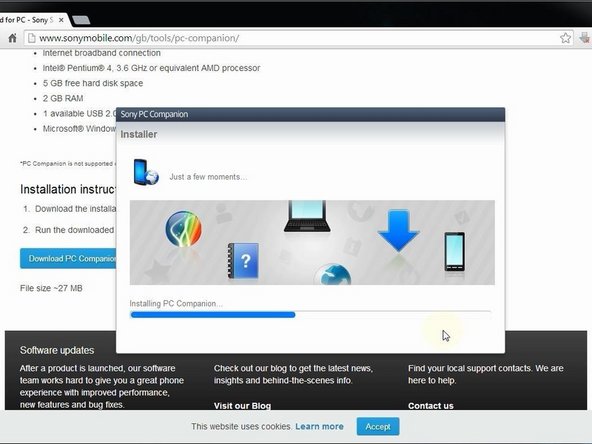
      • Install Sony PC Companion in your PC.

      Ask FixBot

      Add Comment

    4. Sony Xperia E - Password Removal  Firmware Update: step 4, image 1 of 3 Sony Xperia E - Password Removal  Firmware Update: step 4, image 2 of 3 Sony Xperia E - Password Removal  Firmware Update: step 4, image 3 of 3
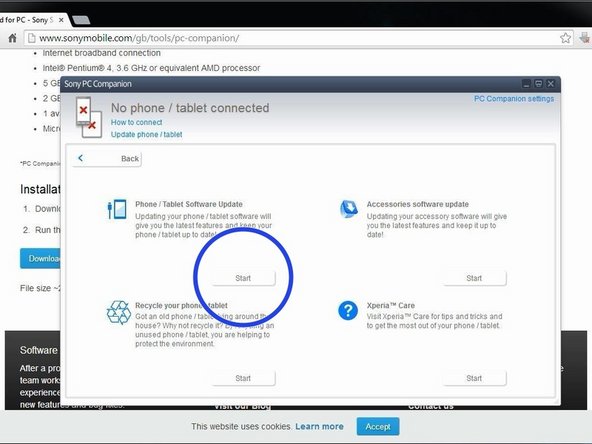
      • From here you can update your firmware, but when you connect the phone, it must be switched on and not in security or password screen.

      • We will start "Support Zone" because from here we can flash the phone from switched off state regardless of whether there is a password.

      • Now start "Phone / Tablet Software Update".

      Ask FixBot

      Add Comment

    5. Sony Xperia E - Password Removal  Firmware Update: step 5, image 1 of 3 Sony Xperia E - Password Removal  Firmware Update: step 5, image 2 of 3 Sony Xperia E - Password Removal  Firmware Update: step 5, image 3 of 3
      • Connect your laptop to power supply since the update of your phone will take some time.

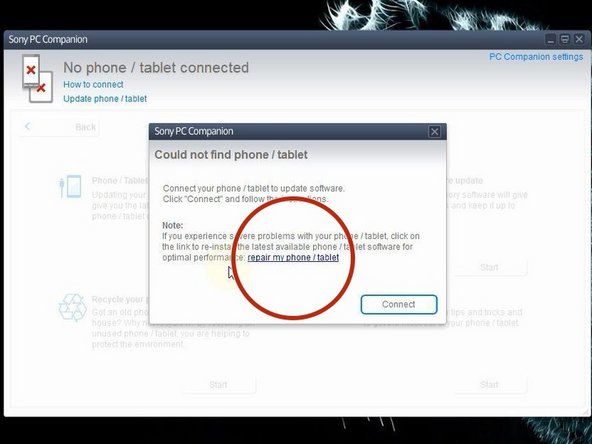
      • Now choose "repair my phone / tablet". By this way you can fully erase your phone and remove any security password, PIN etc., or change firmware if your phone have OS problem and can't be powered on correctly.

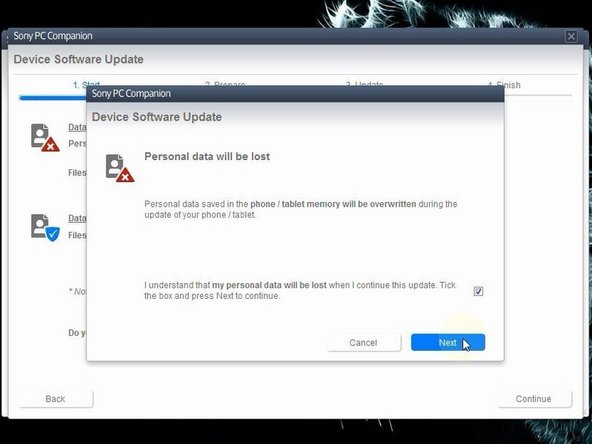
      • This is your last warning about losing your personal data.

      Ask FixBot

      Add Comment

    6. Sony Xperia E - Password Removal  Firmware Update: step 6, image 1 of 2 Sony Xperia E - Password Removal  Firmware Update: step 6, image 2 of 2
      • PC Companion will download some files to prepare your PC for software update

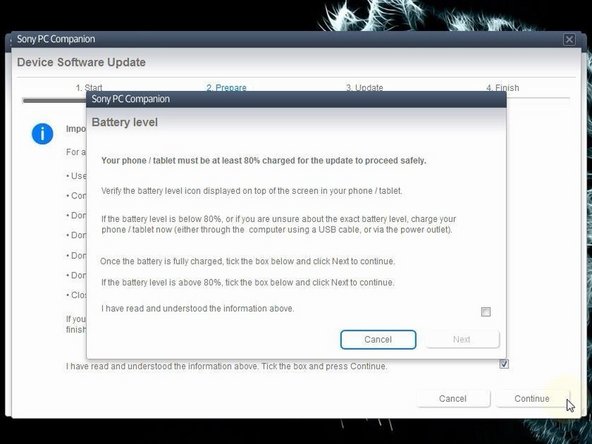
      • Your phone must be at last 80% for the update to proceed safely!

      Ask FixBot

      Add Comment

    7. Sony Xperia E - Password Removal  Firmware Update: step 7, image 1 of 2 Sony Xperia E - Password Removal  Firmware Update: step 7, image 2 of 2
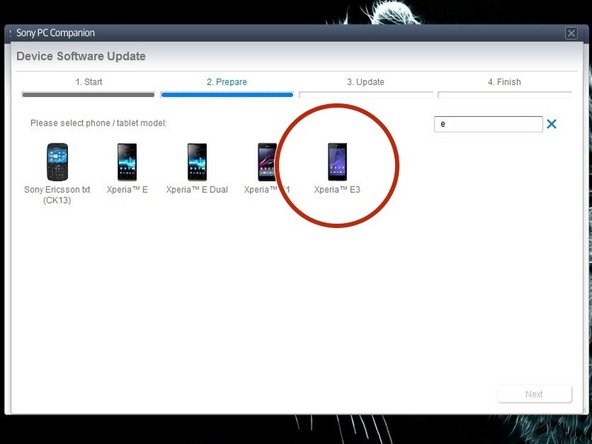
      • Select the model of your phone.

      • You should not confuse the model.

      Ask FixBot

      Add Comment

    8. Sony Xperia E - Password Removal  Firmware Update: step 8, image 1 of 3 Sony Xperia E - Password Removal  Firmware Update: step 8, image 2 of 3 Sony Xperia E - Password Removal  Firmware Update: step 8, image 3 of 3
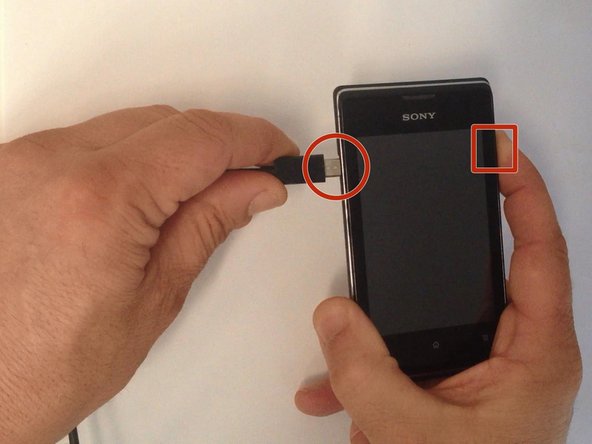
      • The USB cable must be connected only to the PC.

      • Turn off the phone.

      • Press and hold the Volume Down button while plugging the cable into your phone.

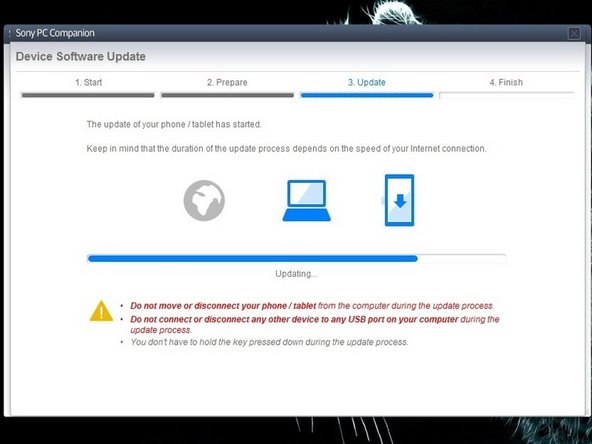
      • Once connected, PC Companion will download necessary firmware and will upload it to your phone.

      Ask FixBot

      Add Comment

    9. Sony Xperia E - Password Removal  Firmware Update: step 9, image 1 of 3 Sony Xperia E - Password Removal  Firmware Update: step 9, image 2 of 3 Sony Xperia E - Password Removal  Firmware Update: step 9, image 3 of 3
      • Your PC must recognize your phone like SOMC Flash Device.

      • If you have a problem with drivers (your PC can't recognize your phone), search in the internet for "S1Boot Fastboot" drivers or use the link below.

      • Android WinUSB drivers

      Ask FixBot

      Add Comment

    10. Sony Xperia E - Password Removal  Firmware Update: step 10, image 1 of 2 Sony Xperia E - Password Removal  Firmware Update: step 10, image 2 of 2
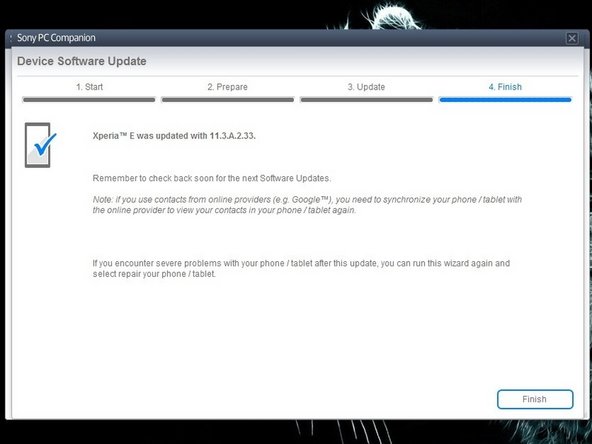
      • When PC Companion finished with update process, disconnect the phone and switch it on.

      Ask FixBot

      Add Comment

    11. Sony Xperia E - Password Removal  Firmware Update: step 11, image 1 of 2 Sony Xperia E - Password Removal  Firmware Update: step 11, image 2 of 2
      • Now your phone is in factory condition, with erased custom data, without password protection and with the last firmware, available for the model.

      • .

      • Did you do it successfully?

      • Please SUBSCRIBE to my channel ツ

      Ask FixBot

      Add Comment

Conclusion

To reassemble your device, follow these instructions in reverse order.

Cancel: I did not complete this guide.

11 other people completed this guide.

ZFix

Member since: 12/09/13

197,402 Reputation

330 Guides authored

Team

Master Techs Member of Master Techs

Community

334 Members

4,920 Guides authored

2 Guide Comments

Downloaded the application but it wants a Administrator password..... is there an another way to download this application?

Althea Kruger - Reply Share

My sony Xperia c1605 is deny pasword am using for it pls anyvody to help me out what can i do

Aweda Kabeer - Reply Share

Add Comment

View Statistics:

Past 24 Hours: 0

Past 7 Days: 15

Past 30 Days: 64

All Time: 29,842