Free Shipping on Domestic Orders $75+

Sony Vaio VPCW211AX RAM Replacement

What you need

  1. Sony Vaio VPCW211AX RAM  Replacement, Keyboard: step 1, image 1 of 1
    • Start with the laptop face up on a flat surface.

    Ask FixBot

    Add Comment

  2. Sony Vaio VPCW211AX RAM  Replacement: step 2, image 1 of 1
    • Open the laptop with the keyboard facing you.

    Ask FixBot

    Add Comment

  3. Sony Vaio VPCW211AX RAM  Replacement: step 3, image 1 of 2 Sony Vaio VPCW211AX RAM  Replacement: step 3, image 2 of 2
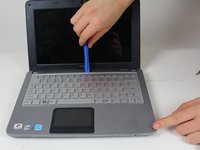
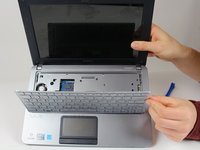
    • Use a plastic opening tool to pry up the keyboard. Start at the end closest to the screen.

    • Be careful around the edges; work your way around the keyboard until all of it is detached.

    • There will be a ribbon cable attached to the bottom of the keyboard. Be sure not to rip the cable when lifting the keyboard from the laptop frame.

    Ask FixBot

    Add Comment

  4. Sony Vaio VPCW211AX RAM  Replacement: step 4, image 1 of 2 Sony Vaio VPCW211AX RAM  Replacement: step 4, image 2 of 2
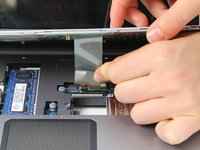
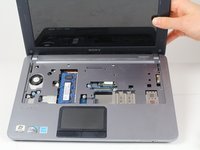
    • Carefully detach the ribbon from the base of the computer with your hands.

    • Remove the keyboard.

    Ask FixBot

    Add Comment

  5. Sony Vaio VPCW211AX RAM  Replacement, RAM: step 5, image 1 of 1
    • Use a Philips #0 screwdriver to remove the 7 top case screws.

    Ask FixBot

    Add Comment

  6. Sony Vaio VPCW211AX RAM  Replacement: step 6, image 1 of 1
    • Using a metal spudger, pry open at the seams.

    • Open the gray top of the laptop from the base black portion.

    • Slide the spudger along the seam, and then carefully open the top.

    Ask FixBot

    Add Comment

  7. Sony Vaio VPCW211AX RAM  Replacement: step 7, image 1 of 2 Sony Vaio VPCW211AX RAM  Replacement: step 7, image 2 of 2
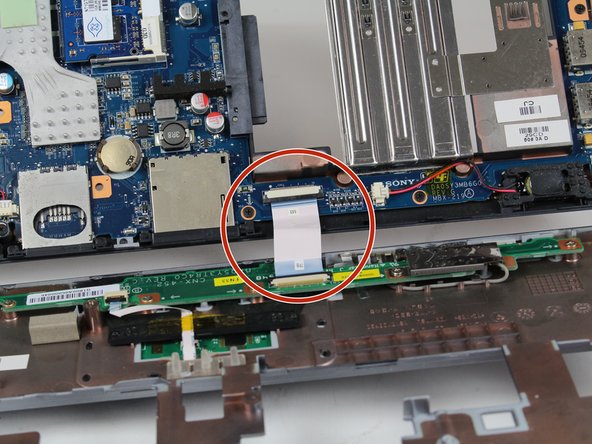
    • Open the top carefully without disconnecting the two parts.

    • Be mindful and careful of the ribbon cable attaching the two parts together.

    Ask FixBot

    Add Comment

  8. Sony Vaio VPCW211AX RAM  Replacement: step 8, image 1 of 2 Sony Vaio VPCW211AX RAM  Replacement: step 8, image 2 of 2
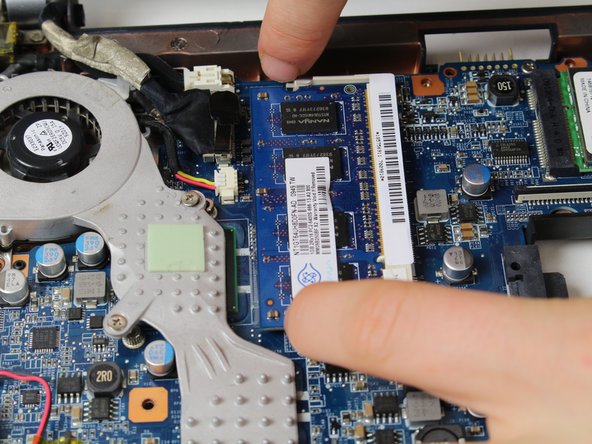
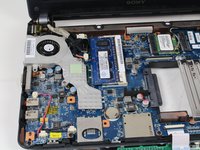
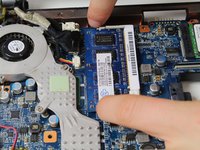
    • Using your fingers, pry apart the two side metal pieces that hold the part in place as shown on the picture.

    Ask FixBot

    Add Comment

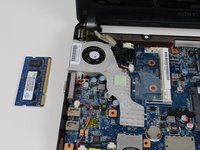
  9. Sony Vaio VPCW211AX RAM  Replacement: step 9, image 1 of 1
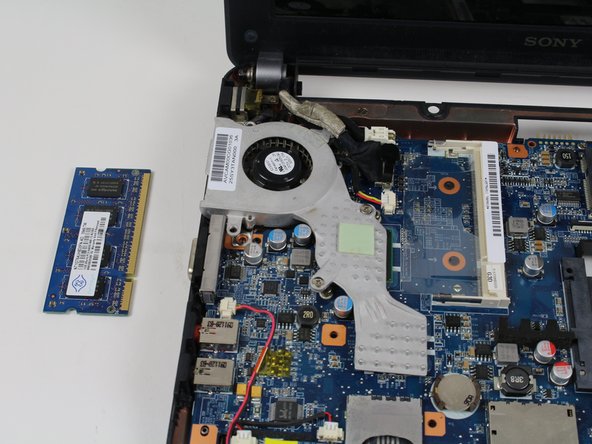
    • After that step, the RAM should pop up on its own as shown in the picture.

    Ask FixBot

    Add Comment

  10. Sony Vaio VPCW211AX RAM  Replacement: step 10, image 1 of 2 Sony Vaio VPCW211AX RAM  Replacement: step 10, image 2 of 2
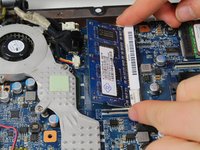
    • Carefully press the sides near the right edge of the part and remove it from it's base.

    Ask FixBot

    Add Comment

Conclusion

To reassemble your device, follow these instructions in reverse order.

Cancel: I did not complete this guide.

Giselle Dougan

Member since: 01/31/18

760 Reputation

5 Guides authored

1 Guide Comment

I have a 21212L and you have to remove the screws under the flap to remove the keyboard firstm you also do not have to remove the top assembly at all.

Samuel Gottschall - Reply Share

Add Comment

View Statistics:

Past 24 Hours: 0

Past 7 Days: 10

Past 30 Days: 45

All Time: 1,165