
Sony Vaio VPCEA3C5E RAM Replacement

Matt Mersinger and 7 other contributors
Last updated on Jan 16, 2026
Views: 1.6K
View statistics:
- Past 24 Hours:
- 4
- Past 7 Days:
- 18
- Past 30 Days:
- 65
- All Time:
- 1,620
Comments: 0
No one has left comments on this guide. Will you be first?
Go to guide commentsCompleted: 2 3
2 people have marked this guide "completed." Will you be next?
3 people have marked this guide "completed." Including you — great job!
Favorites: 0 1
No one has favorited (and subscribed to) this guide. Will you be the first?
1 person has favorited (and subscribed to) this guide — and that's you!
Introduction
Go to step 1 ↓In this guide, you will learn to remove and replace the RAM of a Sony Vaio VPCEA3C5E computer. Some common reasons to replace the RAM include performance issues, such as errors, freezes, or instability. This can come in the form of boot time (taking a while for the computer to start), multitasking (running multiple applications at once), and internet browsing speed. Replacing the RAM is simple and requires no technical knowledge or skill, however, it is important to replace it with compatible RAM (refer to the laptop manual).
What you need
Tools


-
-
-
-
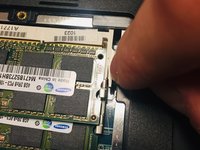
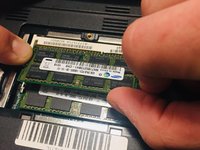
Push out the two outer white catch pieces holding the both sides of the RAM in position. Begin gently removing the RAM from its position.
-
-
-
Once you have the RAM out on its own, replace it or put it back into the correct position.
-

 Ask FixBot



To reassemble your device, follow these instructions in reverse order.
Cancel: I did not complete this guide.
2 other people completed this guide.

Team

McKendree University, Team S1-G3, Quinn Fall 2018 Member of McKendree University, Team S1-G3, Quinn Fall 2018
MCKU-QUINN-F18S1G3
2 Members
36 Guides authored
