Free Shipping on Domestic Orders $75+

Sony Vaio PCG-41216L Display Replacement

What you need

  1. Sony Vaio PCG-41216L Display Replacement, Display: step 1, image 1 of 2 Sony Vaio PCG-41216L Display Replacement, Display: step 1, image 2 of 2
    • Remove the covers for the two 3mm Phillips head screws at the base of the screen.

    • Make sure the device is unplugged and turned off before proceeding to minimize the possibility of electrical damage to the device.

  2. Sony Vaio PCG-41216L Display Replacement: step 2, image 1 of 3 Sony Vaio PCG-41216L Display Replacement: step 2, image 2 of 3 Sony Vaio PCG-41216L Display Replacement: step 2, image 3 of 3
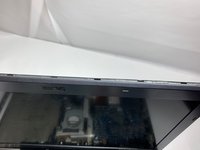
    • Use a metal spudger to separate the top cover on the back of the screen. It will be a long, thin plastic section that has the SONY logo in the middle of it. This enables the disassembly of the rest of the screen frame.

  3. Sony Vaio PCG-41216L Display Replacement: step 3, image 1 of 2 Sony Vaio PCG-41216L Display Replacement: step 3, image 2 of 2
    • Use the metal spudger on the sides of the frame to remove it from the screen.

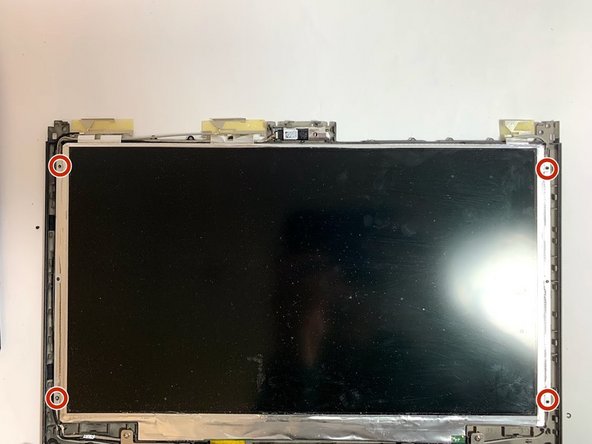
    • Remove the four 3mm Phillips head screws that secure the screen to the exterior of the laptop.

  4. Sony Vaio PCG-41216L Display Replacement: step 4, image 1 of 2 Sony Vaio PCG-41216L Display Replacement: step 4, image 2 of 2
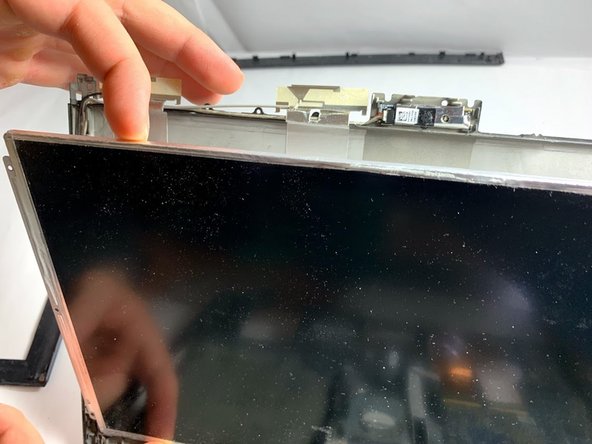
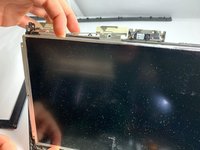
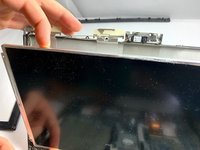
    • Carefully remove the screen from the supporting frame and lay it down on the keyboard of the laptop.

    • The wires connecting the screen to the body of the laptop will be exposed and fragile. It is important to proceed with caution.

  5. Sony Vaio PCG-41216L Display Replacement: step 5, image 1 of 2 Sony Vaio PCG-41216L Display Replacement: step 5, image 2 of 2
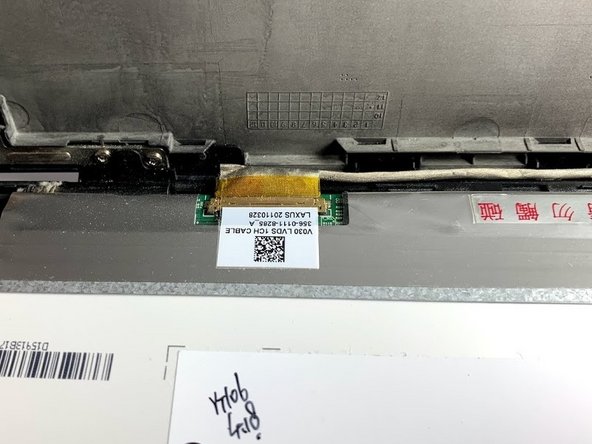
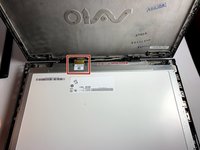
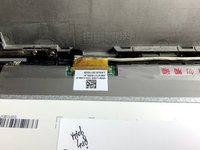
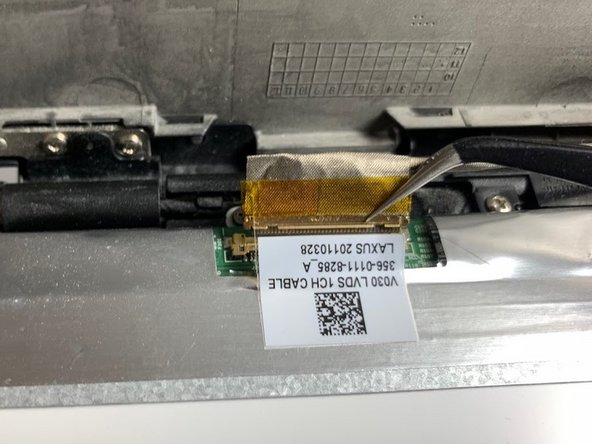
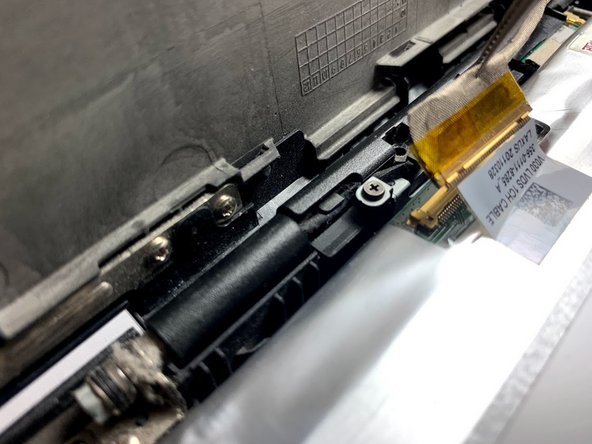
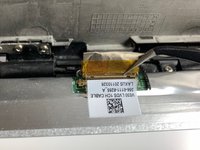
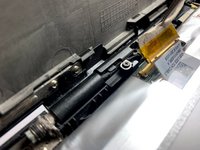
    • Locate the ribbon cable connecting the screen to the rest of the laptop.

    • It may be necessary to remove an adhesive seal in order to proceed.

  6. Sony Vaio PCG-41216L Display Replacement: step 6, image 1 of 3 Sony Vaio PCG-41216L Display Replacement: step 6, image 2 of 3 Sony Vaio PCG-41216L Display Replacement: step 6, image 3 of 3
    Tool used on this step:
    Tweezers
    $4.99
    Buy
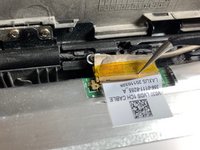
    • Use a pair of tweezers to remove the ribbon cable from the screen.

Conclusion

To reassemble your device, follow these instructions in reverse order.

One other person completed this guide.

1 Guide Comment

content de voir qu'il ne faut pas démonter l arrière du pc pour retirer la broche de l'écran merci pour ce topic

Serge Wilhelmy - Reply Share

Add Comment

View Statistics:

Past 24 Hours: 0

Past 7 Days: 4

Past 30 Days: 24

All Time: 1,375