Free Shipping on Domestic Orders $75+

Sony Bloggie 3D Player USB Drive Replacement

Views: 927

View statistics:

Past 24 Hours:
3
Past 7 Days:
10
Past 30 Days:
34
All Time:
927
Comments: 0

No one has left comments on this guide. Will you be first?

Go to guide comments
Completed: 0

No one has marked this guide "completed." Will you be the first?

Favorites: 0

No one has favorited (and subscribed to) this guide. Will you be the first?

Time Required: 10 - 20 minutes
Difficulty: Moderate
Needs Better Images

Better photos will improve this guide. Help out by taking, editing, or uploading new ones!

Sony Bloggie 3D Player USB Drive Replacement

Introduction

Go to step 1 ↓

The USB is a very important part of the Sony Bloggie as it is the only way to get your movies from the camera to a computer. This guide will show you how to install a new USB drive in the Sony Bloggie 3D.

What you need

Tools

    1. Sony Bloggie 3D Player USB Drive Replacement, Front Cover: step 1, image 1 of 1
      • Remove the two 2.5mm Phillips #00 screws using the Philips #00 screwdriver.

      Ask FixBot

      Add Comment

    2. Sony Bloggie 3D Player USB Drive Replacement: step 2, image 1 of 2 Sony Bloggie 3D Player USB Drive Replacement: step 2, image 2 of 2
      • Use a plastic opening tool to pry the cover open.

      • After the the cover is partly open as shown, remove the cover with your hands.

      Ask FixBot

      Add Comment

    1. Sony Bloggie 3D Player USB Drive Replacement, Back Cover: step 3, image 1 of 2 Sony Bloggie 3D Player USB Drive Replacement, Back Cover: step 3, image 2 of 2
      Tool used on this step:
      Tweezers
      $4.99
      Buy
      • Using your hand, or a pair of tweezers, remove the ZIF connector by gently pulling it out of the dock on the circuit board.

      Ask FixBot

      Add Comment

    2. Sony Bloggie 3D Player USB Drive Replacement: step 4, image 1 of 2 Sony Bloggie 3D Player USB Drive Replacement: step 4, image 2 of 2
      • Use a plastic opening tool to loosen the back cover off the device.

      • Once the back cover is loose, remove it gently by hand.

      Ask FixBot

      Add Comment

    1. Sony Bloggie 3D Player USB Drive Replacement, USB Drive: step 5, image 1 of 2 Sony Bloggie 3D Player USB Drive Replacement, USB Drive: step 5, image 2 of 2
      • Once the back cover is removed, by using the opening tool, remove the following screws using a Phillips #00 screwdriver.

      • Two 4.0mm Phillips #00 screws

      • One 8.0mm Phillips #00 screw

      • One 9.5mm Phillips #00 screw

      Ask FixBot

      Add Comment

    2. Sony Bloggie 3D Player USB Drive Replacement: step 6, image 1 of 2 Sony Bloggie 3D Player USB Drive Replacement: step 6, image 2 of 2
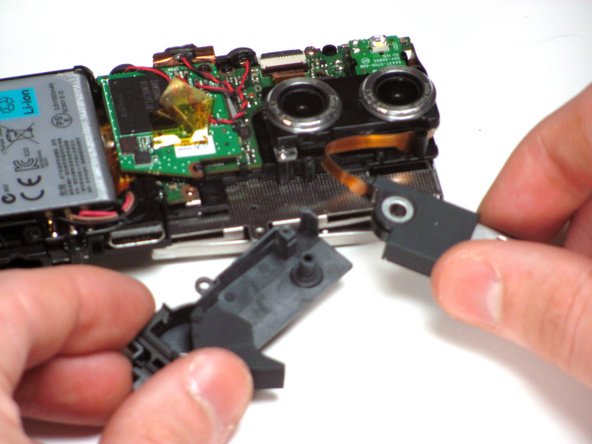
      • Using a spudger, remove the clips of the metal casing from each end of the USB drive.

      Ask FixBot

      Add Comment

    3. Sony Bloggie 3D Player USB Drive Replacement: step 7, image 1 of 2 Sony Bloggie 3D Player USB Drive Replacement: step 7, image 2 of 2
      • Carefully lift the USB drive off of the peg that it is attached to.

      Ask FixBot

      Add Comment

    4. Sony Bloggie 3D Player USB Drive Replacement: step 8, image 1 of 1
      • Now that the USB component is on its own, untangle the ribbon from inside the device.

      Ask FixBot

      Add Comment

    5. Sony Bloggie 3D Player USB Drive Replacement: step 9, image 1 of 1
      Tool used on this step:
      Tweezers
      $4.99
      Buy
      • Now remove the ZIF connector from the device using a pair of tweezers.

      Ask FixBot

      Add Comment

Conclusion

To reassemble your device, follow these instructions in reverse order.

Cancel: I did not complete this guide.

Craig Sweet

Member since: 01/11/13

1 Reputation

1 Guide authored

Team

Cal Poly, Team 7-12, Maness Winter 2013 Member of Cal Poly, Team 7-12, Maness Winter 2013

CPSU-MANESS-W13S7G12

5 Members

72 Guides authored

0 Guide Comments

Add Comment

View Statistics:

Past 24 Hours: 3

Past 7 Days: 10

Past 30 Days: 34

All Time: 927