Free Shipping on Domestic Orders $75+

Smart Soldering Iron USB-C Connection

Prerequisite Only
This is a prerequisite-only guide! This guide is part of another procedure and isn’t meant to be used alone.
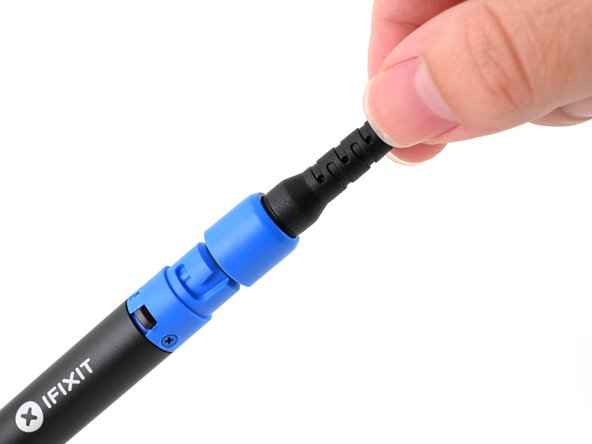
  1. Smart Soldering Iron USB-C Connection, Connect the USB-C cable: step 1, image 1 of 2 Smart Soldering Iron USB-C Connection, Connect the USB-C cable: step 1, image 2 of 2
    • Make sure the soldering iron's power switch is in the blue OFF position.

    • Match the end of the USB-C cable with the blue locking collar to the blue USB-C port on the soldering iron, and push to connect.

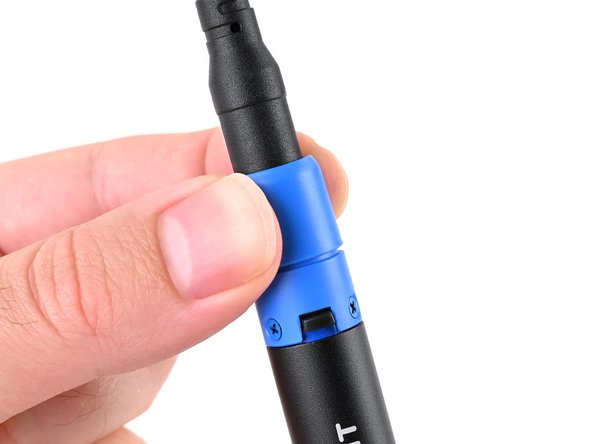
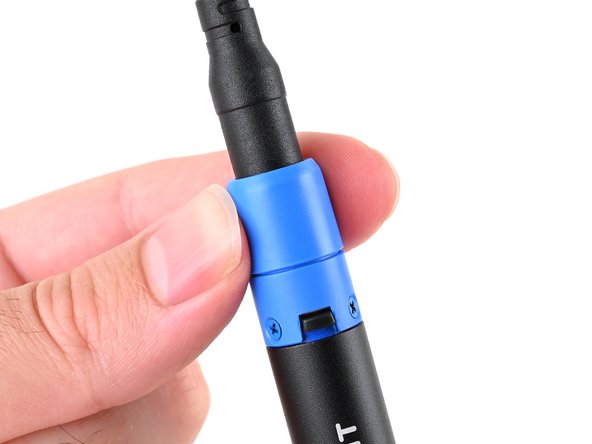
  2. Smart Soldering Iron USB-C Connection, Secure the locking collar: step 2, image 1 of 3 Smart Soldering Iron USB-C Connection, Secure the locking collar: step 2, image 2 of 3 Smart Soldering Iron USB-C Connection, Secure the locking collar: step 2, image 3 of 3
    • Align the nubs in the collar with the slots on the soldering iron.

    • Push the collar snug against the soldering iron, then twist clockwise to lock it in place.

Conclusion

To reassemble your device, follow these instructions in reverse order.

Carsten Frauenheim

Member since: 03/10/20

156,742 Reputation

439 Guides authored

Team

iFixit Member of iFixit

Staff

123 Members

23,851 Guides authored

0 Guide Comments

Add Comment

View Statistics:

Past 24 Hours: 1

Past 7 Days: 1

Past 30 Days: 2

All Time: 46