Shop the Holiday Gift Guide
Free Shipping on Domestic Orders $75+

Sharp Aquos Crystal Screen Replacement

Views: 12K

View statistics:

Past 24 Hours:
5
Past 7 Days:
38
Past 30 Days:
127
All Time:
11,694
Comments: 8

7 comments on steps, 1 guide comment.

Go to guide comments
Completed: 4

4 people have marked this guide "completed." Will you be next?

Favorites: 1

1 person has favorited (and subscribed to) this guide. Will you be next?

Time Required: No estimate
Difficulty: Moderate
Missing Steps

Oops! This guide is currently missing one or more important steps.

Sharp Aquos Crystal Screen Replacement

Introduction

Go to step 1 ↓

If you cracked your screen or you are having issues with the touch screen, you may need to replace the screen.

What you need

Tools

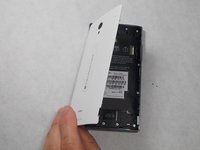
    1. Sharp Aquos Crystal Screen Replacement, Back Panel: step 1, image 1 of 3 Sharp Aquos Crystal Screen Replacement, Back Panel: step 1, image 2 of 3 Sharp Aquos Crystal Screen Replacement, Back Panel: step 1, image 3 of 3
      • Peel back the back cover of the phone from the access point to remove it. It should come off easily using your hands.

      Ask FixBot

      Add Comment

    1. Sharp Aquos Crystal Screen Replacement, USB Port: step 2, image 1 of 2 Sharp Aquos Crystal Screen Replacement, USB Port: step 2, image 2 of 2
      • Remove seven 3mm Star #5 screws shown in the picture with a screwdriver.

      • Remove two 3.5mm Star #5 screws shown in the picture with a screwdriver.

      • Remove two 5mm Star #5 screws shown in the picture with a screwdriver.

      Ask FixBot

      Add Comment

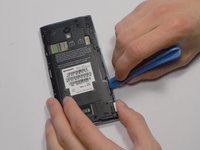
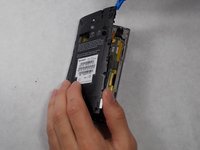
    2. Sharp Aquos Crystal Screen Replacement: step 3, image 1 of 2 Sharp Aquos Crystal Screen Replacement: step 3, image 2 of 2
      • Pry open the back panel using a plastic opening tool. Do this around the edges until you are able to lift it off.

      Ask FixBot

      Add Comment

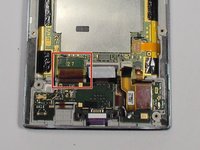
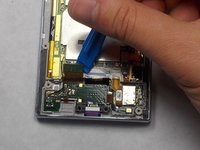
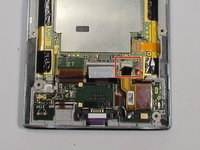
    3. Sharp Aquos Crystal Screen Replacement: step 4, image 1 of 2 Sharp Aquos Crystal Screen Replacement: step 4, image 2 of 2
      • Disconnect the wire by lifting it up with a plastic opening tool.

      Ask FixBot

      Add Comment

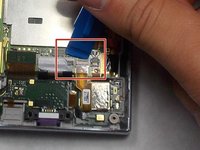
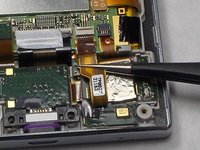
    4. Sharp Aquos Crystal Screen Replacement: step 5, image 1 of 3 Sharp Aquos Crystal Screen Replacement: step 5, image 2 of 3 Sharp Aquos Crystal Screen Replacement: step 5, image 3 of 3
      • To disconnect the cable, use the tip of a spudger or your fingernail to flip up the small retaining flap. Then, you can safely pull the ribbon cable out.

      Ask FixBot

      Add Comment

    5. Sharp Aquos Crystal Screen Replacement: step 6, image 1 of 1
      • After removing the wires, carefully snap out the usb port with your hands. It is held down by some plastic clips, so some force may be needed.

      Ask FixBot

      Add Comment

    1. Sharp Aquos Crystal Screen Replacement, Motherboard: step 7, image 1 of 1
      • Peel off the black pieces of tape.

      Ask FixBot

      Add Comment

    2. Sharp Aquos Crystal Screen Replacement: step 8, image 1 of 1
      Tool used on this step:
      Tweezers
      $4.99
      Buy
      • Use the tip of a spudger or your fingernail to flip up the small retaining flap. Then pull the cable out using tweezers.

      Ask FixBot

      Add Comment

    3. Sharp Aquos Crystal Screen Replacement: step 9, image 1 of 2 Sharp Aquos Crystal Screen Replacement: step 9, image 2 of 2
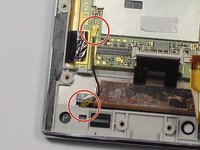
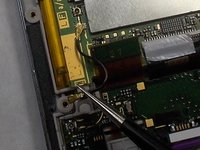
      • Remove the wire from the two marked connections using tweezers to pull the wire apart from the device.

      Ask FixBot

      Add Comment

    4. Sharp Aquos Crystal Screen Replacement: step 10, image 1 of 1
      • Peel the tape off with your hands.

      Ask FixBot

      Add Comment

    5. Sharp Aquos Crystal Screen Replacement: step 11, image 1 of 1
      • Lift the motherboard out with your hands.

      Ask FixBot

      Add Comment

    1. Sharp Aquos Crystal Screen Replacement, Battery: step 12, image 1 of 1
      • Peel off the tape holding the battery down.

      Ask FixBot

      Add Comment

    2. Sharp Aquos Crystal Screen Replacement: step 13, image 1 of 2 Sharp Aquos Crystal Screen Replacement: step 13, image 2 of 2
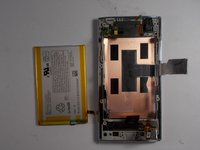
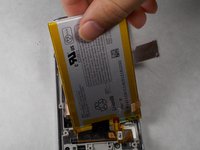
      • Lift the battery out with your hands.

      Ask FixBot

      Add Comment

    1. Sharp Aquos Crystal Screen Replacement, Screen: step 14, image 1 of 1
      • Replace this component with the new one.

      Ask FixBot

      Add Comment

Conclusion

To reassemble your device, follow these instructions in reverse order.

Cancel: I did not complete this guide.

4 other people completed this guide.

Author

with

Felicia Imbriano

Member since: 03/08/16

1,266 Reputation

8 Guides authored

Team

1 Guide Comment

Thanks! I did it!

Matteo Favero - Reply Share
Add Comment

View Statistics:

Past 24 Hours: 5

Past 7 Days: 38

Past 30 Days: 127

All Time: 11,694