Free Shipping on Domestic Orders $75+

Samsung Propel Screen Replacement

Archived Guide
This guide is retained solely for historical purposes. Use the updated version of the guide to perform your repair.

What you need

    1. Samsung Propel Screen Replacement, Battery: step 1, image 1 of 1
      • Press down the back and push up to remove back cover.

      • Insert finger into gap at the top left and remove battery.

      Ask FixBot

      Add Comment

    1. Samsung Propel Screen Replacement, Motherboard: step 2, image 1 of 1
      • Use a flat-head screwdriver to remove the back lid.

      Ask FixBot

      Add Comment

    2. Samsung Propel Screen Replacement: step 3, image 1 of 1
      • Locate the six screws and remove them with a Phillips #00 Screwdriver.

      Ask FixBot

      Add Comment

      • Insert the flat-head screwdriver into the crevice.

      • Slide and dislodge the snap-ons that are beneath the crevice.

      • Remove the back frame of the device.

      Ask FixBot

      Add Comment

    3. Samsung Propel Screen Replacement: step 5, image 1 of 1
      • Locate and remove the six screws with a Phillips #00 Screwdriver.

      • Separate the black middle frame from the front frame.

      • Be careful not to tear the phone bus.

      Ask FixBot

      Add Comment

    4. Samsung Propel Screen Replacement: step 6, image 1 of 1
      • Locate and remove the four screws with a Phillips #00 Screwdriver.

      Ask FixBot

      Add Comment

      • Insert the flat-head screwdriver into the crevice.

      • Slide the flat-head screwdriver and dislodge the snap-ons beneath the crevice.

      • Be careful not to rip the band.

      Ask FixBot

      Add Comment

    5. Samsung Propel Screen Replacement: step 8, image 1 of 1
      • Use your hands to remove both the phone buses from the linkages and remove the motherboard.

      Ask FixBot

      Add Comment

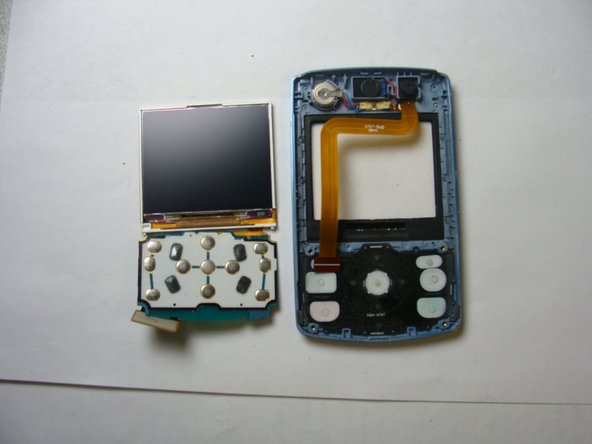
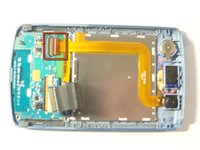
    1. Samsung Propel Screen Replacement, Screen: step 9, image 1 of 2 Samsung Propel Screen Replacement, Screen: step 9, image 2 of 2
      • Flip and pull eletric band from input.

      • Remove the screen from the front frame.

      Ask FixBot

      Add Comment

Conclusion

To reassemble your device, follow these instructions in reverse order.

Cancel: I did not complete this guide.

Jin

Member since: 04/28/11

101 Reputation

1 Guide authored

Team

0 Guide Comments

Add Comment

View Statistics:

Past 24 Hours: 0

Past 7 Days: 4

Past 30 Days: 24

All Time: 1,940