
Toshiba Portege R705-P35 Back Plate Replacement

Last updated on May 25, 2022
Views: 676
View statistics:
- Past 24 Hours:
- 1
- Past 7 Days:
- 16
- Past 30 Days:
- 61
- All Time:
- 676
Comments: 0
No one has left comments on this guide. Will you be first?
Go to guide commentsCompleted: 0 1
No one has marked this guide "completed." Will you be the first?
1 person has marked this guide "completed." It's you — great job!
Favorites: 0 1
No one has favorited (and subscribed to) this guide. Will you be the first?
1 person has favorited (and subscribed to) this guide — and that's you!
What you need
Tools


Introduction
Go to step 1 ↓This guide will show you how to replace the back plate on a Toshiba Portege R705-P35 laptop. This is a prerequisite guide to replace internal components like the fan, DVD drive and Wi-Fi card. It is necessary to remove all the back plate screws; be sure to separate the different sizes of screws for easy reinstallation.
-
-
-
Turn off and unplug the laptop.
-
Place the laptop upside-side-down with the hinges towards you.
 Ask FixBot
-
-
-
Use your right hand to move the right switch from the locked position to the unlocked position.
-
Use your left hand to move the left switch from the locked position to the unlocked position.
-
-
-
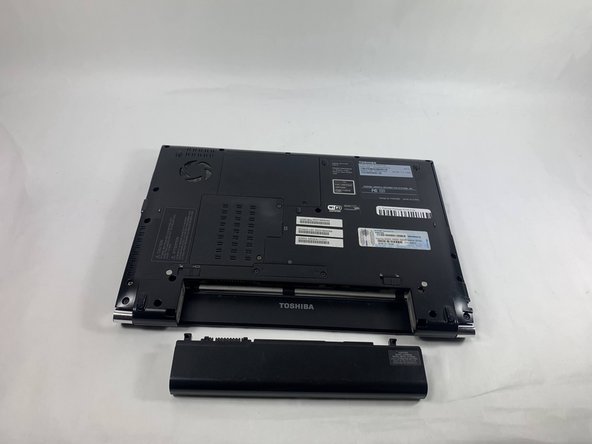
While keeping the left switch unlocked, pull the battery away from the computer with your right hand.
-
-
-
-
-
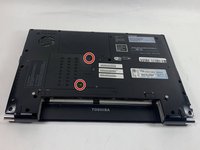
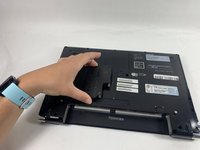
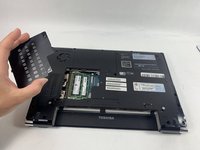
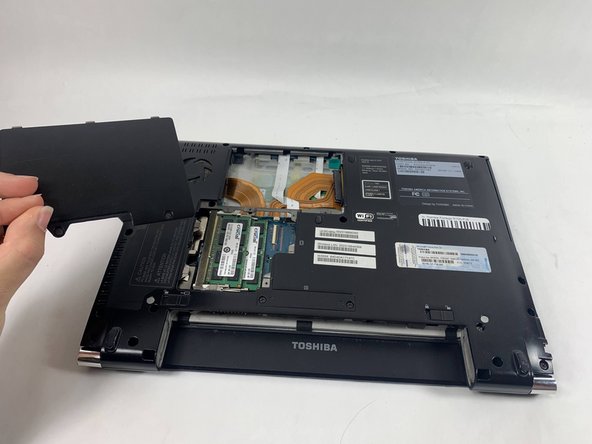
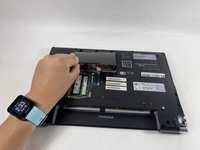
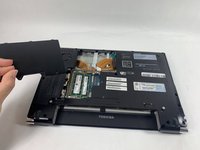
Loosen the two captive screws in the plate with a Phillips #00 screwdriver.
-
Remove the plate from the laptop.
-
-
-
-
-
-
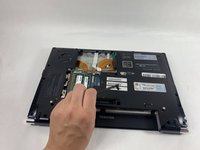
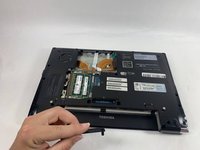
Loosen the two captive screws in the hard drive plate using a Phillips #00 screwdriver.
-
-
-
-
-
Remove the two 13 mm screws from the back plate using a Phillips #0 screwdriver.
-
-
-
Remove the thirteen 6 mm screws from the back plate using a Phillips #00 screwdriver.
-
Remove the five 5 mm screws from the back plate using a Phillips #00 screwdriver.
-
-
-
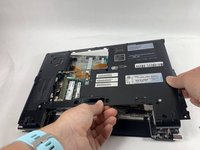
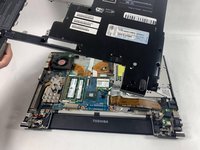
Pull the back plate off, starting from the right side, being cautious of the ports on the left side.
-
-










To reassemble your device, follow these instructions in reverse order.

Team

UMass Dartmouth, Team 1-4, Botvin Spring 2022 Member of UMass Dartmouth, Team 1-4, Botvin Spring 2022
UMASSD-BOTVIN-S22S1G4
3 Members
96 Guides authored
