
Samsung Chromebook Pro Screen Replacement

Amber Castro-Beltran and 4 other contributors
Last updated on May 7, 2024
Views: 4.2K
View statistics:
- Past 24 Hours:
- 4
- Past 7 Days:
- 24
- Past 30 Days:
- 77
- All Time:
- 4,205
Comments: 5
5 guide comments.
Go to guide commentsCompleted: 1 2
1 person has marked this guide "completed." Will you be next?
2 people have marked this guide "completed." Including you — great job!
Favorites: 0 1
No one has favorited (and subscribed to) this guide. Will you be the first?
1 person has favorited (and subscribed to) this guide — and that's you!
Introduction
Go to step 1 ↓Replace the screen for the Samsung Chromebook Pro by following the guide below.
What you need
Tools


-
-
-
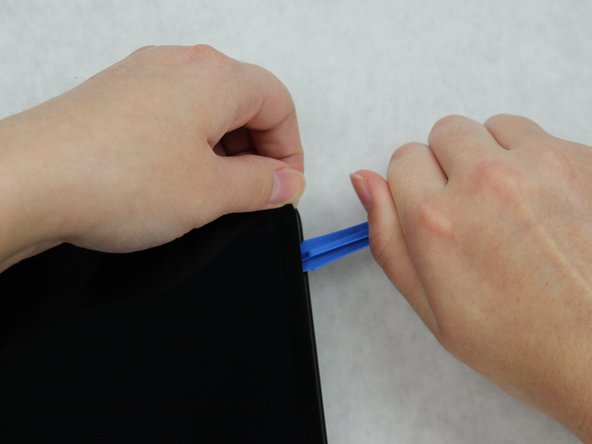
Insert the plastic opening tool between the hinge and plastic lining and pry upwards.
-
Continue to use the plastic opening tool along to the plastic lining to completely remove.
-
-
-
Remove the three silver 30 mm screws connected to the screen by using the JIS J000 screw bit.
-
-
-
-
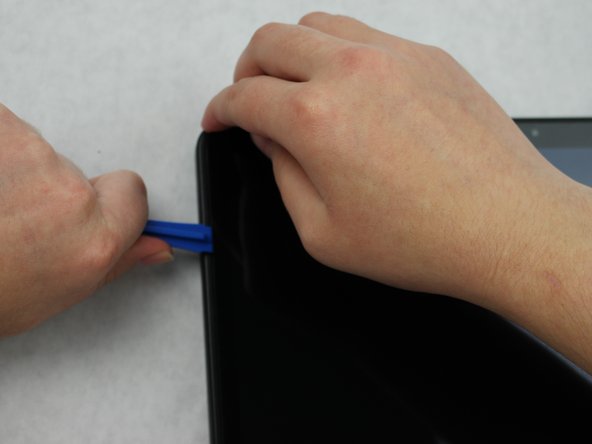
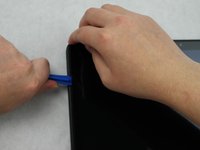
Begin lifting the screen by prying upward using the plastic opening tool.
-
Work around the screen by lifting upward with the plastic opening tool until the screen is completely off.
-
-
Tool used on this step:Tweezers$4.99
-
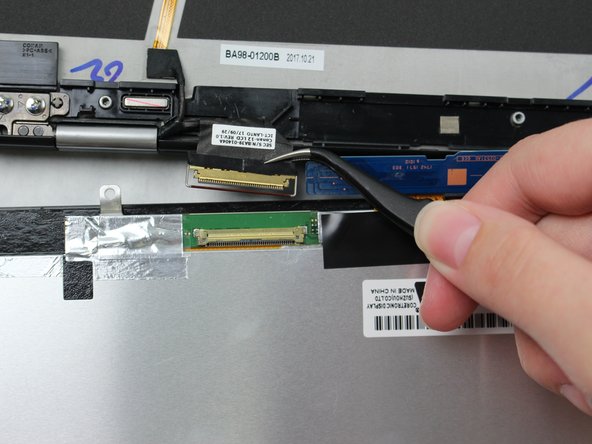
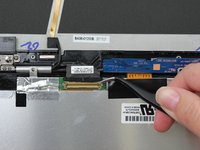
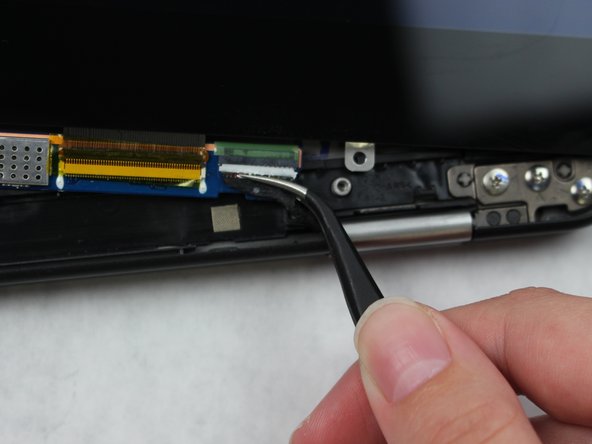
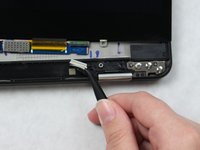
Locate the black and gold wire on the left side of the screen, and pry the bar upward using the precision tweezers.
-
Disconnect the wire using the precision tweezers.
-
-
-
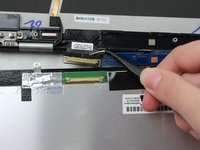
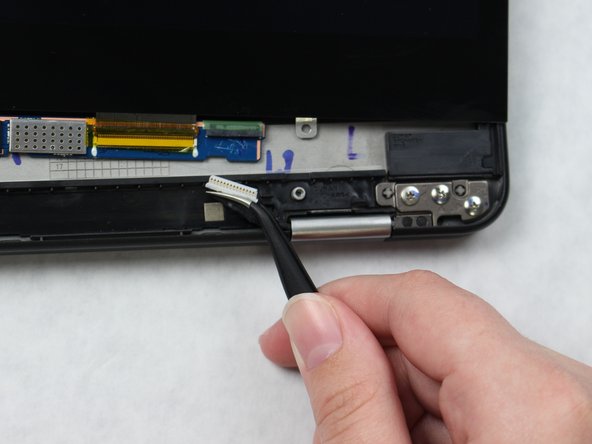
Disconnect the wire connected to the right side of the screen using the precision tweezers.
-

 Ask FixBot






To reassemble your device, follow these instructions in reverse order.
Cancel: I did not complete this guide.
One other person completed this guide.

Team

Sam Houston State, Team S15-G1, Blackburne Fall 2018 Member of Sam Houston State, Team S15-G1, Blackburne Fall 2018
SHSU-BLACKBURNE-F18S15G1
4 Members
60 Guides authored
5 Guide Comments
Is the screen glued down?
Hmm, followed this in an effort to repair a broken hinge. Fortunately, the screen didn’t break when the hinge came through the front of the monitor. Less fortunately, the prying described in step 4 totally blacked out the lower right corner of my screen. Damaged area is about the size of my thumbnail. Touchscreen still works and the machine is still usable, but so much for knowing what time it is…
Does anyone know if a XE510C24 screen can be used in a XE510C25?
The touchscreen in mine stopped working and all I can find online are XE510C24 screens.
does it work? i have the same issue
