This translation was generated by a machine and has not been reviewed by a person yet. Speak this language? Review it.

Samsung SMX-F30 Camcorder LCD Flex Cable Replacement

Hardy and one other contributor
Last updated on Sep 2, 2026
Views: 1.6K
View statistics:
- Past 24 Hours:
- 5
- Past 7 Days:
- 44
- Past 30 Days:
- 137
- All Time:
- 1,620
Comments: 0
No one has left comments on this guide. Will you be first?
Go to guide commentsCompleted: 2 3
2 people have marked this guide "completed." Will you be next?
3 people have marked this guide "completed." Including you — great job!
Favorites: 0 1
No one has favorited (and subscribed to) this guide. Will you be the first?
1 person has favorited (and subscribed to) this guide — and that's you!
Community-Contributed Guide
An awesome member of our community made this guide. It was not created by iFixit staff.
Introduction
Go to step 1 ↓Learn how to replace the LCD flex cable of a Samsung SMX-F30 camcorder.
What you need
Tools

-
-
-
How to replace the LCD ribbon cable on a Samsung SMX 30F. This ribbon connects the LCD to the motherboard of the camera. For a change of LCD only the process is much simpler and only takes about ten minutes.
 Ask FixBot
-
-
-
Step 1: Remove the front block.
-
Remove all the screws on the front of the camera
-
-
-
Then gently pull on the block, be careful it is connected to the camera by rather short cables.
-
-
-
Remove all screws by walking around the unit. Be careful some are hidden under the handle, behind the hatches ....
-
-
-
To finish, remove the two screws connecting the screen to the body of the camera.
-
Now you can remove the shell of the camera, it must come easily if you feel resistance is that you left a screw somewhere.
-
-
-
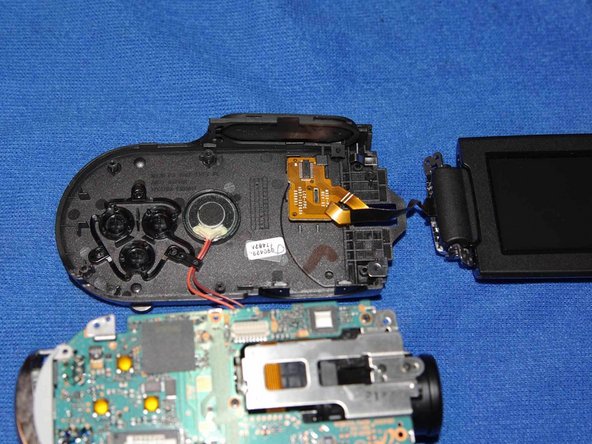
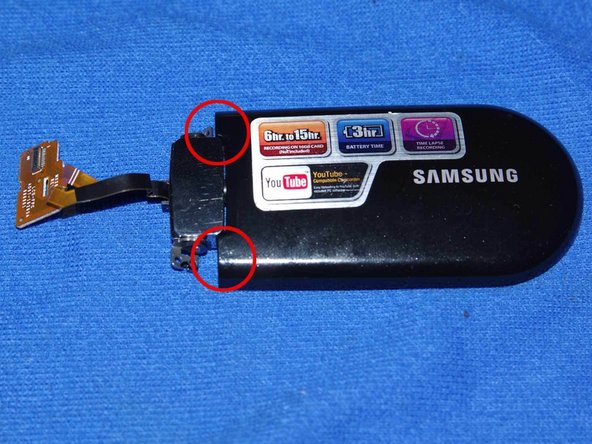
Remove the case carefully, the cable disconnects easily from the very fragile connector.
-
You can now remove the screws securing the motherboard to the frame.
-
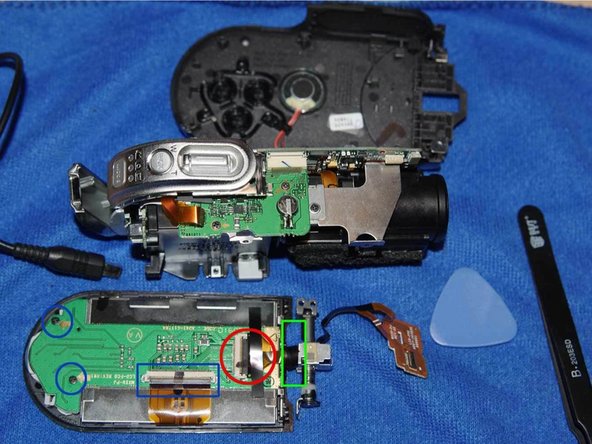
Then carefully remove the motherboard to gain access to the LCD cable.
-
-
-
-
Remove the cable from the frame.
-
Unscrew the 4 screen screws. and open it delicately using a pick.
-
Now, you can change the cable . The cable wraps around the metal axis, so make sure you count the number of rounds on disassembly to facilitate reassembly.
-
-
-
When reassembling, first position the metal clip and the small magnet in the black housing, before putting it back on the metal shaft.
-
-






TO REASSEMBLE YOUR DEVICE FOLOW THESE INSTRUCTIONS IN REVERSE ORDER.
Cancel: I did not complete this guide.
2 other people completed this guide.
Special thanks to these translators:
100%


These translators are helping us fix the world! Want to contribute?
Start translating ›

