Free Shipping on Domestic Orders $75+

Safety

Prerequisite Only
This is a prerequisite-only guide! This guide is part of another procedure and isn’t meant to be used alone.

What you need

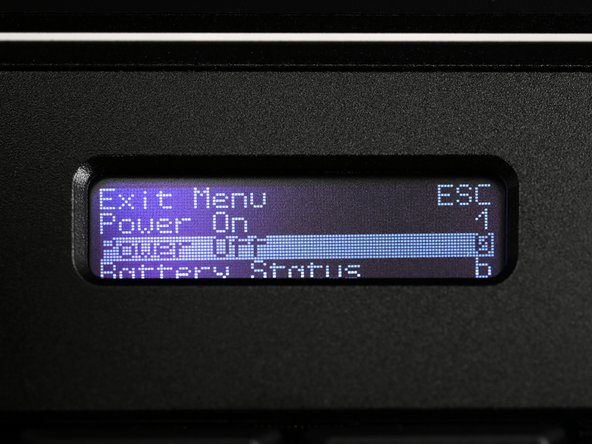
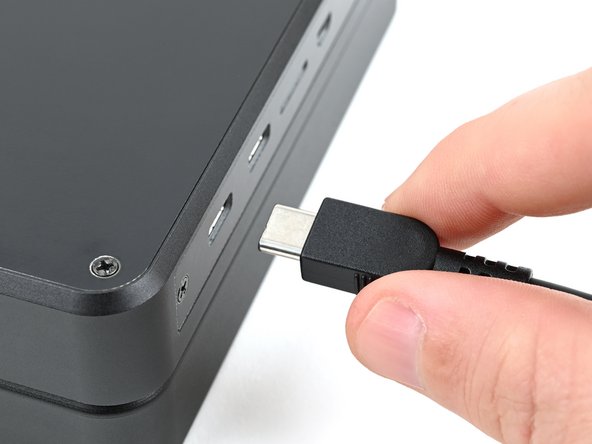
  1. Safety, Shut down the laptop: step 1, image 1 of 3 Safety, Shut down the laptop: step 1, image 2 of 3 Safety, Shut down the laptop: step 1, image 3 of 3
    • If you've installed an operating system, follow the appropriate steps to safely shut down the laptop.

    • If you've not yet installed an operating system, or the laptop is not responsive, you can shut it down with these steps:

    • Turn on the OLED screen by pressing the Hyper key (diagonal arrow) and Enter at the same time.

    • Use the arrow keys to select Power Off on the OLED screen.

    • Press Enter to shut down the laptop.

    • Disconnect all cables from the laptop.

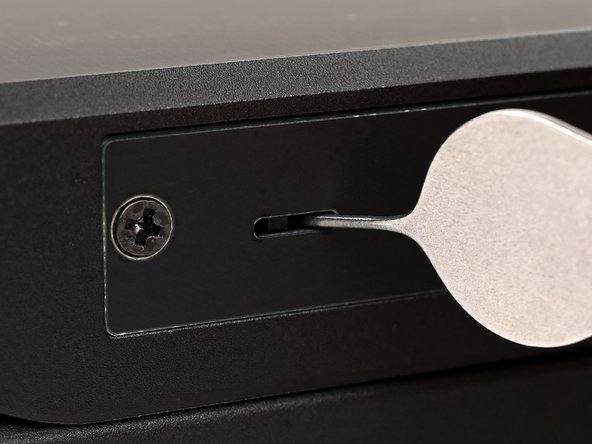
  2. Safety, Turn off the standby power: step 2, image 1 of 2 Safety, Turn off the standby power: step 2, image 2 of 2
    • Use a small tool, like a SIM eject tool or a bent paperclip, to turn off the standby power switch by sliding the switch away from the headset jack.

    • The standby power switch is located in a small recess on the same side as the headset jack.

Conclusion

To reassemble your device, follow these instructions in reverse order.

Spencer Pennington

Member since: 09/09/23

24,362 Reputation

126 Guides authored

Team

Guide Team Member of Guide Team

Staff

10 Members

16,343 Guides authored

0 Guide Comments

Add Comment

View Statistics:

Past 24 Hours: 0

Past 7 Days: 2

Past 30 Days: 7

All Time: 58