
Room Essentials FE10-CP Fan Motor Replacement Guide

Ashleigh Dukes and one other contributor
Last updated on Aug 13, 2026
Views: 168
View statistics:
- Past 24 Hours:
- 2
- Past 7 Days:
- 12
- Past 30 Days:
- 73
- All Time:
- 168
Comments: 0
No one has left comments on this guide. Will you be first?
Go to guide commentsCompleted: 0 1
No one has marked this guide "completed." Will you be the first?
1 person has marked this guide "completed." It's you — great job!
Favorites: 0 1
No one has favorited (and subscribed to) this guide. Will you be the first?
1 person has favorited (and subscribed to) this guide — and that's you!
Introduction
Go to step 1 ↓What you'll replace
Use this guide to replace the motor in a Room Essentials FE10-CP desk fan.
If your fan no longer spins, makes excessive noise, or the motor has failed, replacing the motor may restore normal operation.
This guide requires partial disassembly of the fan, including removal of the front grille, fan blade, rear housing, and motor assembly.
Before You Begin
- Unplug the fan before beginning the repair.
- Work on a clean, flat surface.
- Keep track of all screws during disassembly.
- Treat motor wiring or electrical connections with care.
What you need
Tools

-
-
-
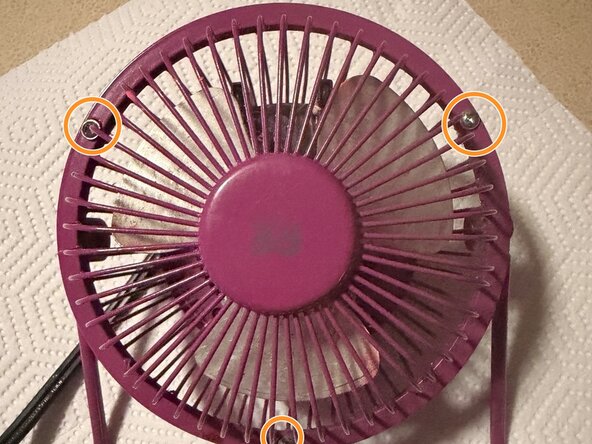
Remove the three top screws securing the front grille to expose the fan blades.
 Ask FixBot
-
-
-
Gently grasp the fan blades to avoid bending them.
-
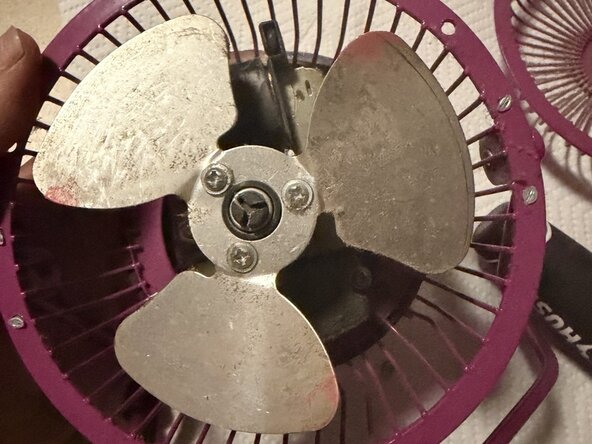
Remove the three screws securing the fan to the motor shaft.
-
Gently wiggle the fan loose and set it aside.
-
-
-
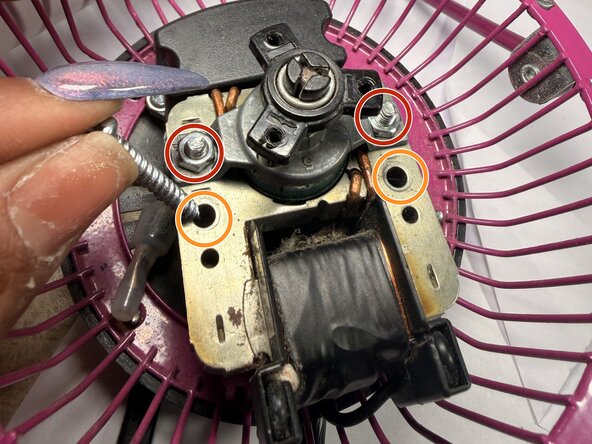
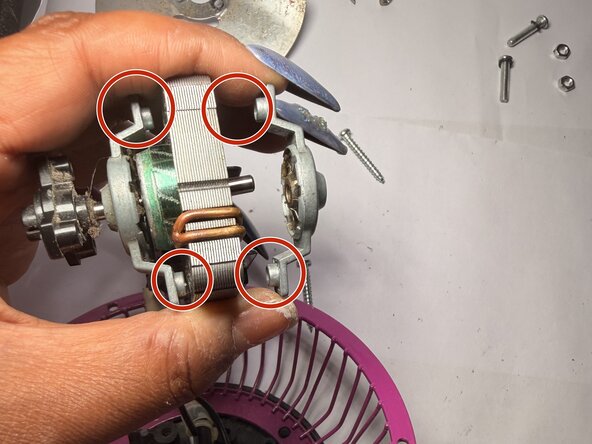
Remove the first pair of screws from the motor frame.
-
Remove the second pair of screws from the motor frame.
-
-
-
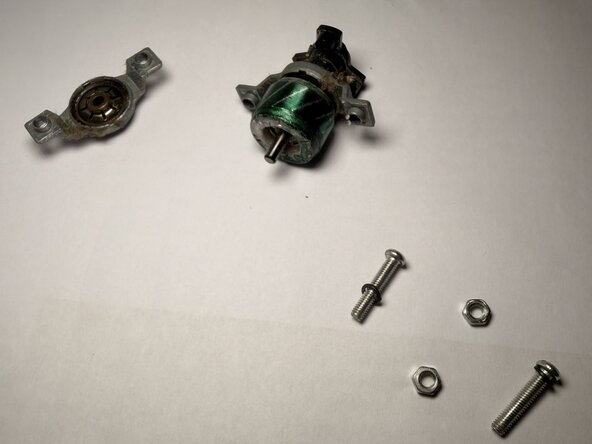
Remove the two Phillips screws and matching nuts securing the motor, fan blade assembly, and motor cover together.
-
-
-
Remove the motor cover and set it aside.
-
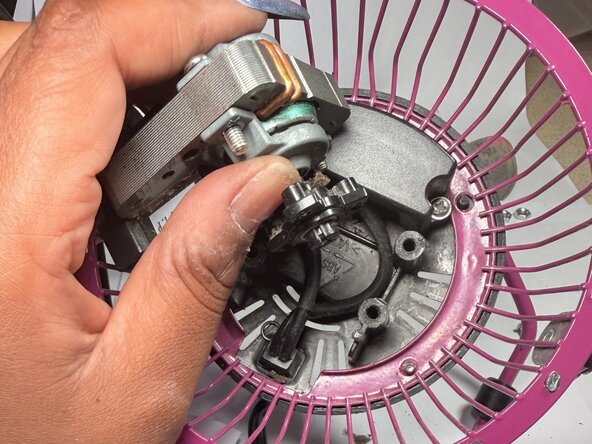
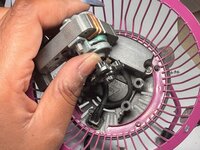
Carefully lift the motor out of the frame.
-
-
-
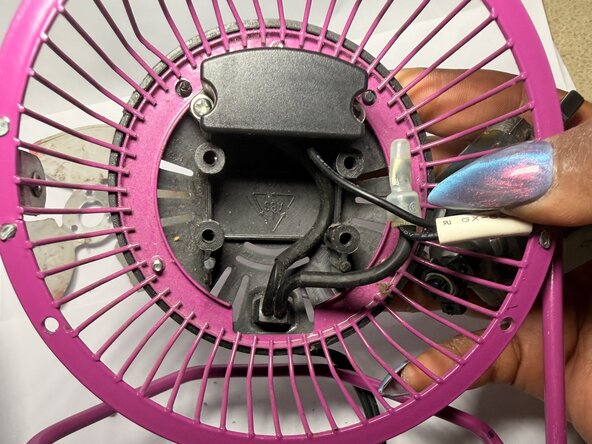
Position the replacement motor inside the housing.
-
Align the mounting holes on the motor with the holes in the housing.
-
-
-
Position the motor cover over the replacement motor.
-
Reinstall the two Phillips screws and matching nuts to secure the motor cover to the motor assembly.
-
-
-
-
Reinstall the motor assembly into the fan housing.
-
Reinstall the two Phillips screws to secure the motor assembly to the fan housing.
-
-
-
Reinstall the fan blade by pushing it fully onto the motor shaft until it is securely seated.
-
Reinstall the three Phillips screws to secure the fan blade.
-
-
-
Align the front grille with the rear housing.
-
Reinstall and tighten the 3 Phillips screws to secure the front grille to the rear housing.
-
-














Team

Austin Community College, Team 4-4, Cox Summer 2026 Member of Austin Community College, Team 4-4, Cox Summer 2026
AUSTINCC-COX-SU26S4G4
1 Member
12 Guides authored
