Introduction
LiDAR (Light Detection and Ranging) sensors are essential for navigation and obstacle avoidance. If the sensor is not functioning properly, it may affect the robot vacuum's ability to navigate and avoid obstacles. It can result in inaccurate data readings and navigation problems if the calibration is off or misaligned.
Regular cleaning may help, but in some cases, replacement might be necessary. It is recommended to troubleshoot the issue to ensure the problem is indeed with the sensor.
What you need
-
-
-
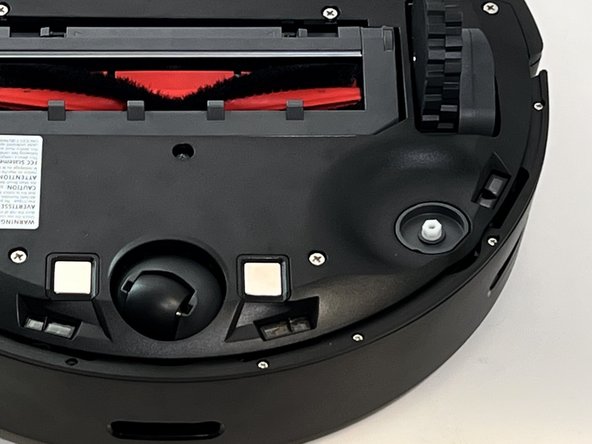
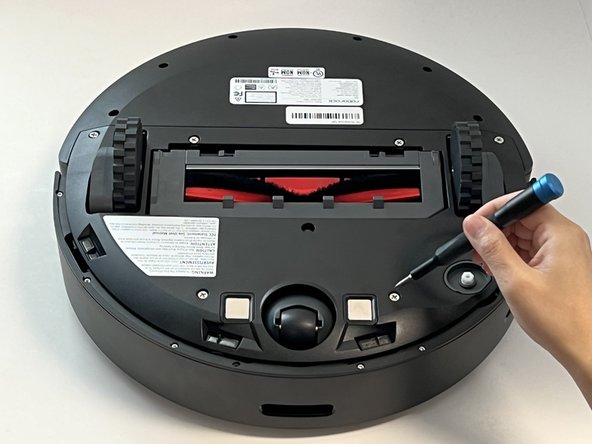
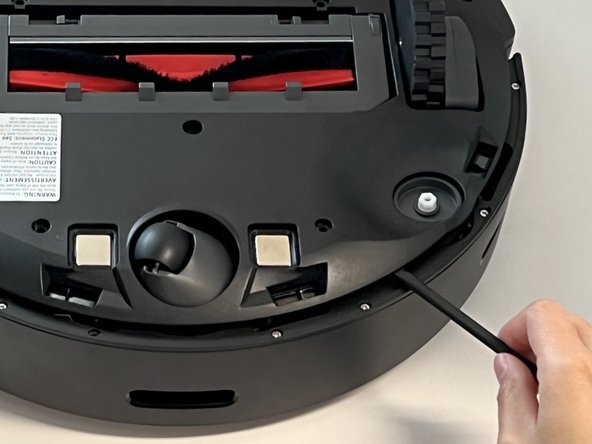
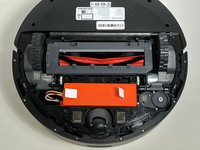
Power off your Roborock and place the device on a flat surface with the wheels facing up.
-
Position the robot so the five-pronged side brush is on the bottom right side.
 Ask FixBot
-
-
-
-
-
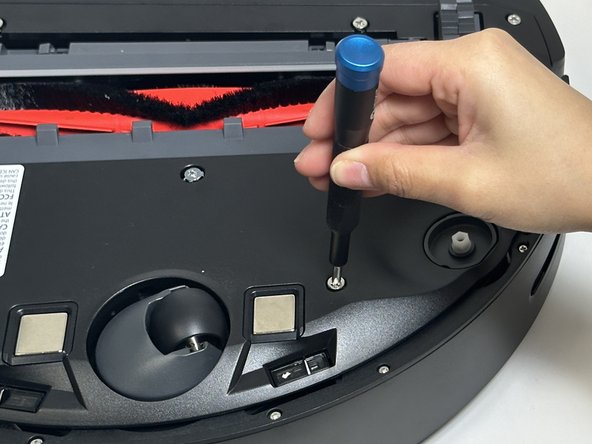
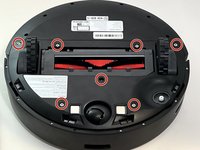
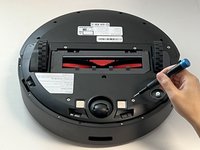
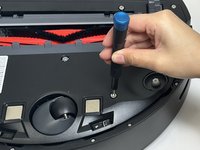
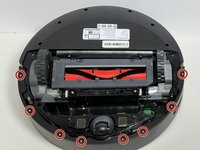
Use a Phillips screwdriver to remove the seven 15 mm screws from the bottom panel.
-
-
-
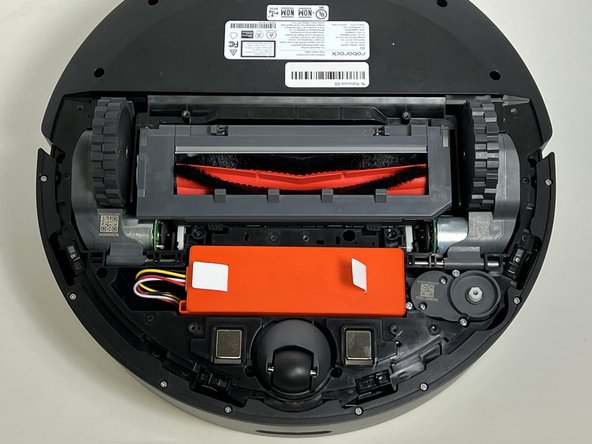
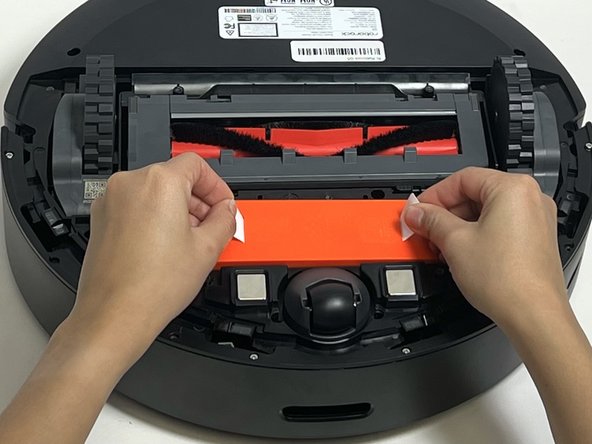
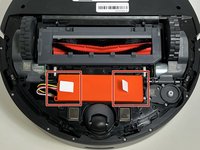
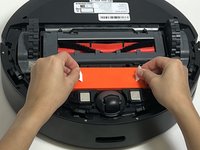
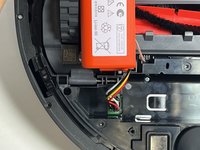
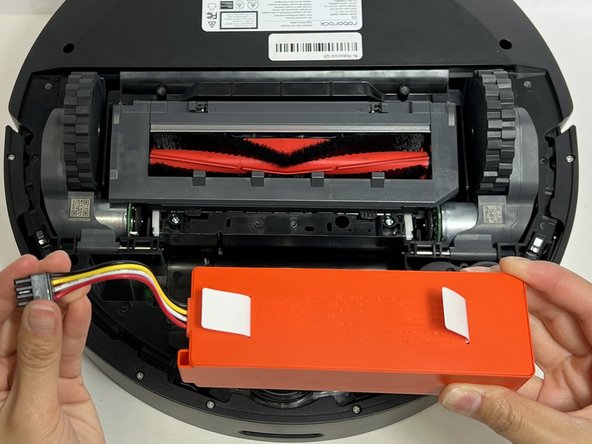
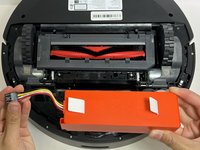
Use the two white straps to lift the battery out slightly to reveal the battery connector.
-
-
-
-
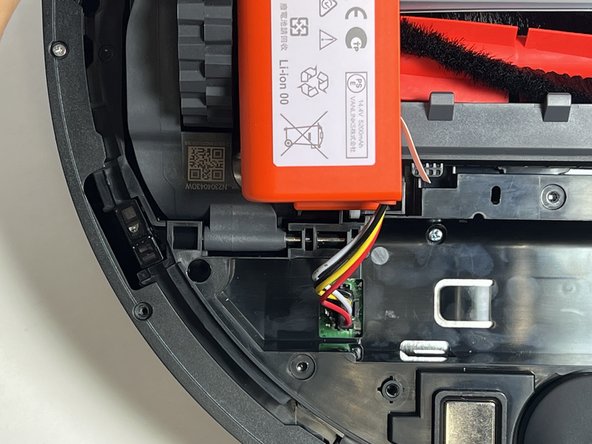
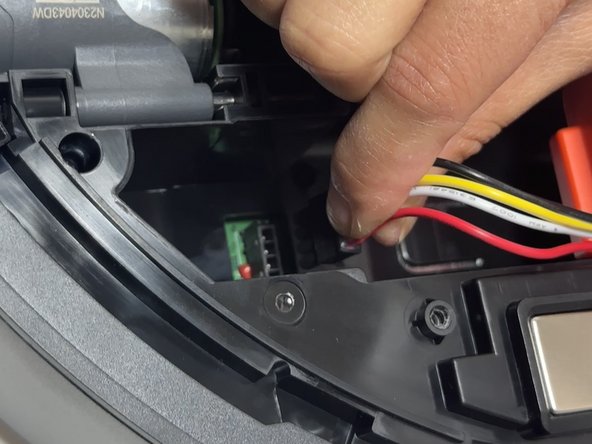
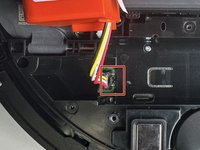
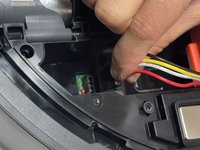
Using moderate pressure, squeeze and pull on the four-wire connector to disconnect the battery from the robot vacuum.
-
-
-
-
-
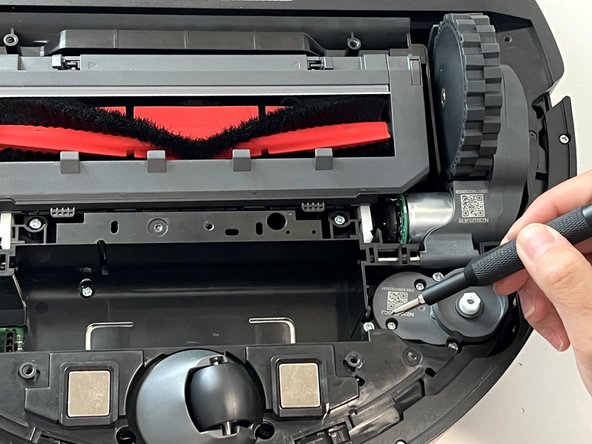
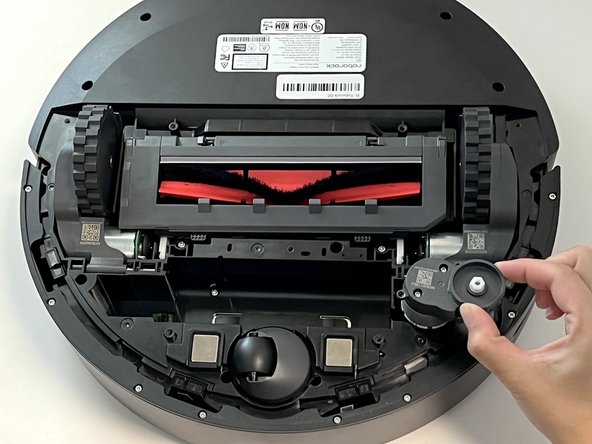
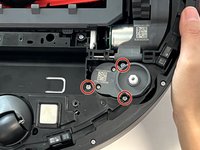
Remove the three 10 mm Phillips screws that secure the side brush motor.
-
Lift the side brush motor up and out of its housing.
-
-
-
Use a Phillips #1 screwdriver to remove the eight 11 mm screws from the front sensor panel cover.
-
-
-
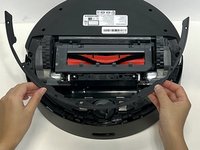
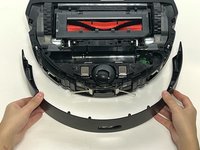
Gently lift and remove he thin black sensor housing bracket.
-
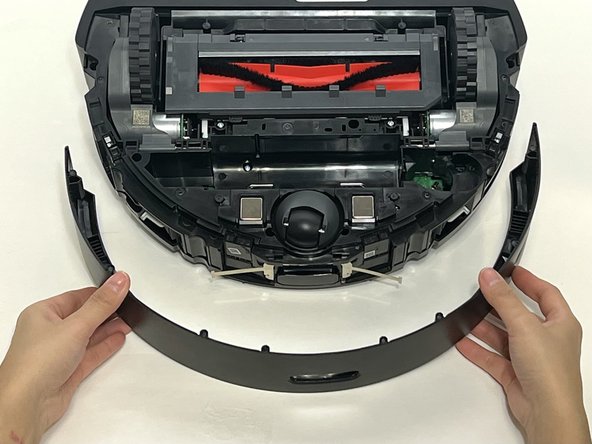
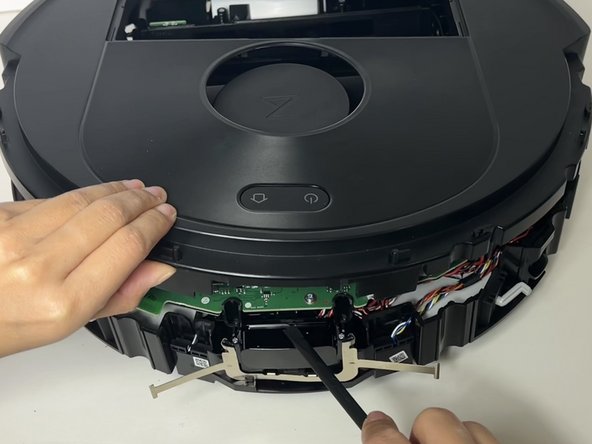
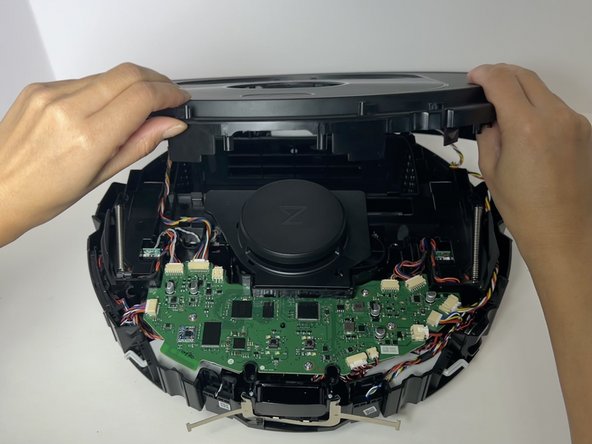
Pull the front sensor panel cover away from the robot.
-
-
-
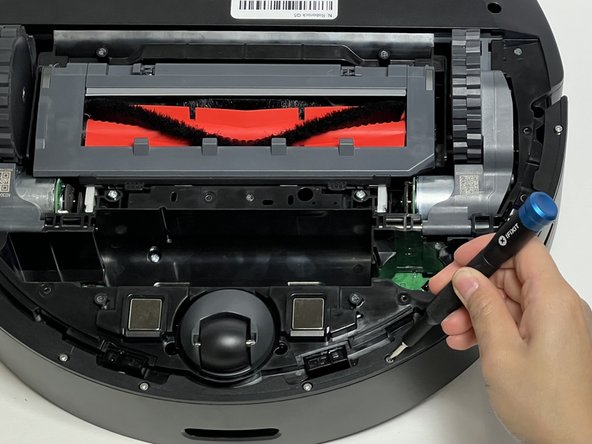
Use a Phillips screwdriver to remove one 14 mm Phillips screw from the battery housing.
-
Use a Phillips screwdriver to remove the eleven deep-set 14 mm Phillips screws from the bottom panel.
-
-
-
Carefully flip the device and set it down.
-
Pinch together the two dustbin tabs and pull up on the dustbin to remove it.
-
-
-
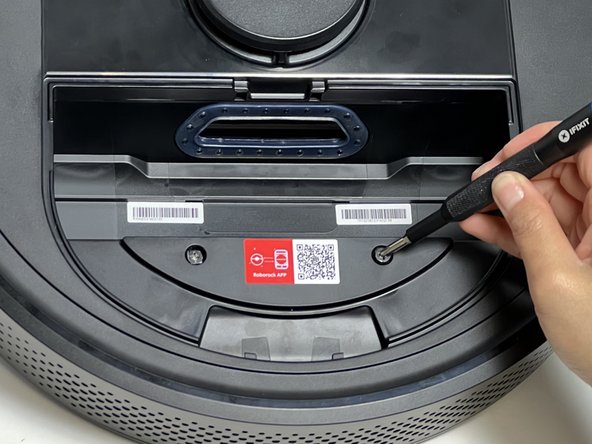
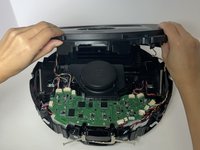
Use a Phillips #2 screwdriver to remove two 15 mm Phillips screws from the front panel cover.
-
-
-
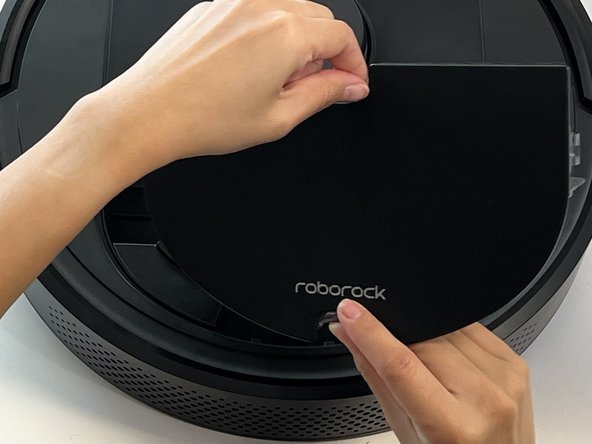
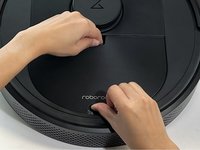
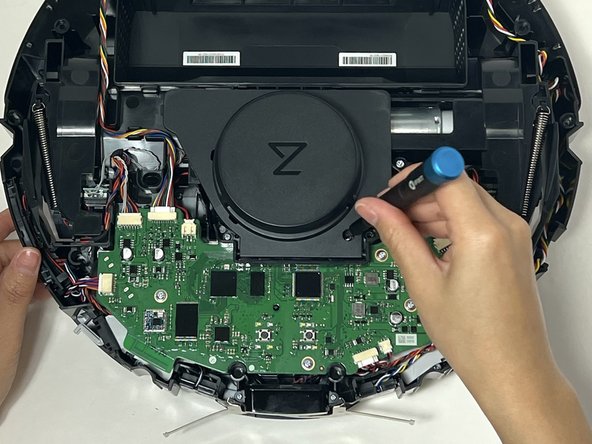
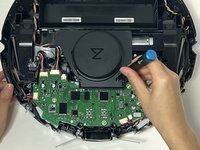
Use a Phillips #1 screwdriver to remove the two 10 mm screws from the LiDar sensor cover.
-
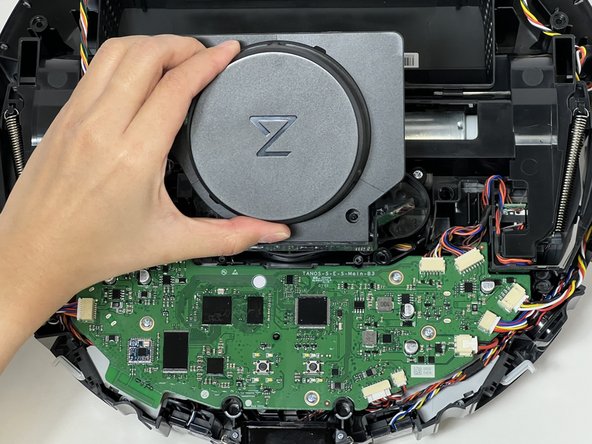
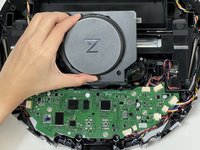
Gently lift off the sensor cover.
-
-
-
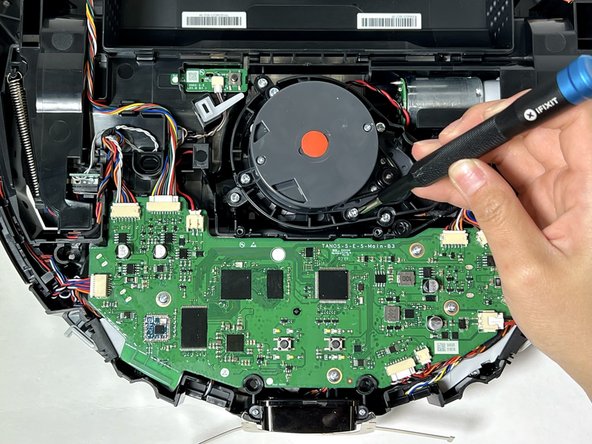
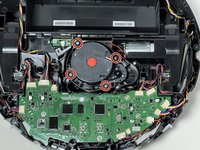
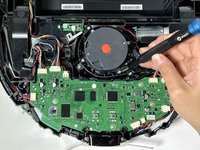
Use a Phillips #1 screwdriver to remove the four 9 mm screws that secure the LiDar sensor.
-
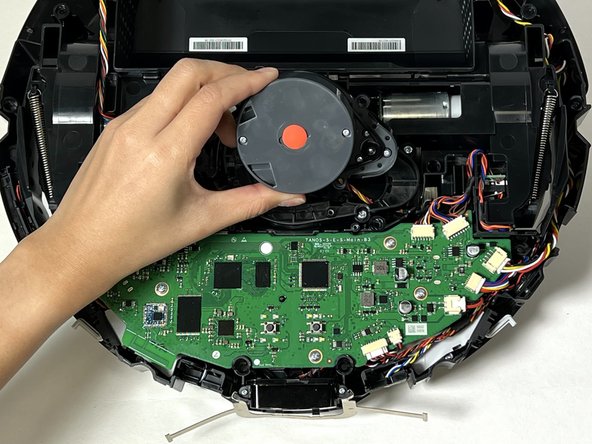
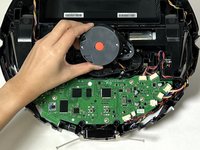
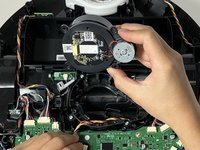
Lift the sensor from the vacuum.
-
-
-
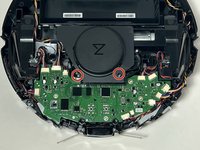
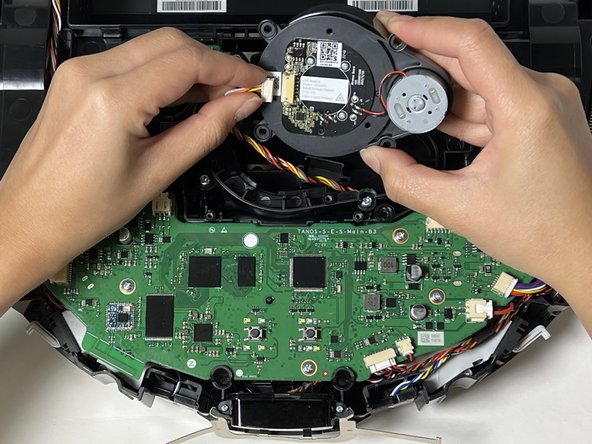
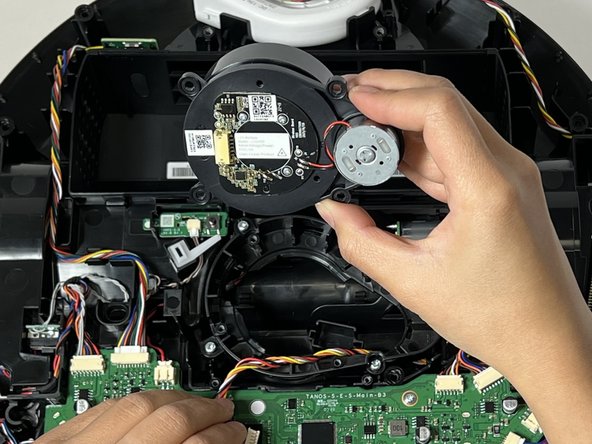
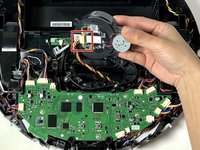
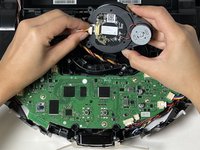
Grip and the white LiDar sensor cable connector and pull it directly out of its socket.
-
Remove the LiDar sensor.
-
-











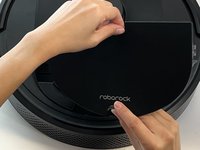





To reassemble your device, follow these instructions in reverse order.
Cancel: I did not complete this guide.
4 other people completed this guide.

Team

Austin Community College, Team 18-1, Watkins Spring 2024 Member of Austin Community College, Team 18-1, Watkins Spring 2024
AUSTINCC-WATKINS-S24S18G1
4 Members
72 Guides authored
2 Guide Comments
The replacement lidar sensor is available on Ali Express. OEM model # is LDS04RR. Here's a link to the correct part (as of Sept 2025): Original Roborock LDS Replacement LDS04RR For Robot Vacuum Cleaner Q5 / Q7/ Q7 Max / S8 Series Accessories Laser Distance Sensor - AliExpress
Before replacing, take a good look at the motor shaft of the lidar sensor - it can get tangled with hair and lint and may be the reason your sensor is not spinning. Cleaning the shaft may save the need for a new part (but not the hassle of dissassembly)
The replacement lidar sensor is available on Ali Express. OEM model # is LDS04RR. Here's a link to the correct part (as of Sept 2025): Original Roborock LDS Replacement LDS04RR For Robot Vacuum Cleaner Q5 / Q7/ Q7 Max / S8 Series Accessories Laser Distance Sensor - AliExpress
Before replacing, take a good look at the motor shaft of the lidar sensor - it can get tangled with hair and lint and may be the reason your sensor is not spinning. Cleaning the shaft may save the need for a new part (but not the hassle of dissassembly)
