Free Shipping on Domestic Orders $75+

Retroid Pocket 3 LCD Screen Replacement

What you need

  1. Retroid Pocket 3 LCD Screen Replacement, Battery: step 1, image 1 of 1
    • Unplug any cables connected to the Retroid Pocket 3+.

    • Ensure your device has a charge of 5% or less as a charged battery can be dangerous if punctured.

    Ask FixBot

    Add Comment

  2. Retroid Pocket 3 LCD Screen Replacement: step 2, image 1 of 3 Retroid Pocket 3 LCD Screen Replacement: step 2, image 2 of 3 Retroid Pocket 3 LCD Screen Replacement: step 2, image 3 of 3
    • Remove the four 6 mm screws from the backplate of the device with a T5 Torx screwdriver.

    • Use a plastic opening tool or spudger to gently pry apart the backplate from the device.

    Ask FixBot

    Add Comment

  3. Retroid Pocket 3 LCD Screen Replacement: step 3, image 1 of 2 Retroid Pocket 3 LCD Screen Replacement: step 3, image 2 of 2
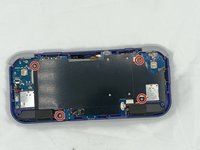
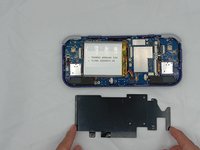
    • Remove the four 4.5 mm screws with a Phillips #00 screwdriver.

    • Lift off the metal plate.

    Ask FixBot

    Add Comment

  4. Retroid Pocket 3 LCD Screen Replacement: step 4, image 1 of 3 Retroid Pocket 3 LCD Screen Replacement: step 4, image 2 of 3 Retroid Pocket 3 LCD Screen Replacement: step 4, image 3 of 3
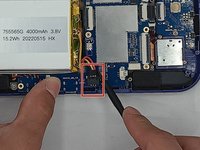
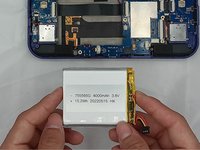
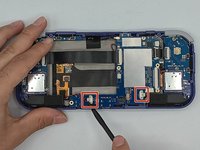
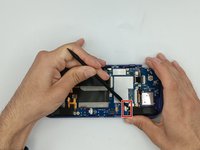
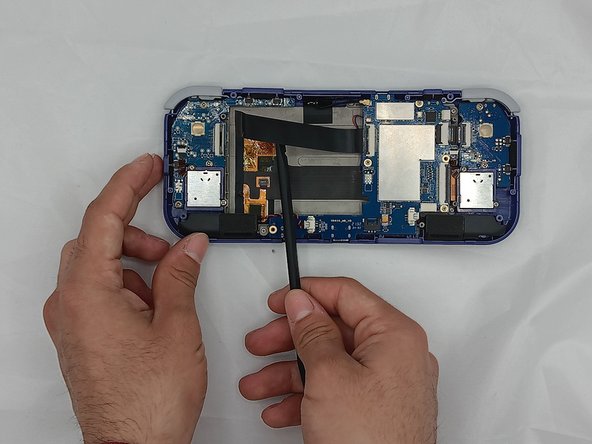
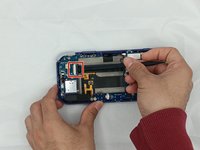
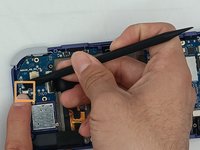
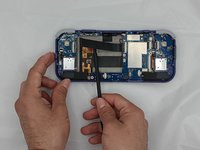
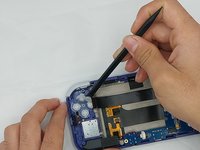
    • Use a plastic opening tool or spudger to unclip the battery connector.

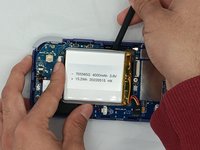
    • Carefully lift the battery from the case.

    • The battery has double-sided tape at the bottom. Gently push a spudger or opening tool underneath the battery to help free it from the adhesive. Do not bend or puncture the battery.

    • Lift and remove the battery.

    Ask FixBot

    Add Comment

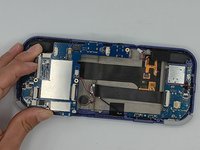
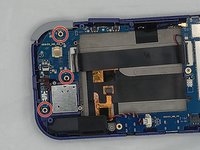
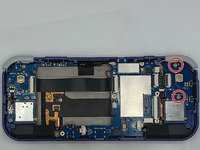
  5. Retroid Pocket 3 LCD Screen Replacement, Motherboard: step 5, image 1 of 1
    • Remove the three 4.5 mm screws with a Phillips #00 screwdriver on the main board.

    Ask FixBot

    Add Comment

  6. Retroid Pocket 3 LCD Screen Replacement: step 6, image 1 of 1
    • Using a spudger, put the tip under the aerial connecter and rotate upwards to unclip the plug.

    Ask FixBot

    Add Comment

  7. Retroid Pocket 3 LCD Screen Replacement: step 7, image 1 of 1
    • Unclip and remove the one ribbon cable on the left.

    Ask FixBot

    Add Comment

  8. Retroid Pocket 3 LCD Screen Replacement: step 8, image 1 of 1
    • Use a spudger to unclip and remove the two ribbon cables on the right side.

    Ask FixBot

    Add Comment

  9. Retroid Pocket 3 LCD Screen Replacement: step 9, image 1 of 2 Retroid Pocket 3 LCD Screen Replacement: step 9, image 2 of 2
    • Use a spudger to disconnect the two speaker cables on the bottom of the board.

    Ask FixBot

    Add Comment

  10. Retroid Pocket 3 LCD Screen Replacement: step 10, image 1 of 3 Retroid Pocket 3 LCD Screen Replacement: step 10, image 2 of 3 Retroid Pocket 3 LCD Screen Replacement: step 10, image 3 of 3
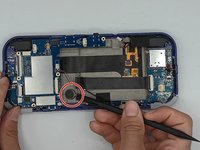
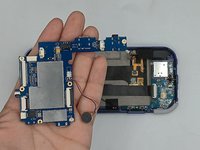
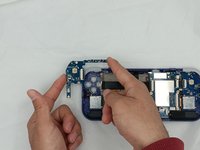
    • Start lifting the board to give you access to the vibration motor on the metal case.

    • Use a spudger to carefully pry the motor free; it is bound with double-sided tape.

    • Carefully lift the board out of the device.

    Ask FixBot

    Add Comment

  11. Retroid Pocket 3 LCD Screen Replacement, Button Pad: step 11, image 1 of 3 Retroid Pocket 3 LCD Screen Replacement, Button Pad: step 11, image 2 of 3 Retroid Pocket 3 LCD Screen Replacement, Button Pad: step 11, image 3 of 3
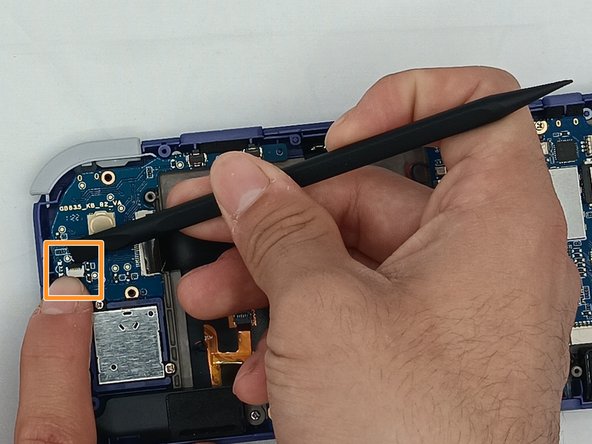
    • Undo the ribbon cable clips using the Spudger tool.

    • Unclip the cable on the left side of the board.

    • Carefully lift the ribbon cable to the right to remove it from the clip.

    Ask FixBot

    Add Comment

  12. Retroid Pocket 3 LCD Screen Replacement: step 12, image 1 of 2 Retroid Pocket 3 LCD Screen Replacement: step 12, image 2 of 2
    • Use a Phillips #00 screwdriver to remove the three 5.9 mm screws from the controller board.

    • Carefully lift the board out of the device.

    Ask FixBot

    Add Comment

  13. Retroid Pocket 3 LCD Screen Replacement: step 13, image 1 of 2 Retroid Pocket 3 LCD Screen Replacement: step 13, image 2 of 2
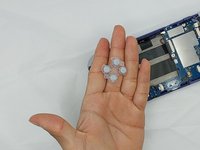
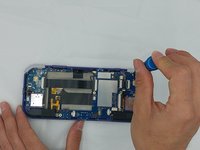
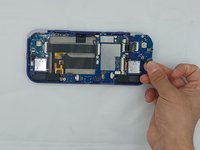
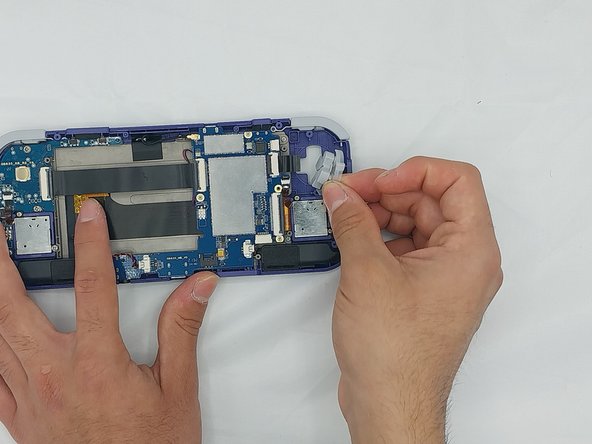
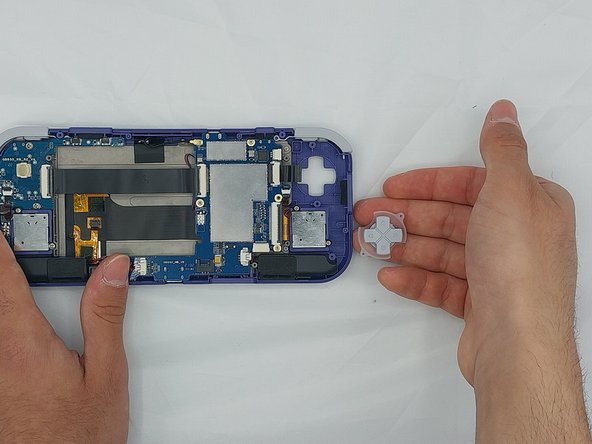
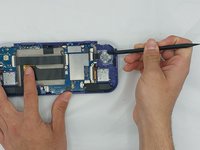
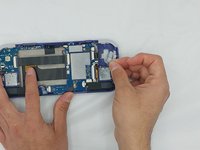
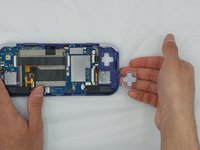
    • Using the Spudger tool, put the tip under the edge of the rubber button pad to start lifting it.

    • Button pad will loosen and lift straight out of the casing.

    Ask FixBot

    Add Comment

  14. Retroid Pocket 3 LCD Screen Replacement: step 14, image 1 of 1
    • Move to the right side of the device.

    • Using a spudger, undo the ribbon cable clip connected to the main PCB along with the joystick ribbon cable.

    Ask FixBot

    Add Comment

  15. Retroid Pocket 3 LCD Screen Replacement: step 15, image 1 of 3 Retroid Pocket 3 LCD Screen Replacement: step 15, image 2 of 3 Retroid Pocket 3 LCD Screen Replacement: step 15, image 3 of 3
    • Use a Phillips #00 screwdriver to remove the two 5.9 mm screws.

    • Carefully lift the board out of the device.

    Ask FixBot

    Add Comment

  16. Retroid Pocket 3 LCD Screen Replacement: step 16, image 1 of 3 Retroid Pocket 3 LCD Screen Replacement: step 16, image 2 of 3 Retroid Pocket 3 LCD Screen Replacement: step 16, image 3 of 3
    • Carefully pry up the silicone button pad with a Spudger tool.

    Ask FixBot

    Add Comment

  17. Retroid Pocket 3 LCD Screen Replacement, Trigger Button: step 17, image 1 of 3 Retroid Pocket 3 LCD Screen Replacement, Trigger Button: step 17, image 2 of 3 Retroid Pocket 3 LCD Screen Replacement, Trigger Button: step 17, image 3 of 3
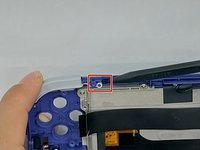
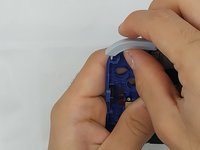
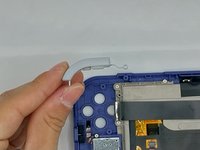
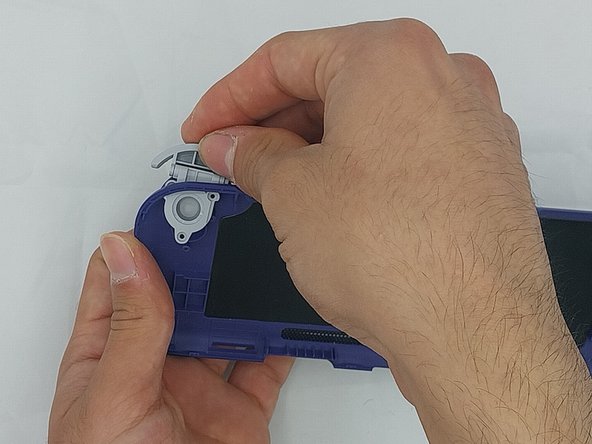
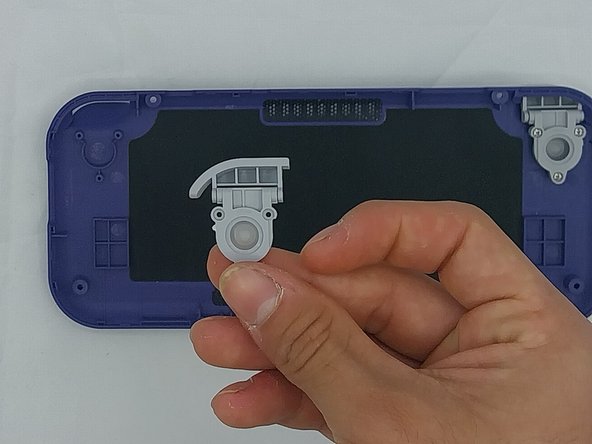
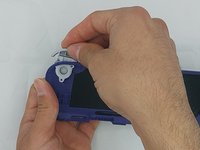
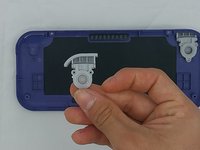
    • Using the spudger, put the tip under the top round clip at the top.

    • Carefully start lifting the clip to slide it off the plastic pin on the case, tilting the trigger button as you lift it to remove.

    Ask FixBot

    Add Comment

  18. Retroid Pocket 3 LCD Screen Replacement: step 18, image 1 of 3 Retroid Pocket 3 LCD Screen Replacement: step 18, image 2 of 3 Retroid Pocket 3 LCD Screen Replacement: step 18, image 3 of 3
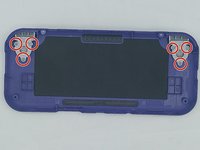
    • Remove the six 4.4 mm screws on the trigger buttons with a Phillips #00 screwdriver.

    • Gently pull the trigger button through until it has come undone.

    Ask FixBot

    Add Comment

  19. Retroid Pocket 3 LCD Screen Replacement, LCD Screen: step 19, image 1 of 3 Retroid Pocket 3 LCD Screen Replacement, LCD Screen: step 19, image 2 of 3 Retroid Pocket 3 LCD Screen Replacement, LCD Screen: step 19, image 3 of 3
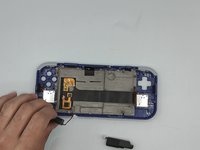
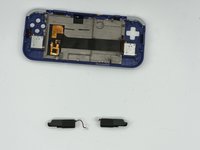
    • Using the Spudger tool, remove the two speakers at the bottom of the device by gently prying them out.

    • Speakers are held by double-sided tape.

    Ask FixBot

    Add Comment

  20. Retroid Pocket 3 LCD Screen Replacement: step 20, image 1 of 3 Retroid Pocket 3 LCD Screen Replacement: step 20, image 2 of 3 Retroid Pocket 3 LCD Screen Replacement: step 20, image 3 of 3
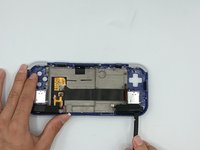
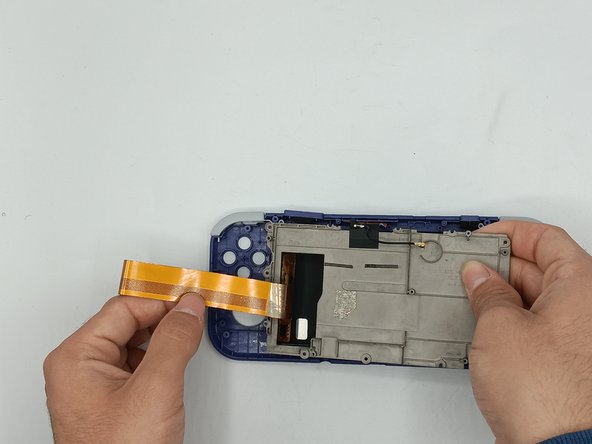
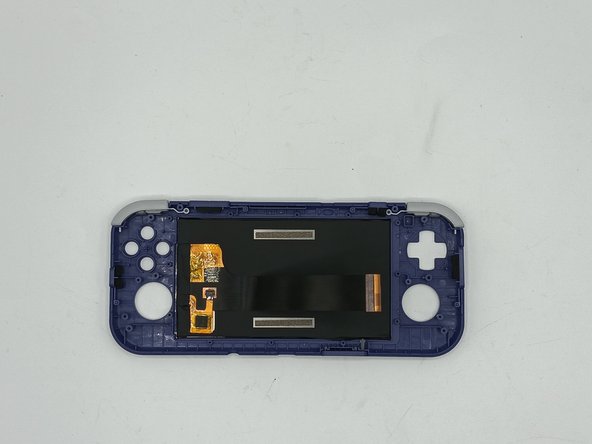
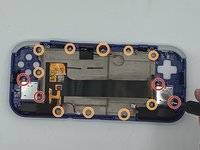
    • Remove the joysticks by unscrewing the two 3.5mm screws with a Phillips #00 screwdriver.

    • Remove the metal backplate from the front casing of the device by unscrewing the ten 3.5mm screws using the Phillips #00 screwdriver.

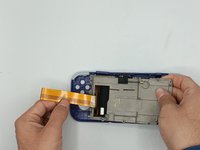
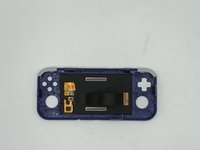
    • Carefully lift the ribbon cable from the metal backplate

    Ask FixBot

    Add Comment

Conclusion

To reassemble your device, follow these instructions in reverse order.

Cancel: I did not complete this guide.

Troy

Member since: 02/08/24

85 Reputation

1 Guide authored

1 Guide Comment

Hello. Can you tell where I can find a new replacement screen?


Aliaksandr - Reply Share

Add Comment

View Statistics:

Past 24 Hours: 4

Past 7 Days: 23

Past 30 Days: 85

All Time: 2,379