Free Shipping on Domestic Orders $75+

This translation was generated by a machine and has not been reviewed by a person yet. Speak this language? Review it.

Restarting an ASUS Chromebook

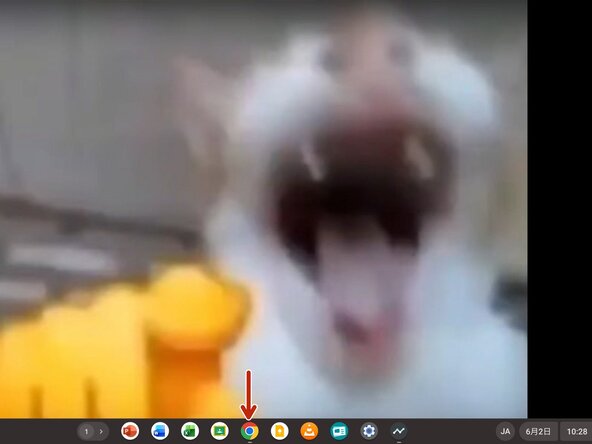
    1. Restarting an ASUS Chromebook, Opening the Chromebook: step 1, image 1 of 1
      • First, please open the home screen of your Chromebook.

      • My home screen is a laughing cat. Please look at the bottom.

      Ask FixBot

      Add Comment

    2. Restarting an ASUS Chromebook, Open Chrome: step 2, image 1 of 1
      • Open Chrome.

      • If you cannot find it, download it from the store, or press the Launcher button (the 🔍️ icon) to open Chrome.

      Ask FixBot

      Add Comment

    3. Restarting an ASUS Chromebook, Open Chrome: step 3, image 1 of 1
      • Chrome screen.

      Ask FixBot

      Add Comment

    4. Restarting an ASUS Chromebook, Click the address bar: step 4, image 1 of 1
      • Click the address bar.

      Ask FixBot

      Add Comment

    5. Restarting an ASUS Chromebook, Enter the command: step 5, image 1 of 1
      • Enter chrome://restart in the address bar.

      • After entering it, press Enter.

      Ask FixBot

      Add Comment

Conclusion

After following this step, the screen will go black for a few seconds and then the device will restart.

Because there is a risk of damaging data currently in use, please save your work before proceeding.

Cancel: I did not complete this guide.

Repair Cat

Member since: 05/16/25

2,884 Reputation

3 Guides authored

0 Guide Comments

Add Comment

View Statistics:

Past 24 Hours: 5

Past 7 Days: 30

Past 30 Days: 70

All Time: 114