Free Shipping on Domestic Orders $75+

Replace BIOS battery

Archived Guide
This guide is retained solely for historical purposes. Use the updated version of the guide to perform your repair.

What you need

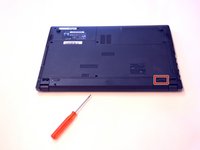
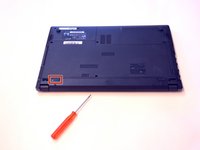
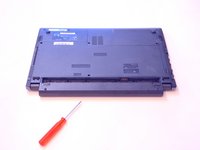
    1. Replace BIOS battery, Battery: step 1, image 1 of 3 Replace BIOS battery, Battery: step 1, image 2 of 3 Replace BIOS battery, Battery: step 1, image 3 of 3
      • Open the latch on the right side that secures the battery in place.

      • Open the latch on the left side that secures the battery in place.

      • Now remove the battery.

      Ask FixBot

      Add Comment

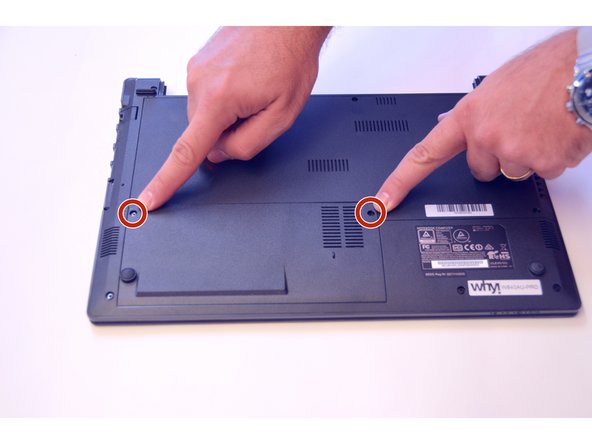
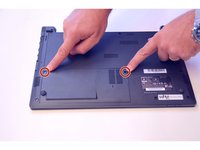
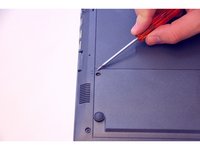
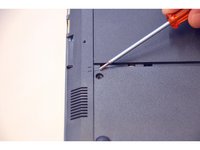
    1. Replace BIOS battery, Access to the components 1: step 2, image 1 of 3 Replace BIOS battery, Access to the components 1: step 2, image 2 of 3 Replace BIOS battery, Access to the components 1: step 2, image 3 of 3
      • Use the Philips screwdriver to remove the two screws on the bottom cover.

      • Check the markers to determine how to remove the cover.

      • Now remove the cover as prescribed by the markers.

      Ask FixBot

      Add Comment

    2. Replace BIOS battery: step 3, image 1 of 1
      • The components HDD hard disk and BIOS battery are now visible.

      Ask FixBot

      Add Comment

    1. Replace BIOS battery, BIOS battery: step 4, image 1 of 2 Replace BIOS battery, BIOS battery: step 4, image 2 of 2
      • Pull out the plug of the battery first.

      • Then carefully remove the battery (attention glue).

      Ask FixBot

      Add Comment

Conclusion

To assemble the device again, proceed in reverse order.

Cancel: I did not complete this guide.

Special thanks to these translators:

de en

100%

irlanda is helping us fix the world! Want to contribute?
Start translating ›

Felice Suglia

Member since: 06/15/13

33,634 Reputation

283 Guides authored

0 Guide Comments

Add Comment

View Statistics:

Past 24 Hours: 0

Past 7 Days: 2

Past 30 Days: 14

All Time: 339